SmoredBoard Guide
Complete guide to seting up and using the SmoredBoard
How to Use with Other Software
First open the Game or Software you want to use the SmoredBoard with. Next go the softwares audio settings and set the input (microphone) to "CABLE Output". Now any sound played through the SmoredBoard will be heard in the Game or Software.
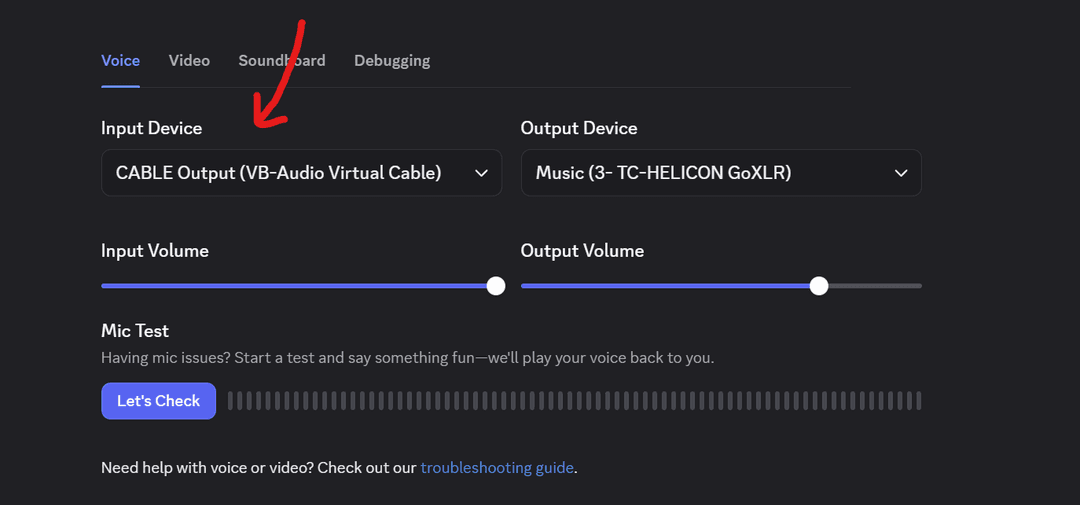
NOTE: if using the SmoredBoard with Discord there are actually a few other settings you need to change for it to sound right. Follow this guide to learn what: SmoredBoard Not Working In Discord
If you set the Input device in the software you're trying to use it with to CABLE Output and it's still not working, check out this help doc to troubleshoot: SmoredBoard Troubleshooting Audio
How to Edit Audio Devices
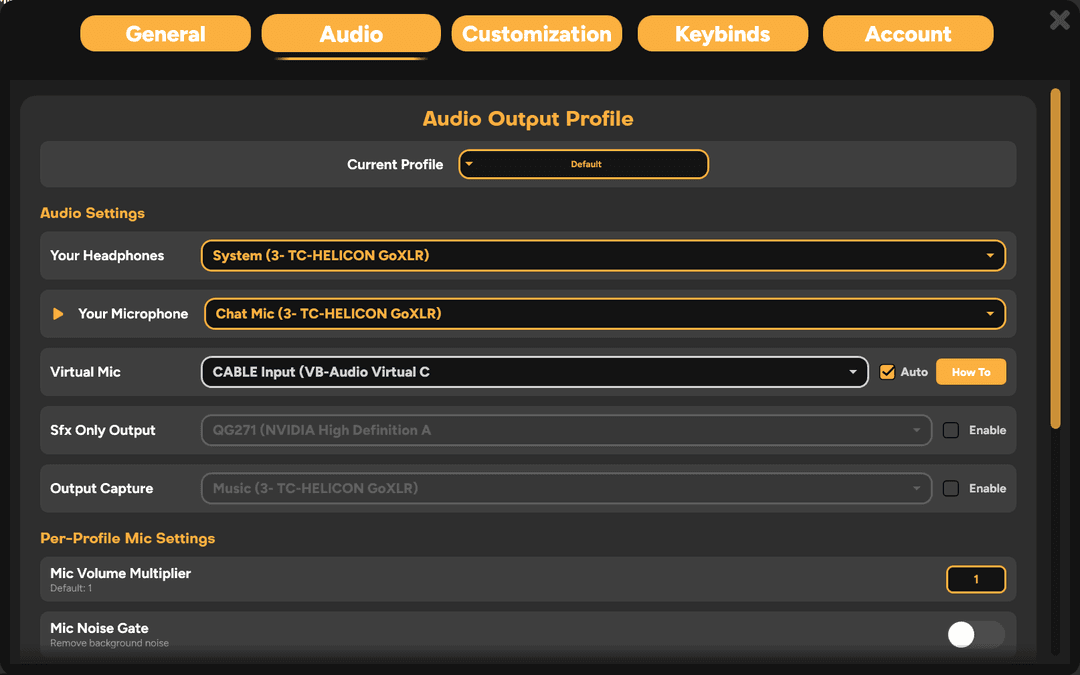
To edit the audio devices in the SmoredBoard, open settings, then go to the Audio tab. Here you can change the Input and Output devices by clicking on the dropdowns and selecting whichever device you want to use.
Editing mic settings
There are quite a few mic settings you can change in the SmoredBoard to improve mic performance and compatibility. To learn about them, click the link below to go to the dedicated help doc: Editing Mic Settings
How to Change Volume of Audio Devices
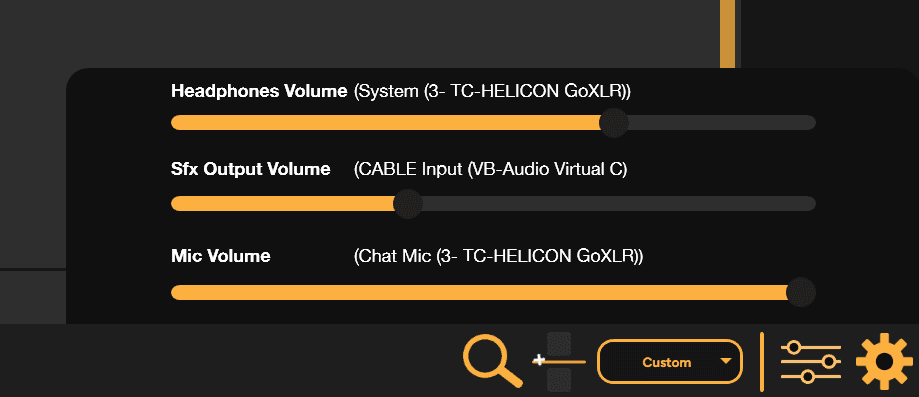
You can change the volume of your mic, sounds, and the SmoredBoard output all super easily by clicking the mixer button on the bottom right of the SmoredBoard.
How to Make a Profile
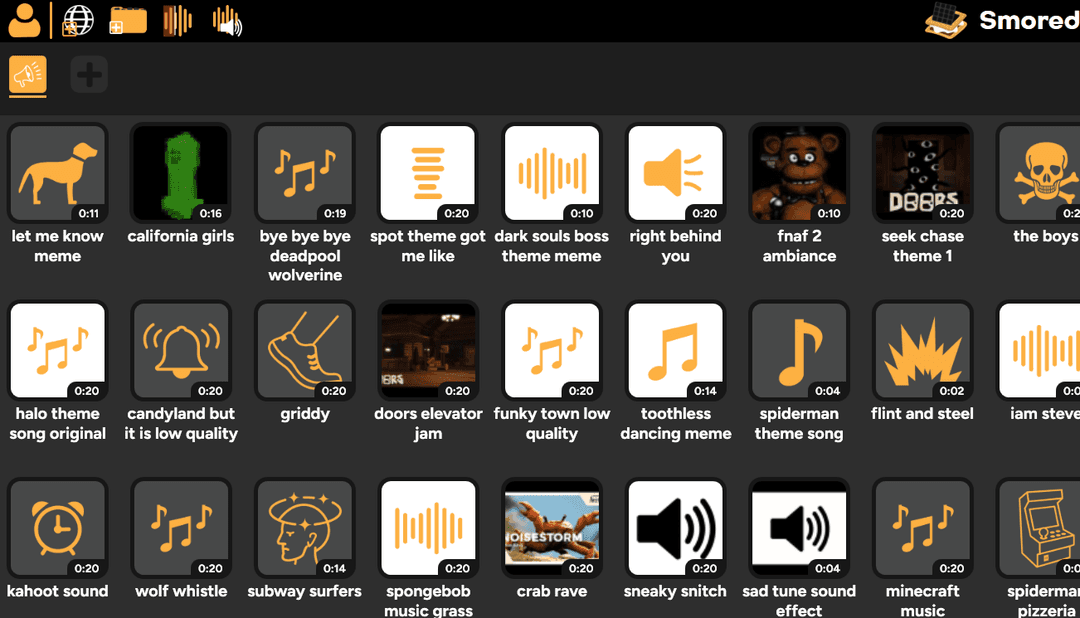
To make a profile in the SmoredBoard, simply look for the profile bar along the top the SmoredBoard. Then click the "+" button to create a new profile.
NOTE: In the free version of the SmoredBoard you can only create 1 unlocked profile. What is a unlocked profile?
How to Change or Load a Profile
To change or load a profile in the SmoredBoard, look for on the profile bar along the top of the SmoredBoard and click on the profile you want to load!
NOTE: If you don't see any profile buttons, try creating a new profile or loading a backup of your profiles if it was lost (you can load backups by clicking the "Recover" button in the General page of the SmoredBoard's settings)
How to Add Sounds
There are multiple different ways you can add sounds in the SmoredBoard. I'll list them all out here and you can use whichever one you like best!
SmoredBoard Browser
This is the easiest way to discover sounds to add. Simply open the SmoredBoard Browser by clicking the Browser icon in the top left of the SmoredBoard.
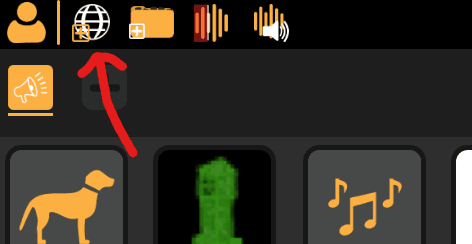
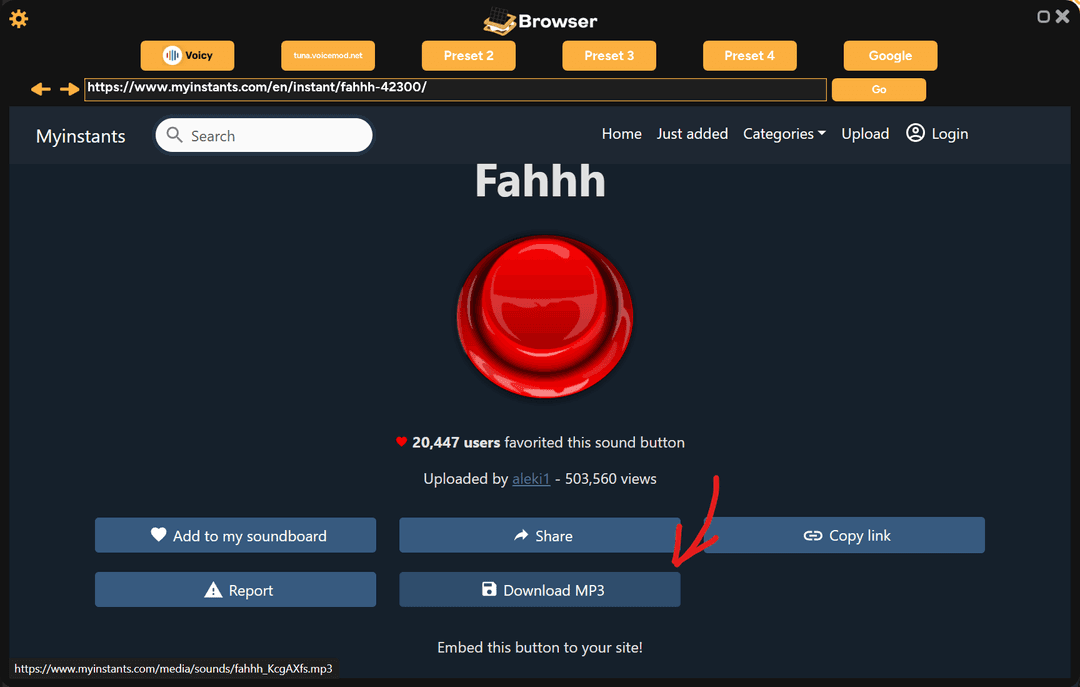
Once in the browser navigate to whichever website you want to get sounds from. Here is a list of good ones:
Then download whatever sound you want and the SmoredBoard Browser will automatically detect the download and add it to your currently loaded profile!
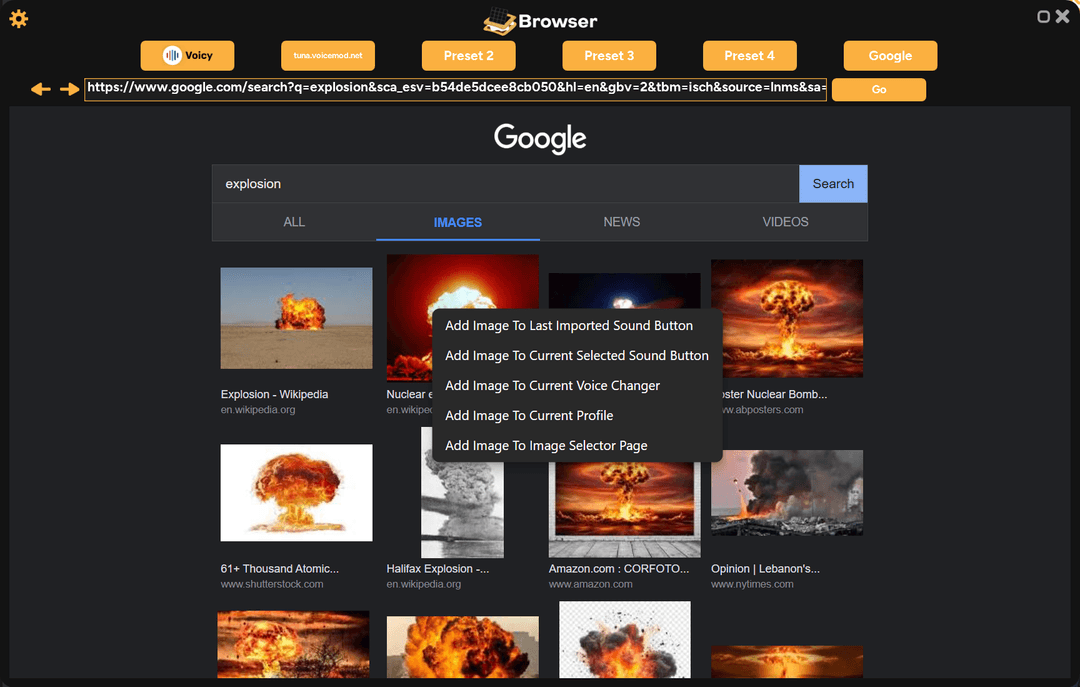
NOTE: You can also right click images to download and add them to a sound button
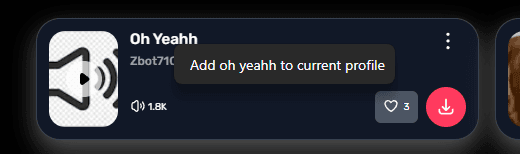
Also, on Voicy's site you can right-click the name of any sound you want to add, and can click 'Add To Current Profile' which will autoamtically download the sound and it's image for you
Drag and Drop
If you already have some sound files on your computer you want to add, just drag and drop them from file explorer into the SmoredBoard and they will automatically be added to your currently loaded profile!
NOTE: You can drag and drop multiple audio files at once to save time
Add Sounds Page
You can also use the Add Sounds Page to easily see all different ways to add sounds. To access it click on the Folder icon on the top left of the SmoredBoard

Once it opens just click on whichever option you want to add sounds to your profile!
SmoredBoard Profiles
You can also add sounds by importing SmoredBoard profiles shared by other users. Once you have a .smored file just drag and drop it into the SmoredBoard, then choose whether to Load it as a new profile, or add all the sounds into an already made profile.
NOTE: You can get Smored's SmoredBoard profiles here: smored.com
How to Add/Change Images
There are multiple ways to add images to sounds, voice changers, and profiles in the SmoredBoard. Here are the different ways:
SmoredBoard Browser
This is the easiest way to discover images to add. Simply open the SmoredBoard Browser by clicking the Browser icon in the top left of the SmoredBoard.
Then go on Google and search for whatver image you want. Once you find an image, right click it and select which "Add Image To ..." option you want to add it to!
Drag and Drop
This is the easiest way to add images you already have on your computer. Simply drag and drop the image file from file explorer into the SmoredBoard, and it will add it to whichever sound button, voice changer, or profile you currently have selected!
NOTE: You can tell which you have currently selected by looking at the sidebar
"Change Image" page
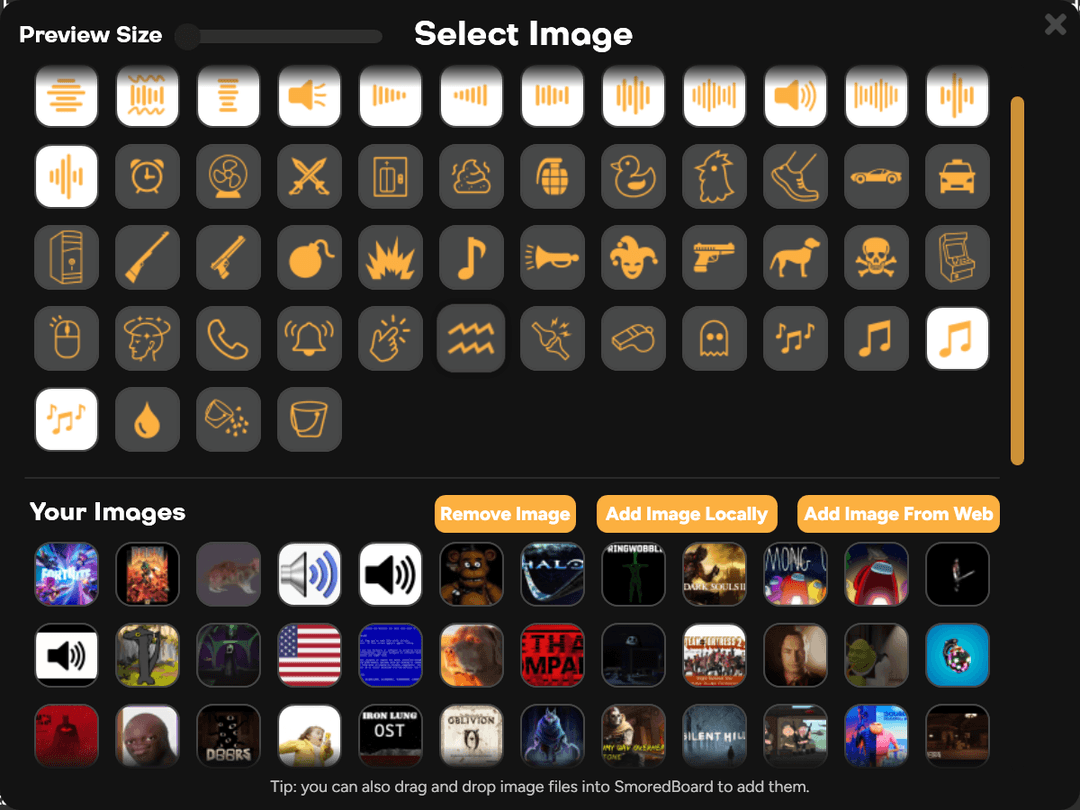
The "Change Image" page allows you to choose between built in images in the SmoredBoard, quick buttons to add images via file explorer or the Browser, as well as any images you have already imported into the SmoredBoard.
To access it right click any sound button, custom voice changer, or profile and select "Change Image".
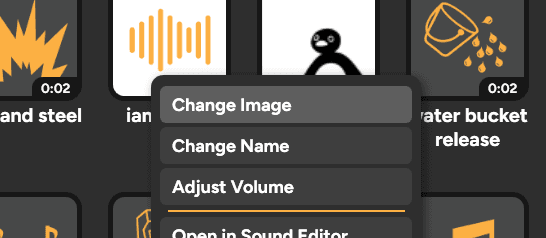
Now just select the image or option you want to use!
How to Use Voice Changers
To use voice changers first switch to the Voice Changer Library by clicking the Voice Changer button on the top rigth of the SmoredBoard.
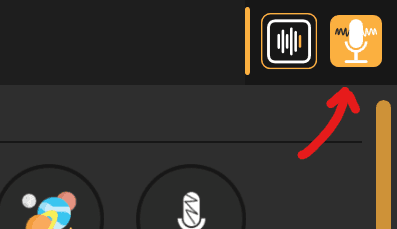
Now click on whichever voice changer you want to use and it will automatically be applied to your mic!
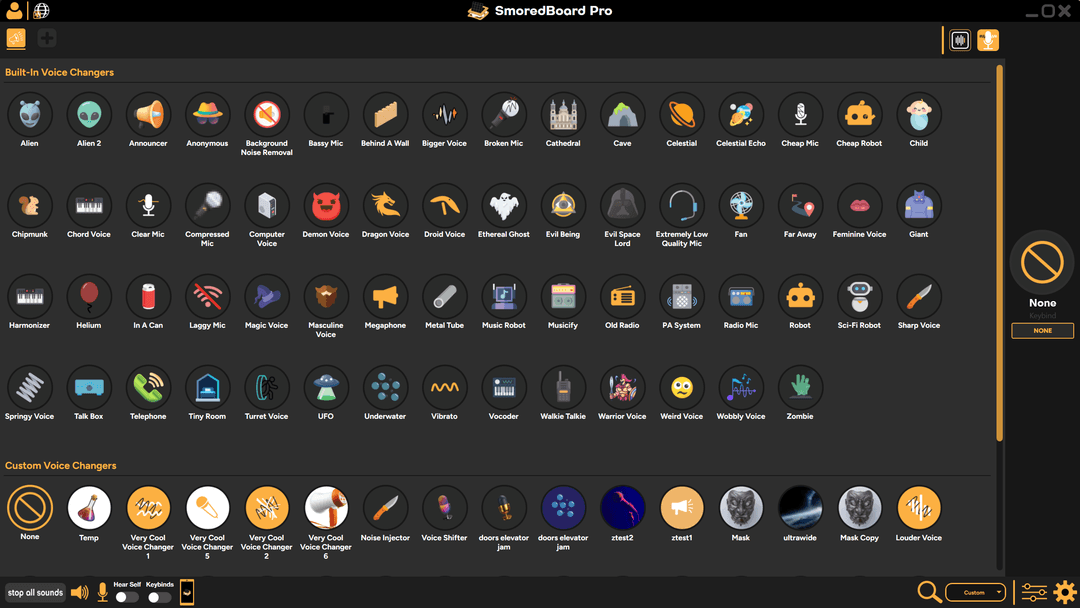
How to Create Voice Changers
Scroll to the bottom of the Voice Changer Library and click the "Create New Voice Changer" button.
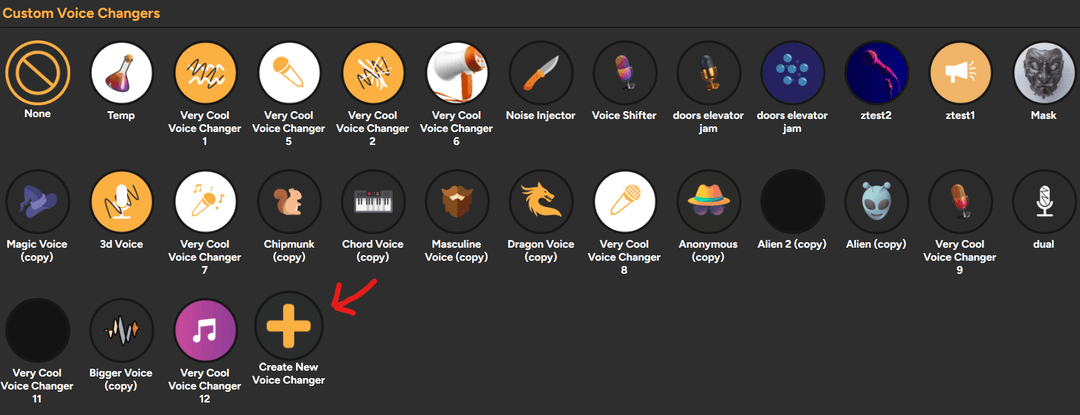
How to Edit Custom Voice Changers
To edit a custom voice changer you need to get to open the voice changer in the effects lab. There are 2 different ways to do this:
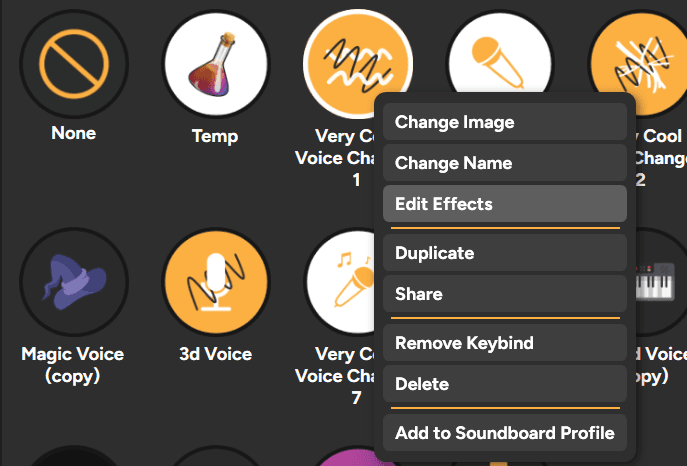
Context Menu
Right click any custom voice changer, and click the "Edit Effects" option.
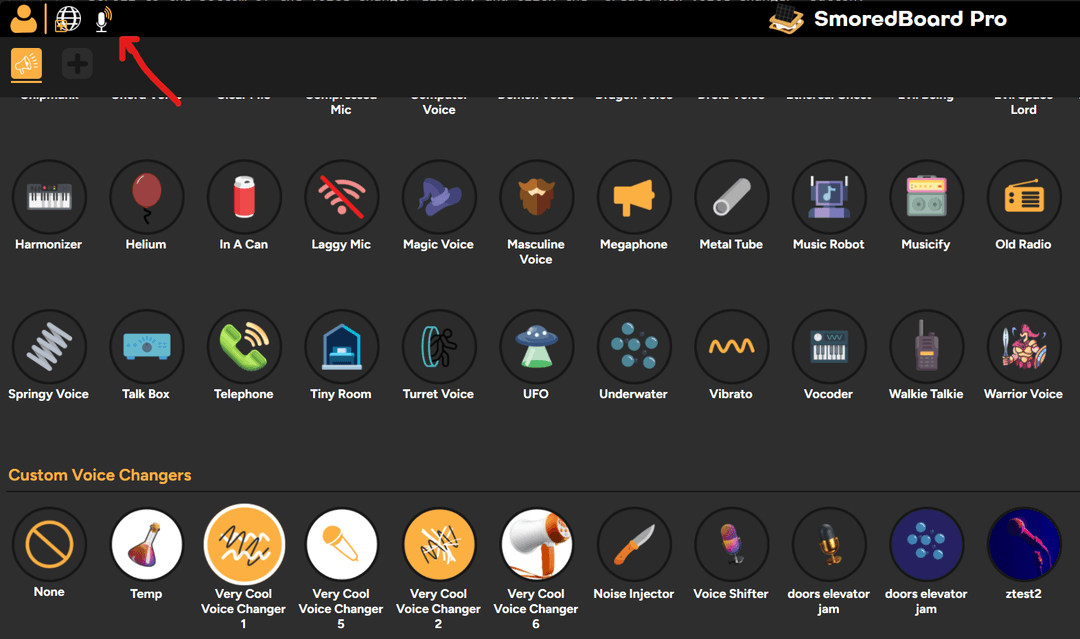
Effects Lab Quick Access
Select any custom voice changer, then on the top left of the SmoredBoard click the "Voice Changer" button to open the effects lab with the selected voice changer.
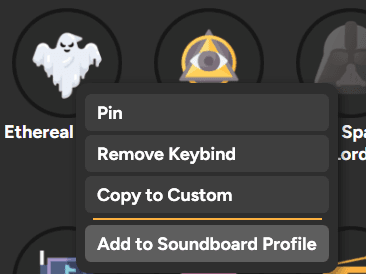
How to Add Voice Changers to SmoredBoard Profiles
You can also add any voice changer from the Voice Changer Library to your SmoredBoard profiles. To do this, right click on any voice changer and select the "Add to Soundboard Profile" option.
How to Add Keybinds to Sounds
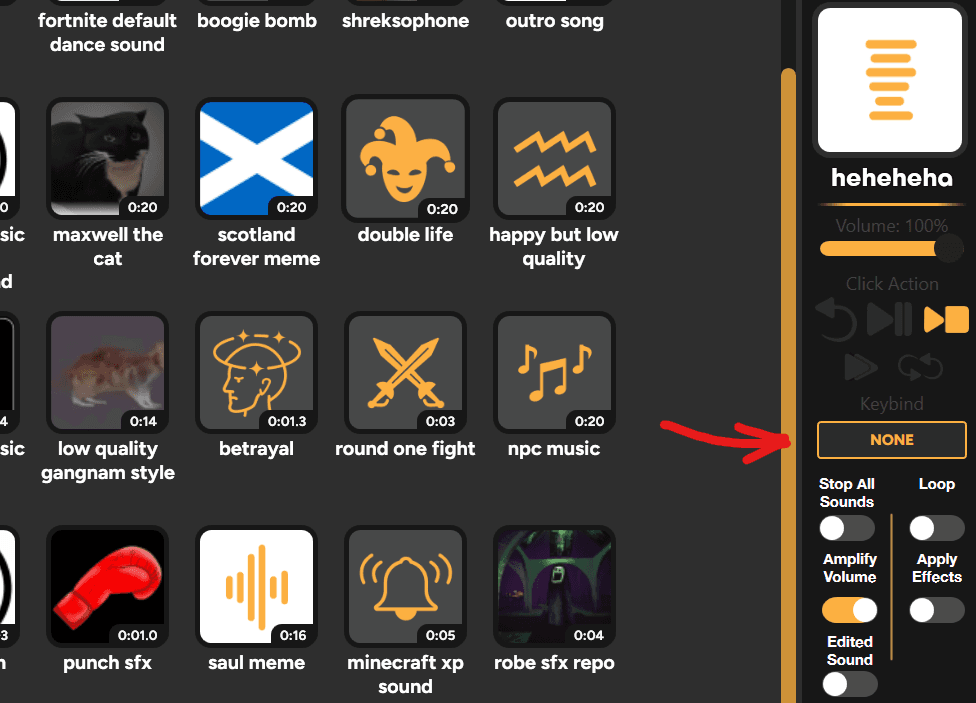
To add keybinds to sounds/voice changers in the SmoredBoard select whichever sound button or voice changer you want to add a keybind to. Then on the sidebar look for the "Keybinds" box and click it, then press whatever key or combination of keys you want to use as the keybind.
How to Add Keybind Actions
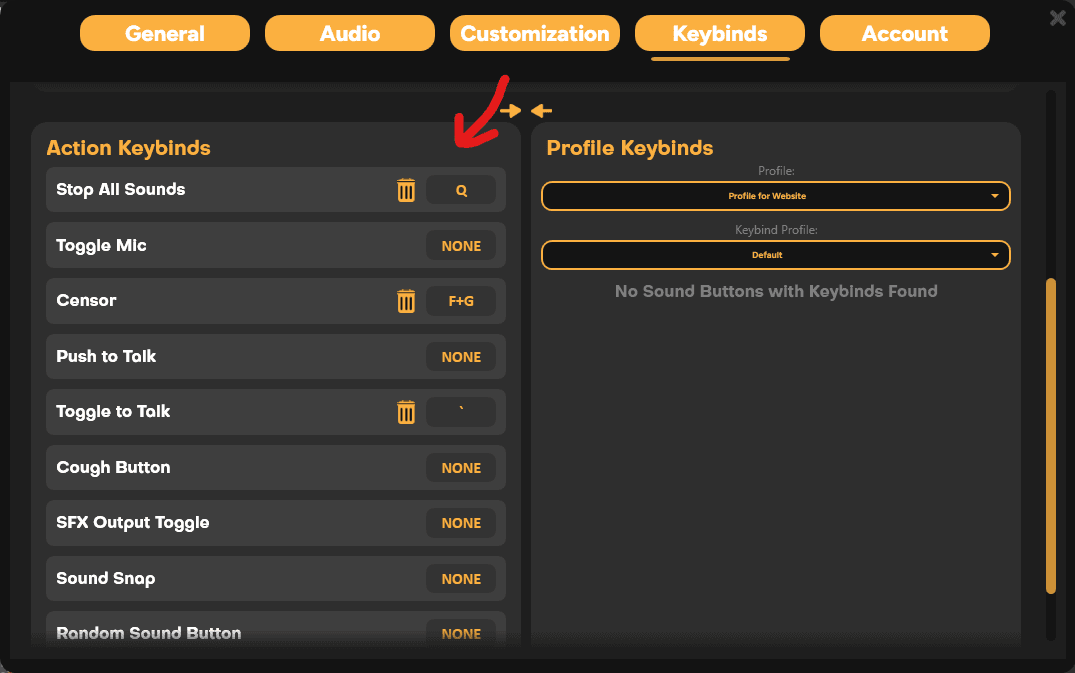
To add keybinds to actions in the SmoredBoard, like muting your mic, stopping all sounds, etc. Open settings, then go to the Keybinds tab. Here scroll down to the Action Keybinds section and set keybinds to whatever you want!
How to Use with Stream Deck
You can integrate SmoredBoard with your Elgato Stream Deck to trigger sounds and voice changers directly from your deck.
Download the Plugin
Visit the SmoredBoard Plugin Page on the Elgato marketplace.
Install
Click "Get" and go through the download process to install the plugin on your system.
NOTE: if you've never downloaded an Stream Deck plugin before, you'll have to make an Elgato account
Configure in Stream Deck
Once installed, open your Stream Deck software and you should see SmoredBoard listed as a plugin!
How to Change Sound Button Mode
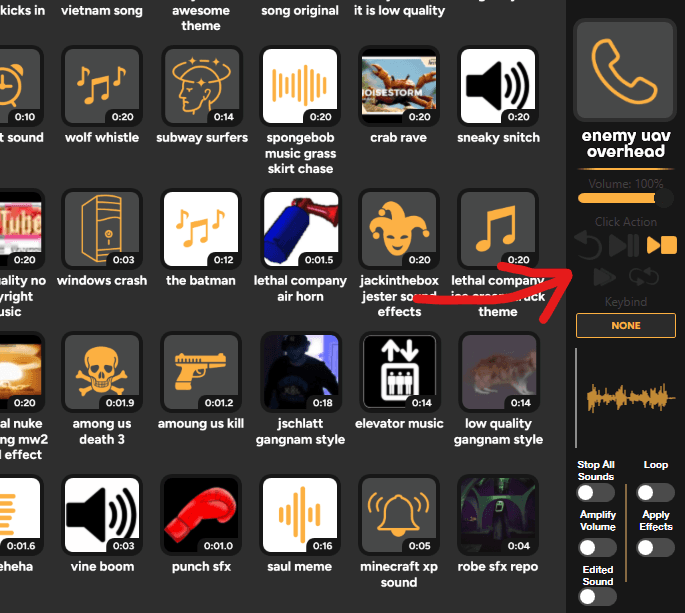
To change the mode of a sound button, so it can be paused, overlap, loop, etc. Select the sound button, so the sidebar updates with that sounds info. Then click on whichever mode (Click Action) you want to use!
How to Edit Sounds
Creating an edit
To add cuts or trim a sound in the SmoredBoard, either right click the sound button you want to edit, and select Open in Sound Editor.
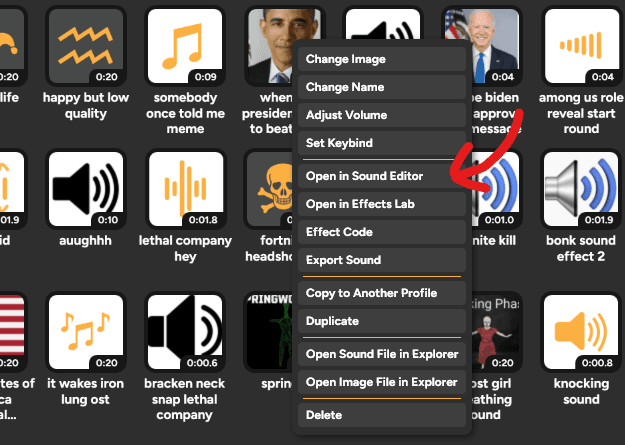
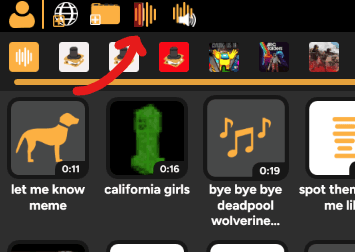
Or select the sound button and click the "Sound Editor" button on the top left of the SmoredBoard.
Once in the sound editor, you can use the different tools to trim, cut, and edit your sound however you want! Make sure to click "Save" once you have a trim or cut you like to save/apply it.
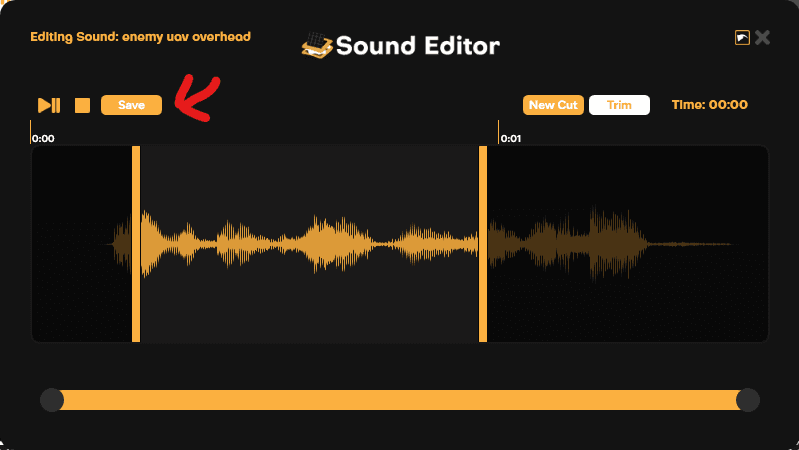
NOTE: To edit a cut or trim you've made in the sound editor, right-click anywhere in the cut/trim and either delete it or edit.
Activating Edit
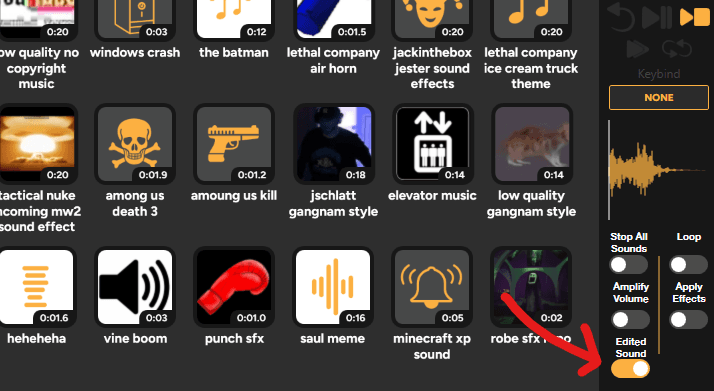
Once you've edited the sound how you like, the edit is not activated by default. To activate it, select the sound you edited, then in the sidebar toggle on the "Edited Sound" toggle.
How to Add Effects to Sounds
Adding Effects
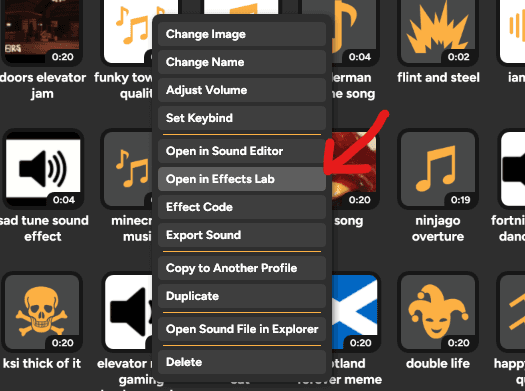
To add some effects to a sound, first right click the sound button and select "Open in Effects Lab".
Or select a sound, then in the top left of the SmoredBoard click the Effects Lab button.
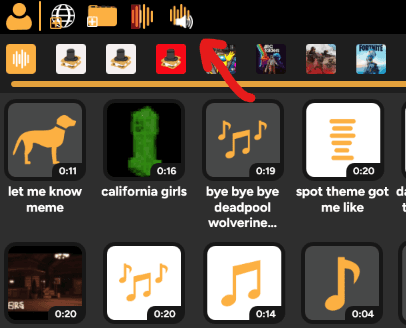
Once in the Effects Lab you can click effects to add them and edit their settings making it sound however you want!
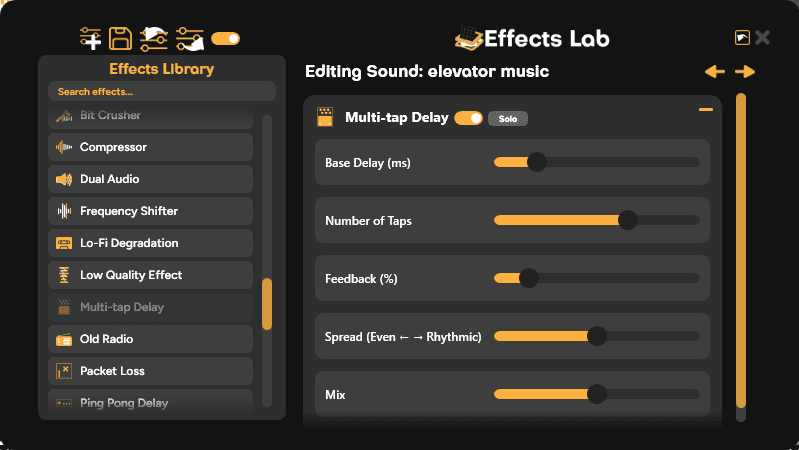
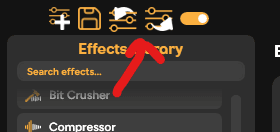
You can also export/import effect codes, so you can share your custom effects with others, or add ones made by the community. To export/import just click either the Export or Import button to do whichever you want.
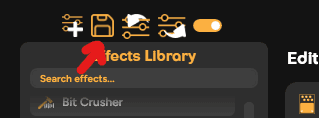
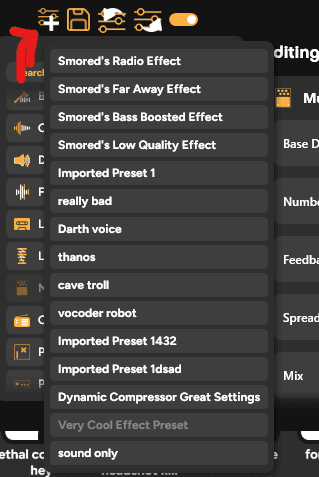
You can also save effect presets, so you can quickly apply effects to other sounds. To save a preset, click the "Save" button and give it a name.
To load a preset, click the "Load Preset" button, then select the preset you want to apply.
Activating Effects
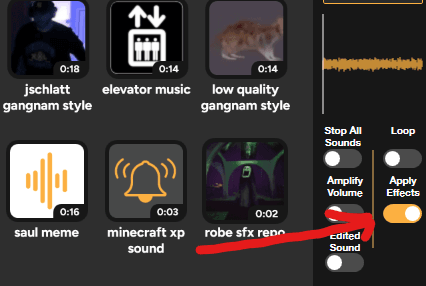
Once you've added effects to a sound how you like, the effects are not activated by default. To activate them, select the sound you edited, then in the sidebar toggle on the "Apply Effects" toggle.
How to use PTT/TTT/and Cough Keybind
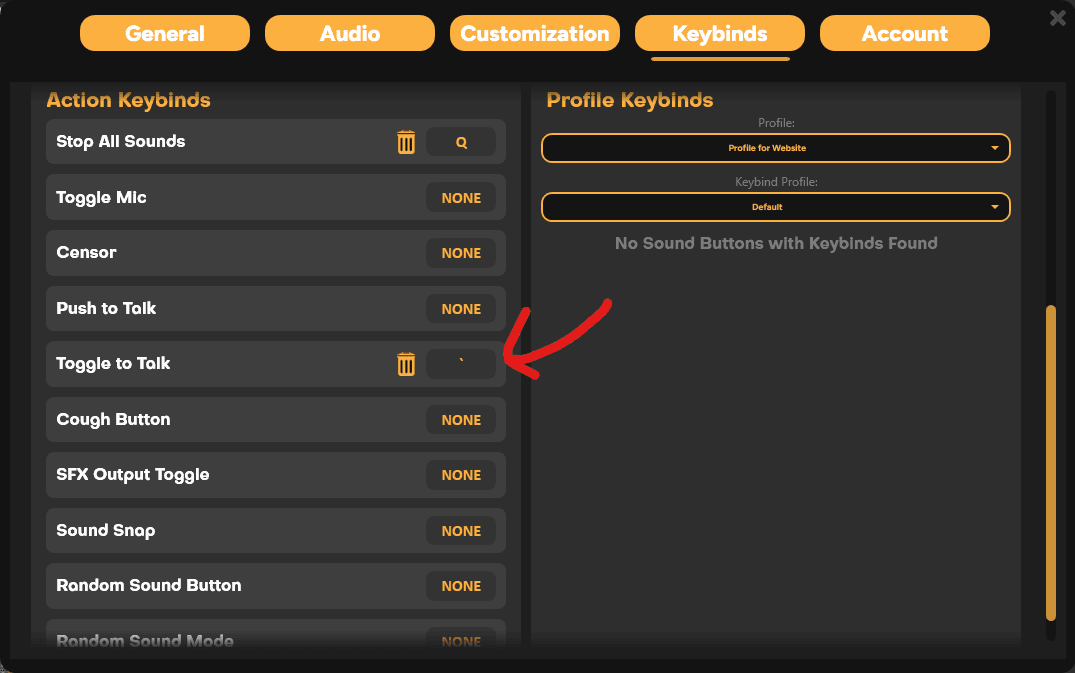
To set up either Push to talk, Toggle to talk, and a cough keybind, first open settings then go to the Keybinds tab. In here scroll down to the Action Keybinds section. Here just bind a key to any option and it will turn on that feature!
How to Use Chat Controller
Watch the video below to learn how to use the Chat Controller in the SmoredBoard:
Still having issues? Contact Support