Editing Mic Settings
Learn how to edit and configure microphone settings in SmoredBoard.
Overview
This doc will teach you how to edit and configure microphone settings in the SmoredBoard to fix various performance issues, and improve compatibility with different microphones.
NOTE: The settings the SmoredBoard defaults to are likely best, so if your mic is working fine, you shouldn't change anything in the mic settings. Only change them if you are experiencing issues with your mic.
Mic Profiles
Before I go over editing settings, let me quickly explain Mic Profiles, so you don't accidentally change settings for more mics than you mean to.
Mic Profiles are very simple, you either can use the Default Mic Settings (which is what all mics use by default) or use that mic's specific profile.
To know which one you're using open the mic settings and look for the "Use Default Mic Settings" toggle. If it's on, you're using default, otherwise you're using that mic's specific profile.
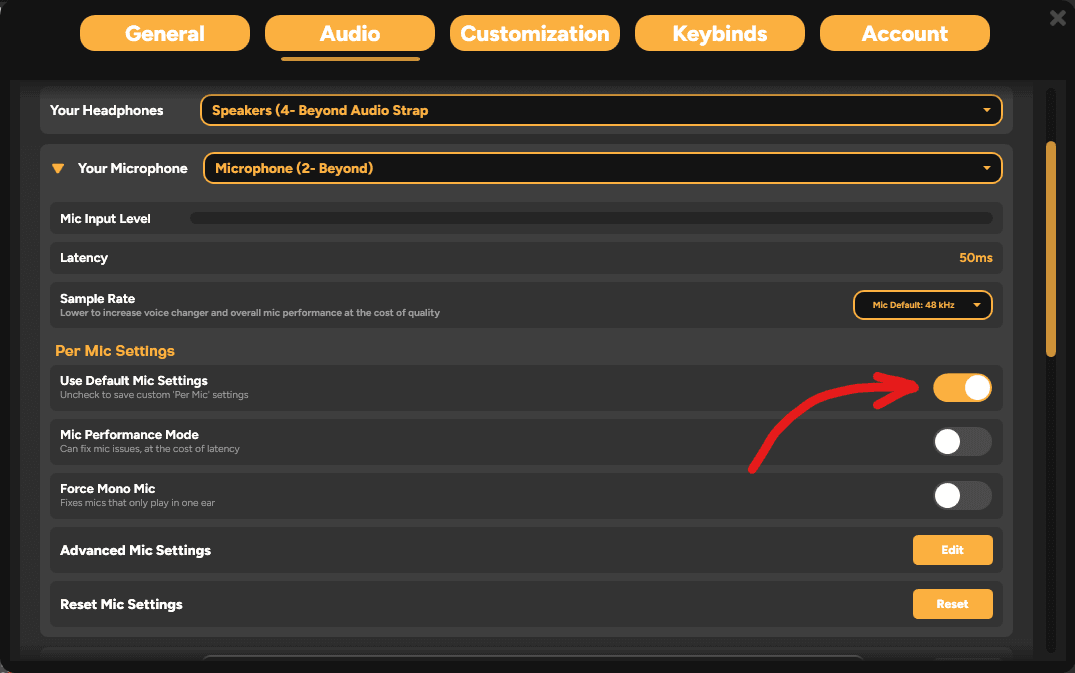
So if you want to change settings for a specific mic only, make sure that toggle is OFF
Latency
This is the most important setting you can change. By default we set it to 50ms, this is the lowest option I could find that was stable for the majority of people. BUT if your mic is clicking, even with no Voice Changer active, it probably means the default latency is too low for your setup.
To change it you can either toggle on Mic Performance mode, this will set it to 150ms (as well as change some other values a bit for stability) and is the best option if you want it to just work.
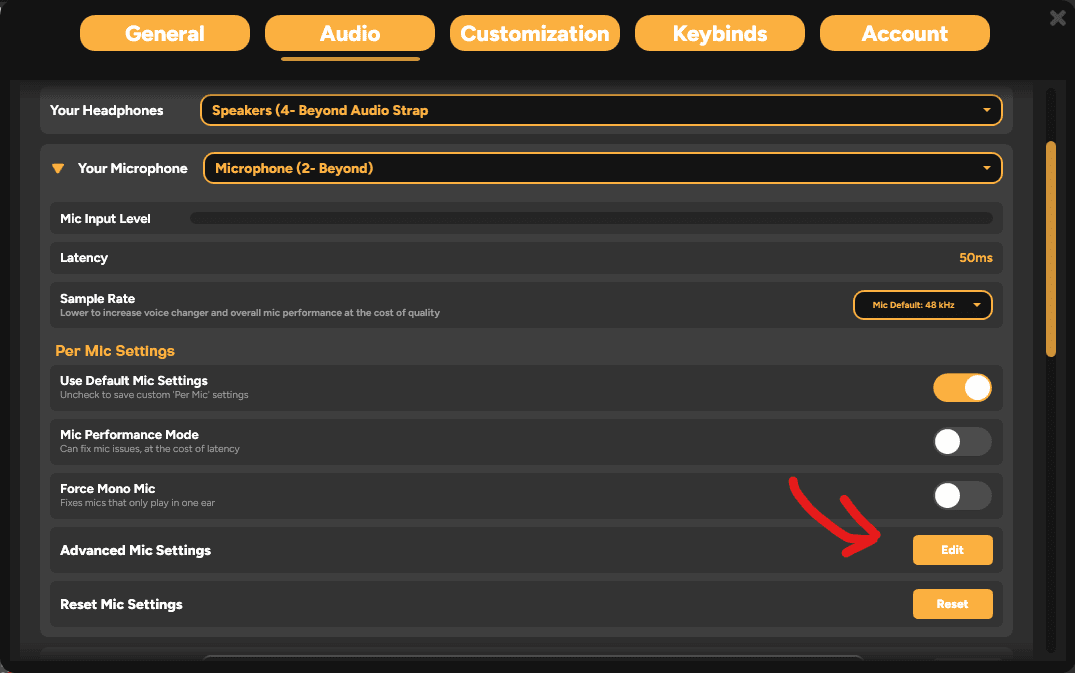
If you want to try and find the lowest possible latency for your setup, you can manually adjust the latency by clicking the "Edit" button on the Advanced Mic Settings section.
In the page that appears, try upping Desired Latency by 5ms intervals until your mic stops clicking. (don't forget to click apply)
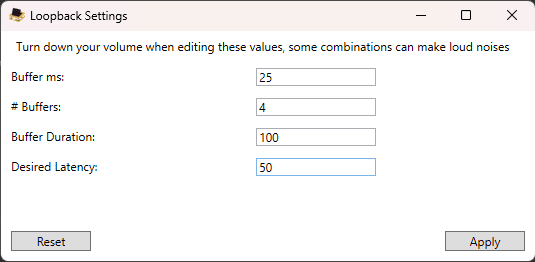
You can also try adjusting the other settings to increase stability or performance based on your needs. Here is a quick overview of what each setting does:
Buffer ms: How much audio is grabbed at once. Increasing reduces CPU load (fewer callbacks/sec), but adds latency.
Number of buffers: How many chunks can queue up waiting. Increasing helps with inconsistent OS timing, but adds latency.
Buffer duration: Total capacity of the holding buffer. Increasing protects against sustained CPU spikes (like loading a profile), but adds latency.
Sample Rate
Sample rate is how many samples per second are taken from the audio signal. Higher sample rates can capture more detail, but also increase CPU usage. When using a complicated voice changer, higher sample rates can lead to audio clicks and dropouts.
(if you're wanting to increase this to improve mic quality, but wondering why the max is 48k or 44.1k that is because we are limited to the max your mic delivers)
So if when using certain Voice Changers your mic clicks, turn this setting down. 36k is the lowest you can go to without losing significant quality, but you can go all the way down to 24k.
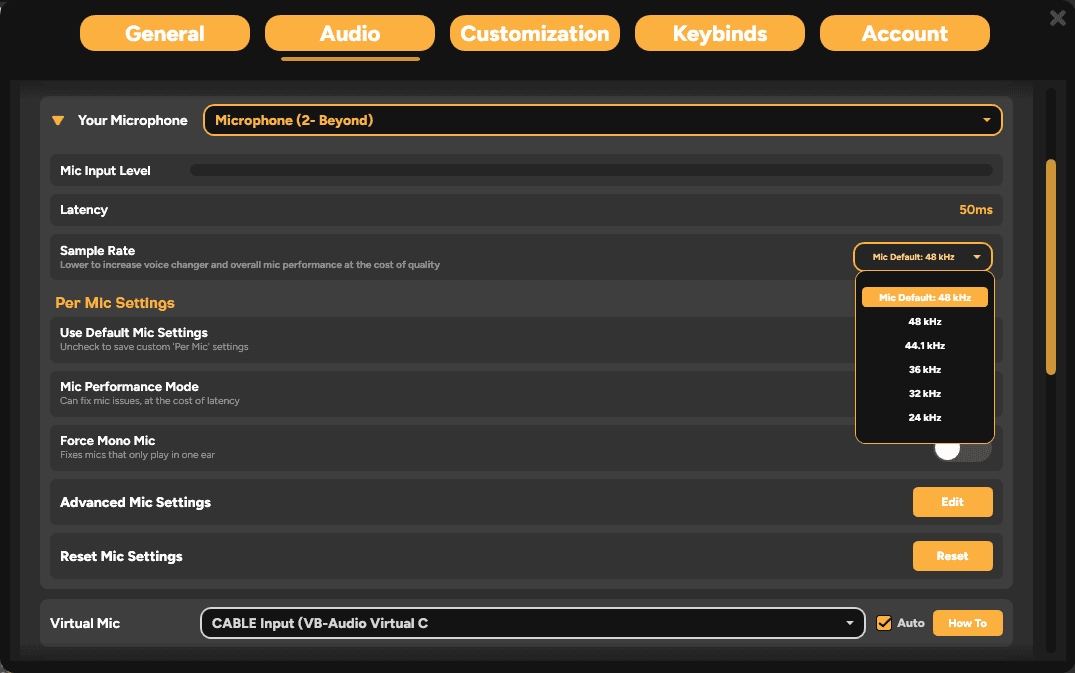
NOTE: Sample rate is independent of Mic Profiles due to the only reason to manually change it is due to a slower CPU.
Force Mono Mic
This setting is very self-explanatory, it just fixes mics that deliver all their audio in only 1 ear. Most likely on a USB microphone you'll never need this.
Still having issues? Contact Support