Audio Not Working
This guide walks you though finding where your audio issue is coming from, and how to fix it.
Step 1. Identifying Where Audio Isn't Working
The first step in fixing your audio issue is to identify where audio fails in the chain. Use the visual flow diagram below to understand how audio travels through the system.
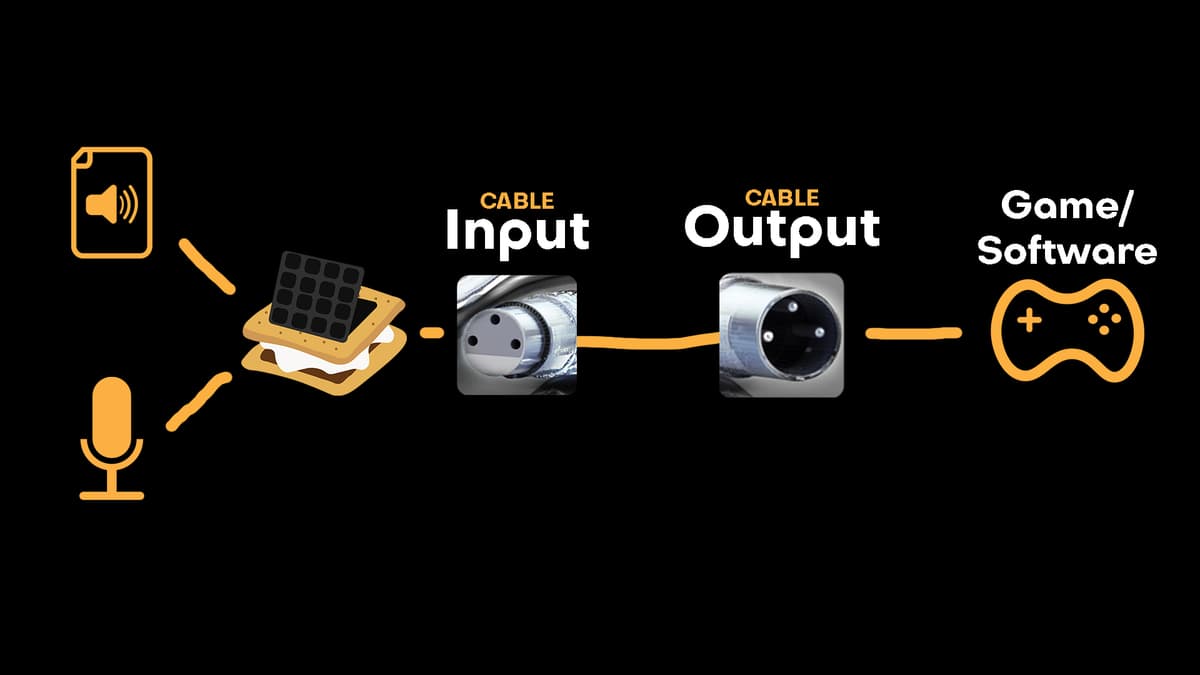
Testing CABLE Output
The first thing to test is CABLE Output. To do this, use OBS or our Audio Tester to test if audio is reaching CABLE Output.
BEFORE TESTING try swapping the virtual mic device to any other available device, then back to CABLE Input (this resets the device connection and can resolve some issues automatically).
With the SmoredBoard open, and either the Audio Tester page or OBS running with a device set to CABLE Output, play a sound and speak into the microphone, checking if audio appears on the CABLE Output device when you do so.
Possible Outcomes of Testing CABLE Output
- •If your mic's audio doesn't appear on CABLE Output: The problem is with the mic side of the SmoredBoard (see Fix 1 → Microphone Problems)
- •If your sound's audio doesn't appear on CABLE Output: The problem is with the sound playback side of the SmoredBoard (see Fix 1 → Sound Playback Problems)
- •If neither appear on CABLE Output: The problem is with the SmoredBoard itself — read both Fix 1 → Microphone Problems and Fix 1 → Sound Playback Problems
- •If both appear on CABLE Output: The issue lies with the game or application being used (see Fix 2)
Fix 1: Audio Issues within the SmoredBoard
This section is split into two, one for the mic and another for sounds. If you are having issues with both read both sections, if just one issue just read the section for your issue.
1. Microphone Problems
Initial Checks
- •Verify that CABLE Input is selected as your Virtual Mic
- •Confirm microphone volume is not set to zero (how to adjust volume)
Checking for Mic Input
Check that the correct microphone is selected and that audio appears on the "Mic Input Level" bar in the SmoredBoard when you speak.
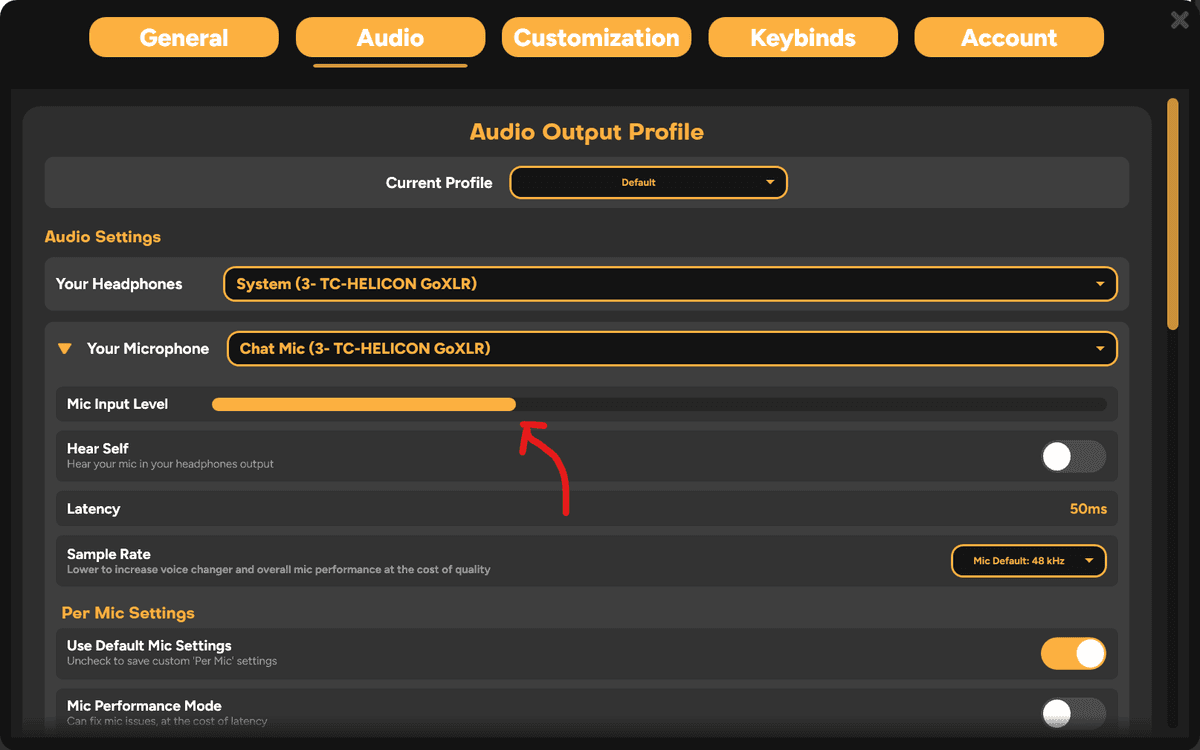
If no input appears on the Mic Input Level bar, try the following:
- •Check that the Mic Volume Multiplier is not set to 0 (this is a separate setting from the main mic volume, and if it's at 0 your mic will be silent even if the volume slider is up)
- •Switch the microphone device to another option, then switch back (this resets the device connection)
- •Check if the microphone is working, to do this you can use OBS or another audio recording application to record your mic and make sure it's working fine
- •Restart your PC then relaunch the SmoredBoard to retest
- •Uninstall and reinstall the SmoredBoard
If you try all of these fixes and the mic still doesn't work in the SmoredBoard, but works in OBS or other apps please reach out to support with what all you've tried and we'll help figure out what the issue is!
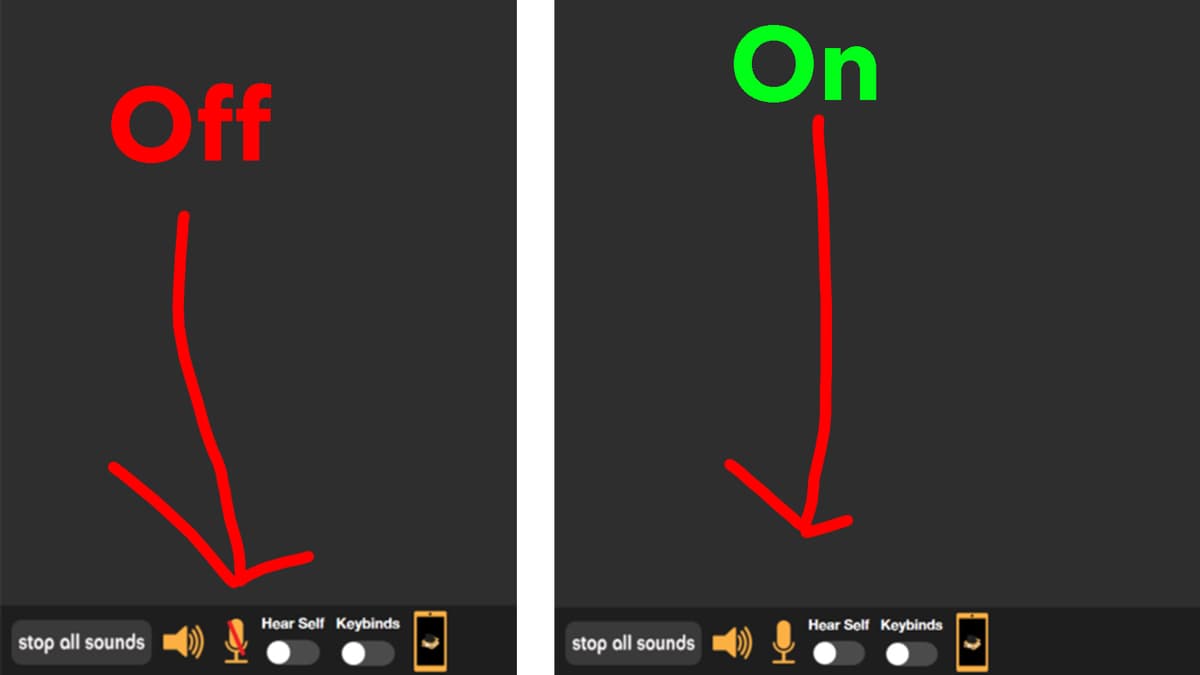
Muting Check
Examine the microphone icon on the bottom left of the main window. A red line indicates the mic is muted:
Mic Performance Mode
This setting increases delay but may resolve processing issues. You can access Advanced Mic Settings if needed, but ensure Performance Mode is disabled when using custom settings.
Final Option: CABLE Device Issues
If input appears on the Mic Input Bar but not on CABLE Output, the issue likely involves the CABLE devices. See How To Uninstall and Reinstall the CABLE Devices for steps.
2. Sound Playback Problems
Checklist
- •CABLE Input is set as Virtual Mic
- •SFX-only output volume and headphones volume are not zero (how to adjust volume)
- •SFX-only output is not disabled via the speaker icon (toggle using speaker icon on bottom left of SmoredBoard)
Resolution
If audio plays through your headphones device, CABLE Input is set as your Virtual Mic, but CABLE Output is not receiving any audio, the issue likely involves the CABLE devices. See How To Uninstall and Reinstall the CABLE Devices for steps.
If you're still unable to resolve the issue, please email support@smoredboard.com for assistance.
Fix 2: Audio Issues in External Applications
When CABLE Output shows audio but games/applications don't receive it:
Application Settings
- Ensure CABLE Output is selected as the microphone in the game or software
- If the application lacks microphone selection, set Windows' default microphone to CABLE Output
Background Noise Suppression
All applications include some noise suppression, with varying intensity levels. Discord features particularly heavy suppression but allows adjustment. Most other applications don't offer customization.
Best Practices
Select sounds that are not bass-heavy and are short in duration. Longer songs may be cut off by noise suppression algorithms, while short sfxs usually go through fine.
For Discord-specific setup, see our Discord Setup Guide.
Still having issues? Contact Support