How To Use Keybinds
This tutorial explains how to add and use keybinds in the SmoredBoard application, allowing you to trigger sounds and actions via keyboard shortcuts.
Adding Keybinds to Sounds
1. Select a sound: Click on a sound in the profile to update the sidebar with its details
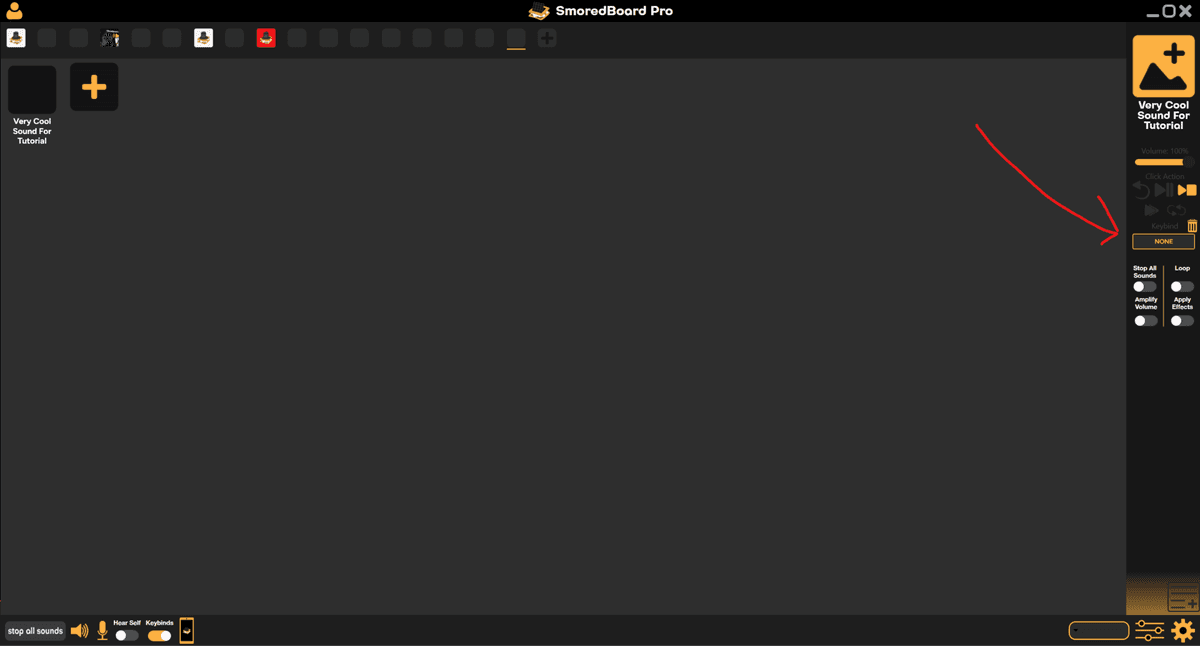
2. The keybind box: Click the box labeled "Keybind" in the sidebar

3. Assign a key: After the prompt "Press A Key" appears, press any single key or key combination to assign that keybind or stroke to the sound
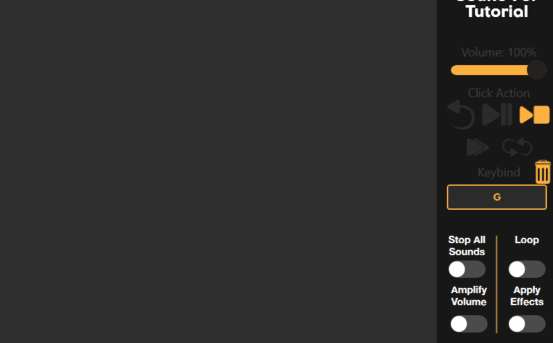
4. Confirmation: Once you let go of the keys, the keybind box will update to show the assigned keybind
Keybind Actions
You can also bind keys to various SmoredBoard functions through the Settings menu: (note in future updates the keybinds page will look much better)
- - Open Settings in the application
- - Navigate to the "Keybinds" tab
- - Follow the same process as sound keybinds
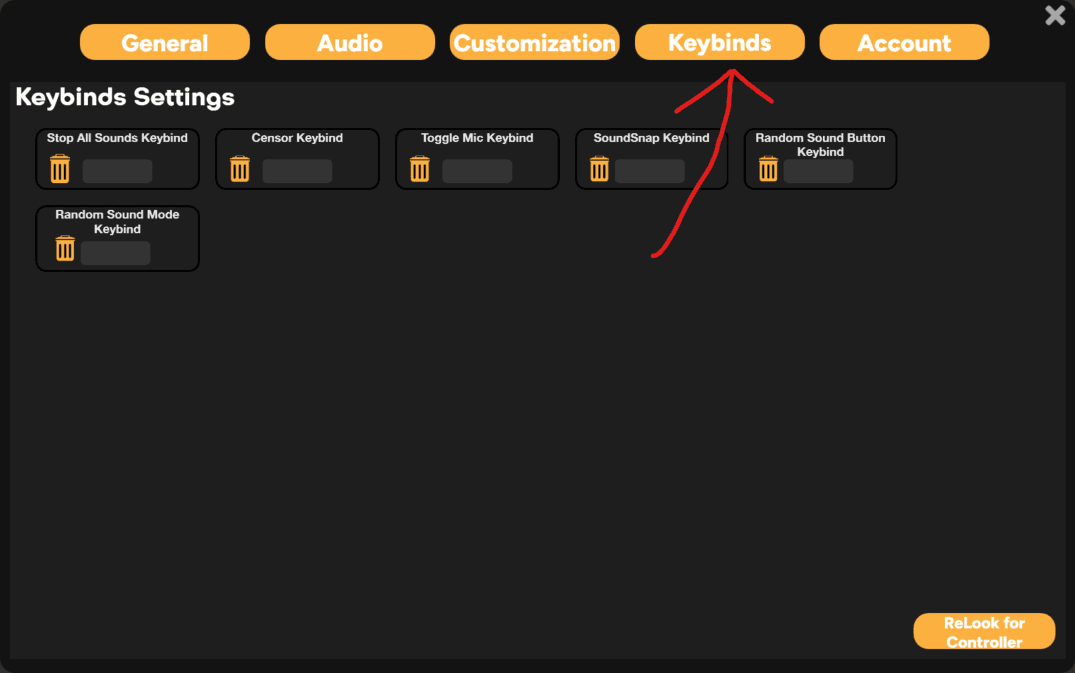
Tip: Using the "Stop All Sound" keybind is highly recommended!!!
Using Keybinds in Other Applications
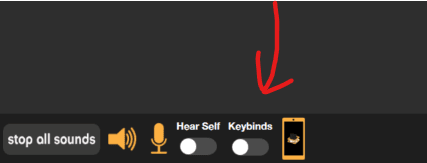
To use keybinds while other applications are in focus, ensure the Keybinds toggle is enabled in settings:
For certain games or programs, the SmoredBoard may require administrator permissions to detect keybinds. Run the SmoredBoard as administrator if keybinds aren't being detected.
Keybinds Not Working?
If your keybinds aren't being detected, check out our troubleshooting guide: Keybinds Not Working
Still having issues? Contact Support