How To Use The Mic Recorder And Mic Mirroring Features
Learn how to capture your mic in APO mode with the mic recorder and mic mirroring features
Warning: Mic Recorder and Mic Mirroring ONLY work in APO mode.
Mic Recorder
In SmoredBoard, go to the Audio tab in settings and scroll down to Mic Recorder. Turn the Record Mic toggle on to begin recording, turn off the toggle to stop recording.
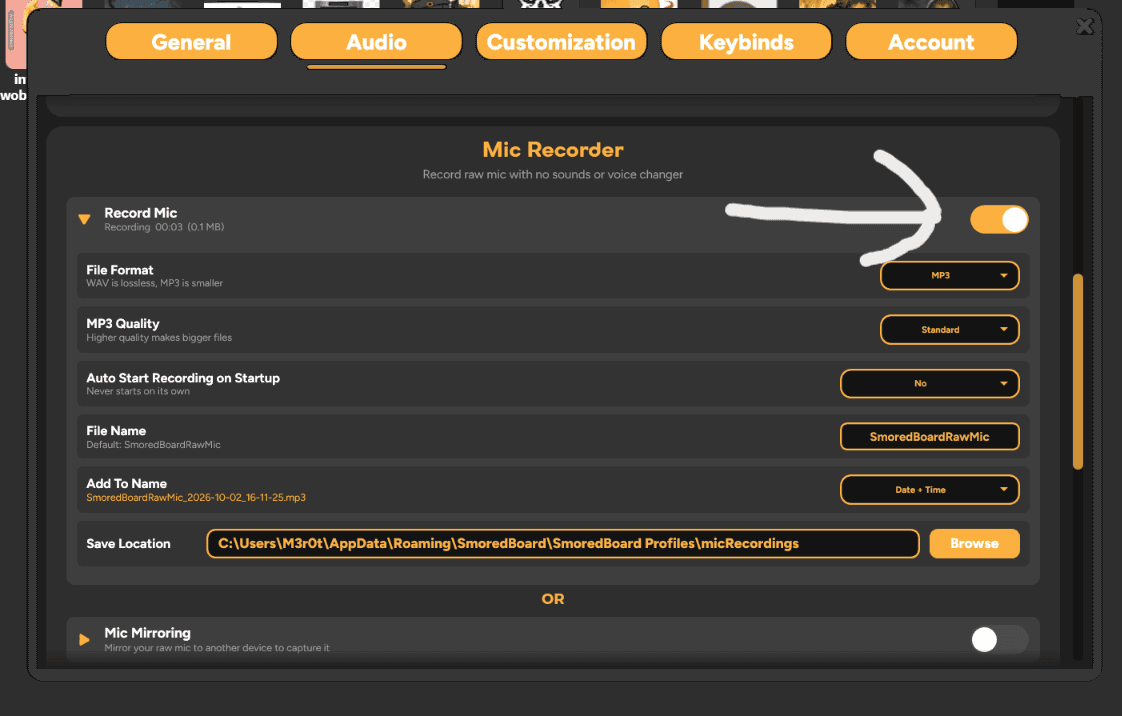
Expand the Mic recorder settings to see the rest of the options.
- File Format: Choose what file type your recording is saved as.
- MP3 Quality: This only appears when the file format is set to MP3. Sets the quality of the MP3 file.
- Auto-Start Recording On Startup: Choose if recording starts automatically when SmoredBoard opens.
- Name: The name your recording file will be saved as.
- Add To Name: Select additional info that is added to your recording, such as the date and time.
- Save Location: Choose where your recordings are saved.
Mic Mirroring
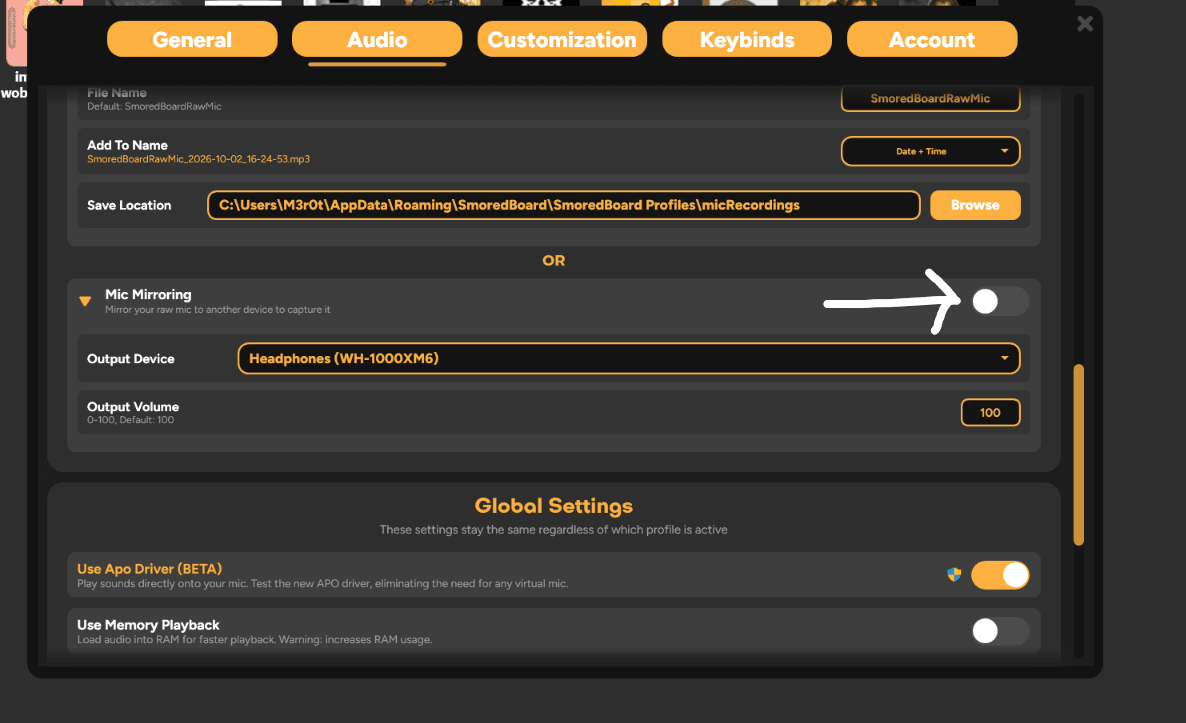
Open the Audio tab in settings, and scroll down to Mic Mirroring. Turn on the toggle to begin mirroring, expand the setting, and in Output Device select an unused output device that your mic will then mirror to. To record it, open OBS or any other recording app and capture your mic through the selected output device. If you do not have an unused output device, use Mic Recorder instead.
Still having issues? Contact Support