How To Use Pro
Learn how to use all the Pro features in SmoredBoard!
How to Activate Pro
First make sure you've purchased a Pro license either as a subscription, or lifetime. If you haven't you can do so here: https://smoredboard.com/get-pro
Sign In
First go to the account tab, and sign in using the same email you purchased Pro under
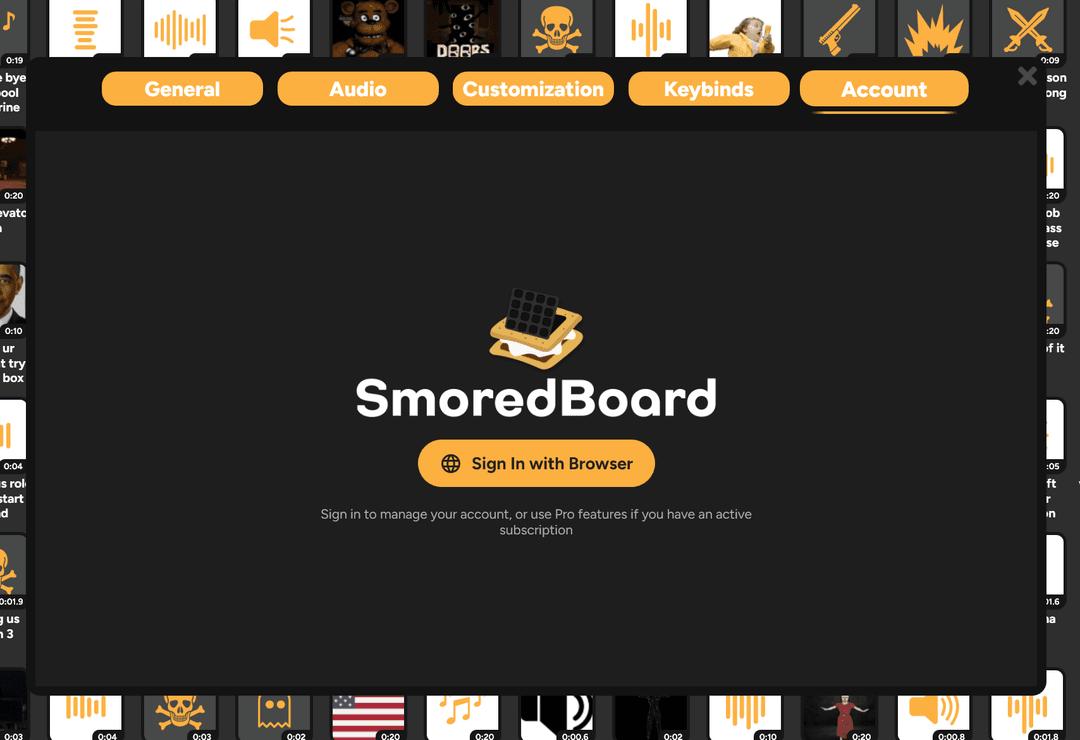
Account
And that's it! The account page should look like this now.
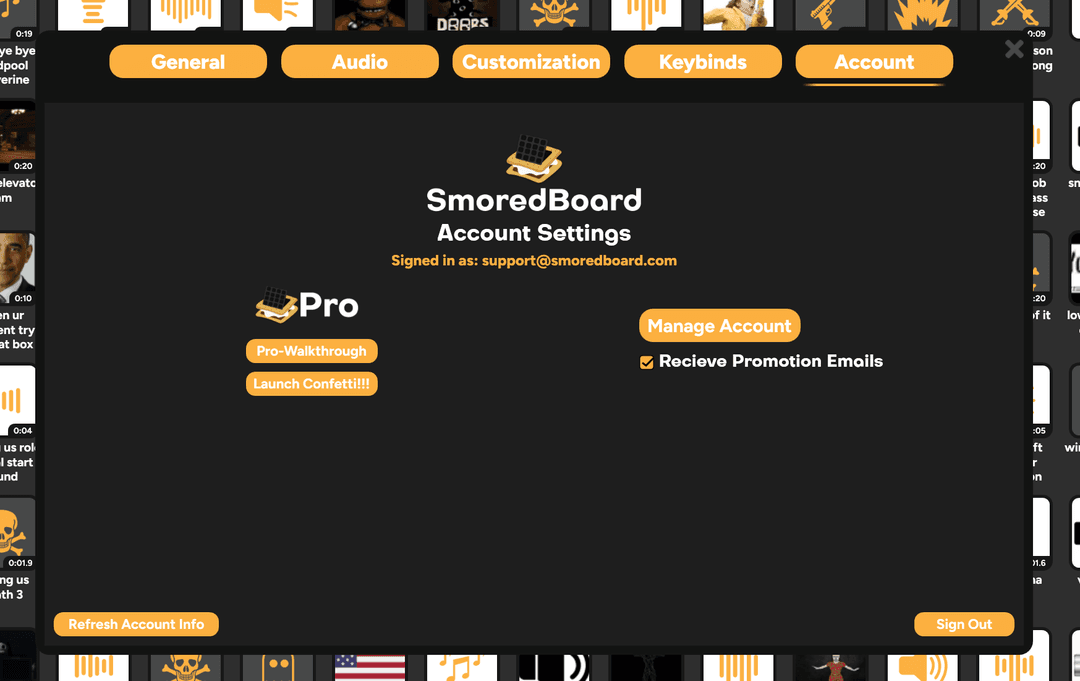
If the account page doesn't show your Pro status, try clicking the "Refresh Account Info" on the bottom left and if after multiple tries that doesn't work reach out to support.
Features
Learn how to use every feature in the SmoredBoard
Unlimited Profiles
To create more profiles, simply click the "Add Profile Button" that spawns all the way on the right of your profile buttons.
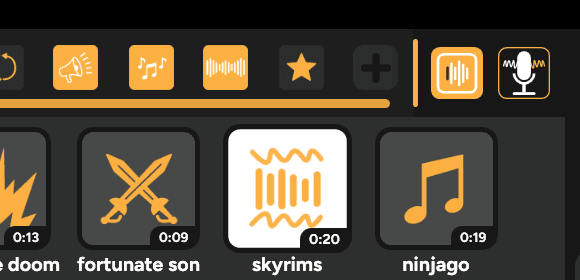
Also any locked profiles you currently have will become unlocked and completely editable!
Dividers
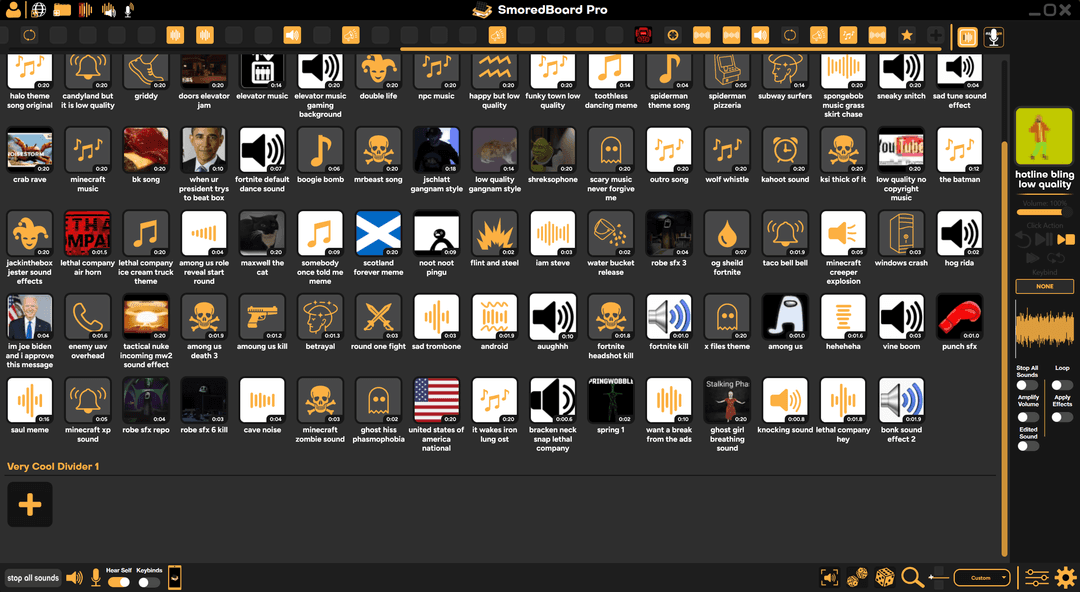
Add dividers to any profile by clicking the add dividers button on the bottom right of the SmoredBoard.
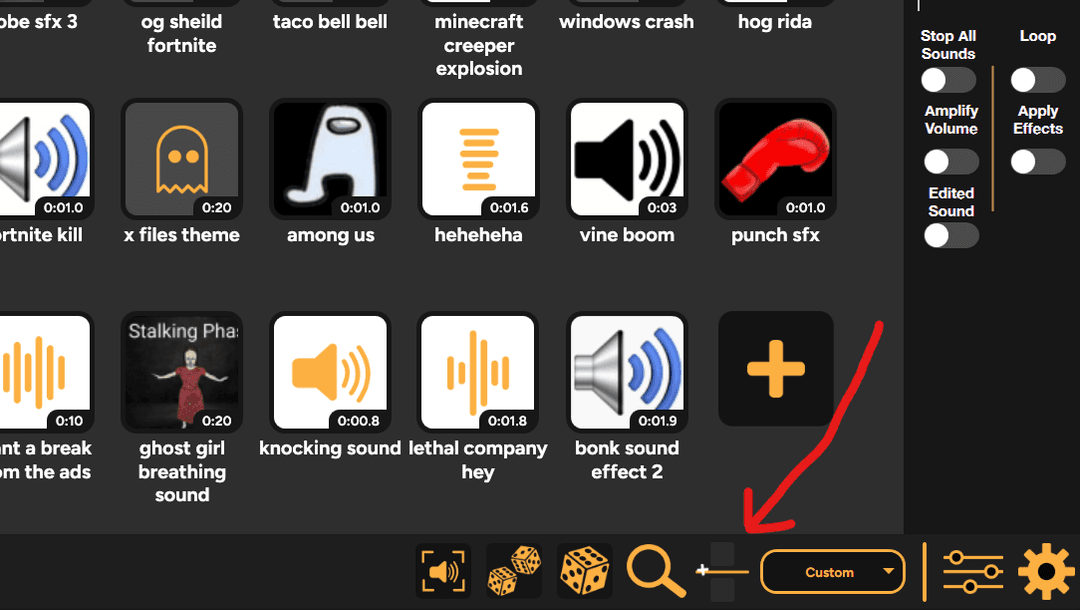
Once you give it a name and create it, it will be added to the bottom of the current profile. Just drag it like any other sound button to move it wherever you want!
Waveforms
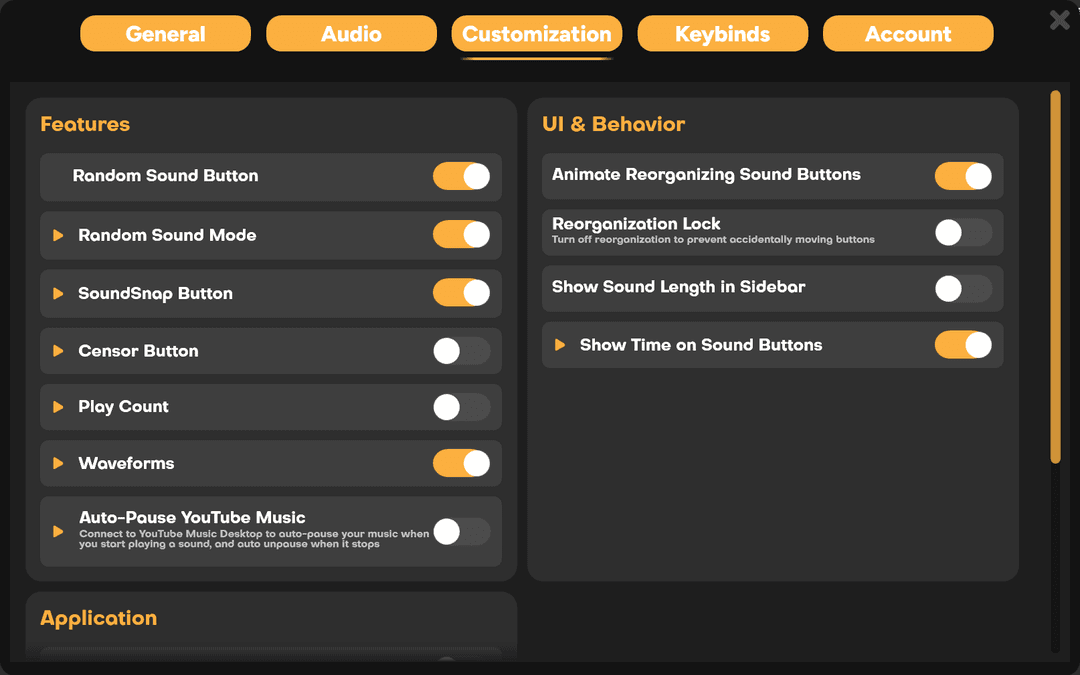
Turn on waveforms by opening the customization page of settings, then towards the bottom of the "Features" section you'll see the Waveform toggle.
Then just play any sound, and in the sidebar you will see a waveform render of the audio!
NOTE: If the sound you're playing is in Overlap mode, the waveform won't appear. This is something that will be changed in the future, but as of the 1.0.4.0 update it has not.
Amplify
To amplify the audio of any sound, simply click on any sound so the sidebar updates showing its info.
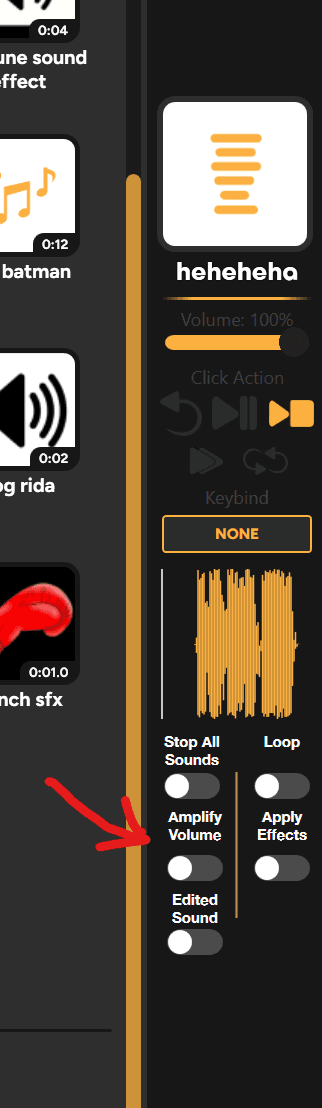
Then click the "Amplify Volume" toggle to double the sound's volume, or right click the toggle to enter custom values.
Unlimited Effects
Add unlimited effects to any sound by clicking on any sound/custom voice changer so the sidebar updates showing its info.
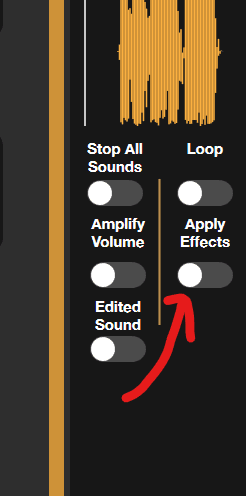
Then right click the "Apply Effects" toggle to open the Effects Lab. Or for voice changers, right click the voice changers button and select "Edit Effects" (or just use the Effects Lab quick button on the top left of the SmoredBoard)
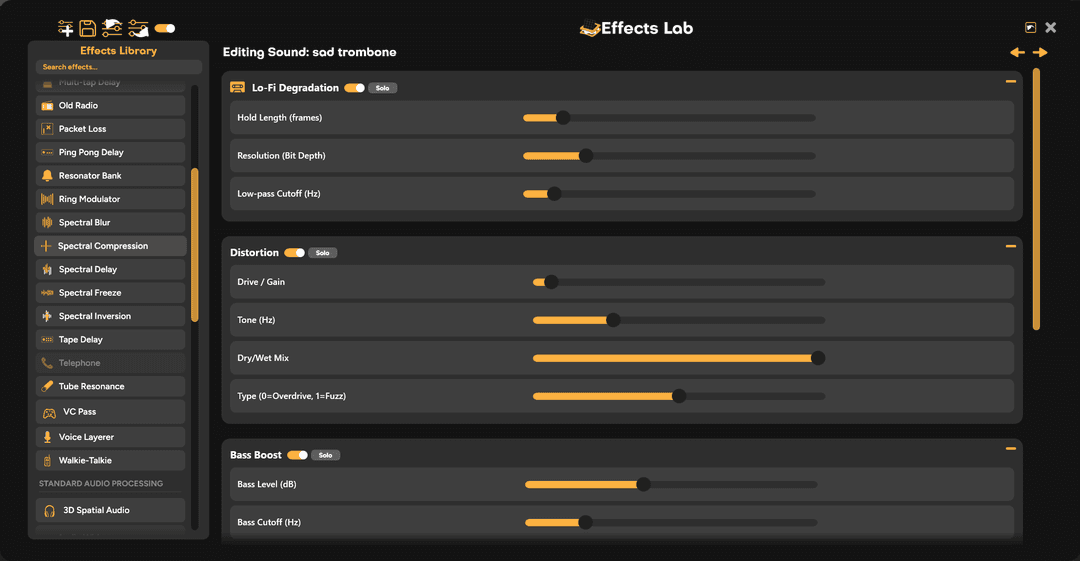
Once in the Effects Lab just click on any effect in the Effects Library to add it!
Export Sounds
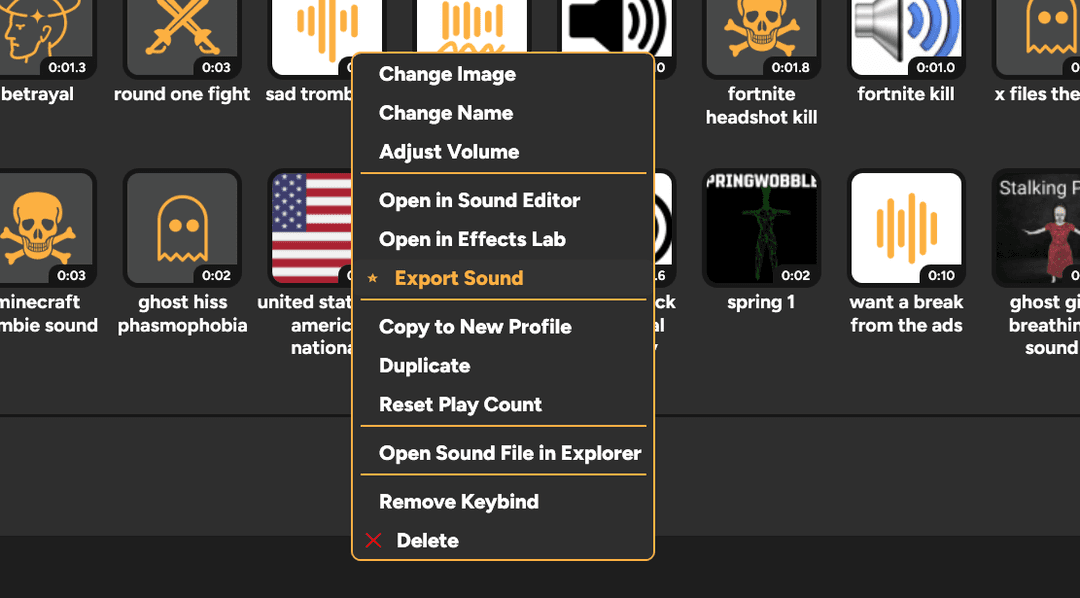
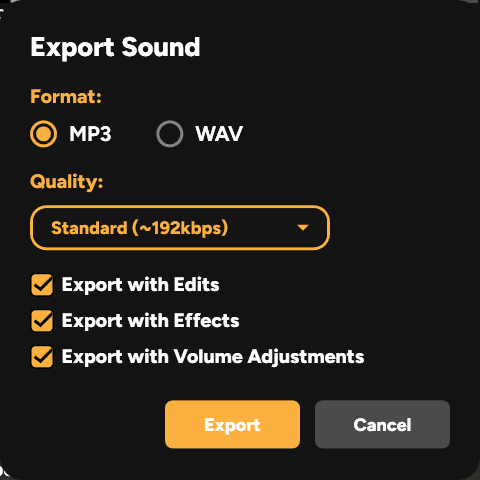
To export a sound with any effects or edits you've made, right click the sound you want to export. Then select the "Export Sound" option to open the Exporter
From here just select what options you want and export!
Fully Custom Voice Changers
This is mostly the same as the Unlimited Effects section, BUT as a Pro user you can also right click any built in voice changer, and copy it to a Custom Voice Changer so you can edit it however you want!
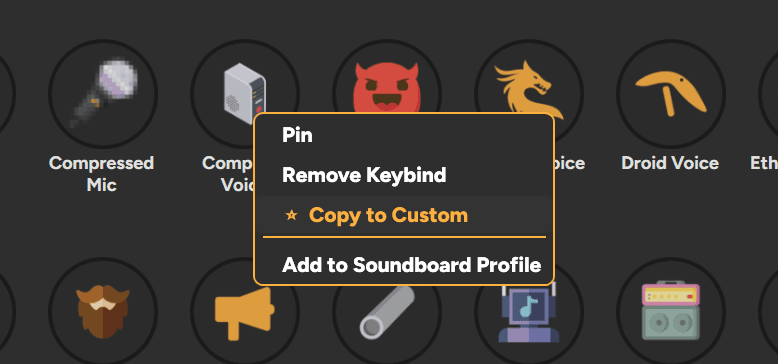
Once copied to a custom voice changer, just right click it and select "Edit Effects" to edit it, or use the Voice Changer Effects Lab quick button on the top left of the SmoredBoard
Extra Sfx Output
To enable the Extra Sfx Output go to the Audio tab in settings, then click the Enable toggle next to the Sfx Only Output.
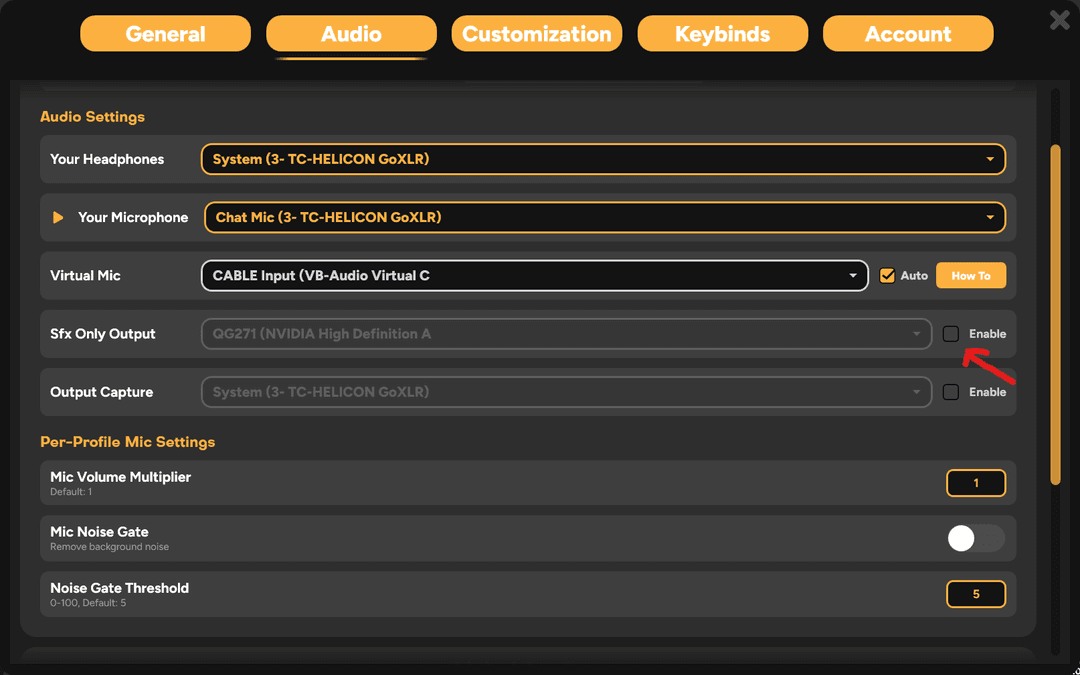
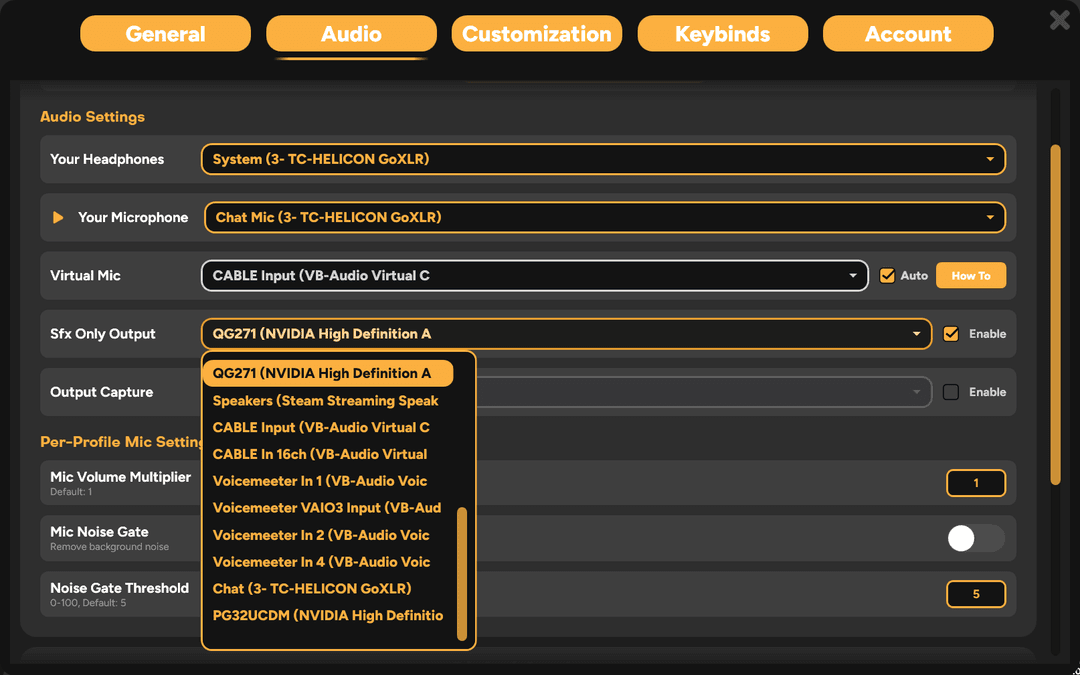
Then select what device you want to output to. Ideally you should choose a device no other audio is output to that you also can't hear that way you don't hear double the audio.
Next go to OBS or whatever capture software you're using, then make a new "Audio Output Capture" source and set it to the device you put the Sfx Only Output on.
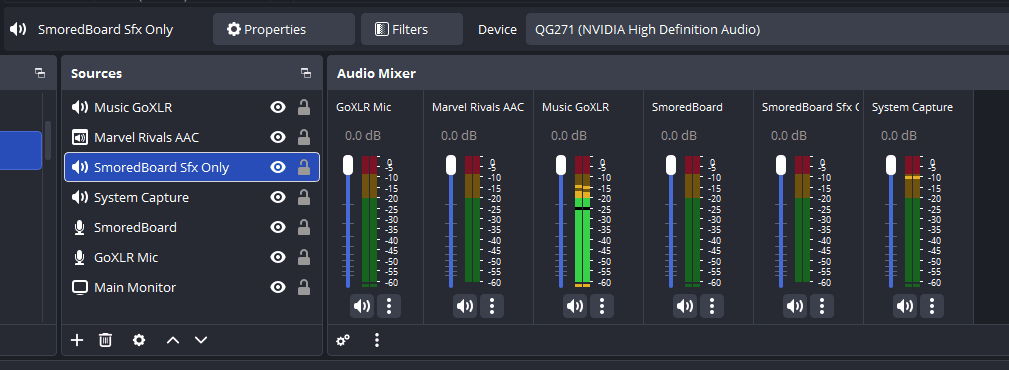
NOTE: You don't have to use the Sfx Only Output for this, it's just an extra output for sounds in the SmoredBoard so you can use it for whatever, OBS is just an example and probably the widest use case for it.
Output Capture
To enable Output Capture go to the Audio tab in settings, then click the Enable toggle next to it.
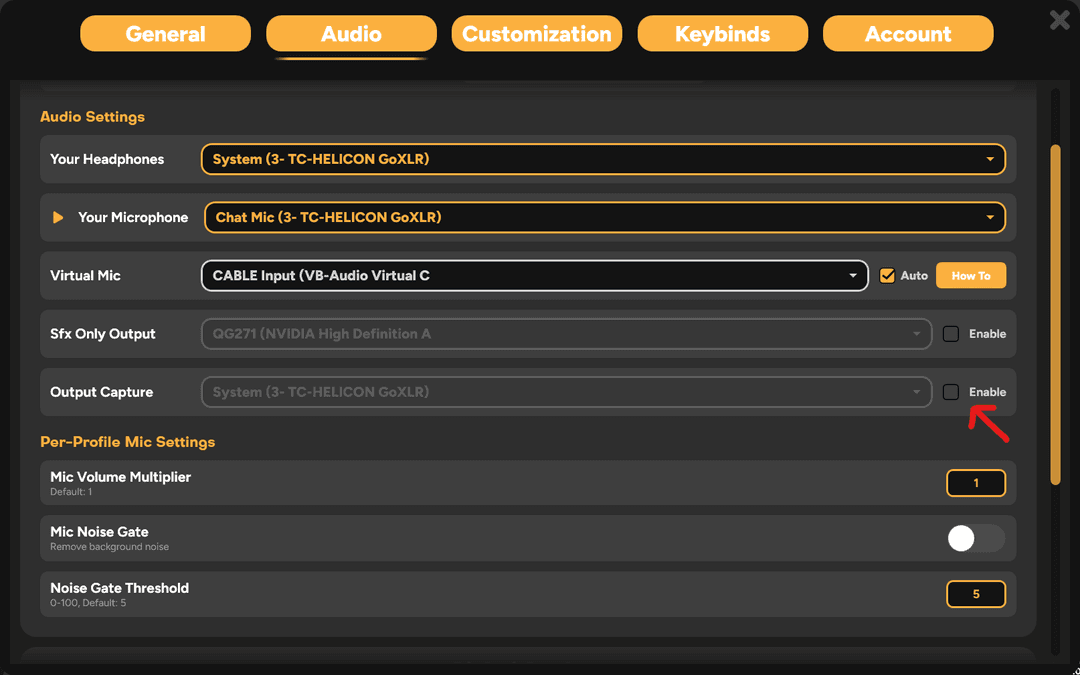
Then select what device you want to capture. Ideally this device should have no other audio on it other than what you want to capture.
NOTE: If you don't have an extra audio device with nothing else on it that you can also hear, see the Hear Output Capture section below
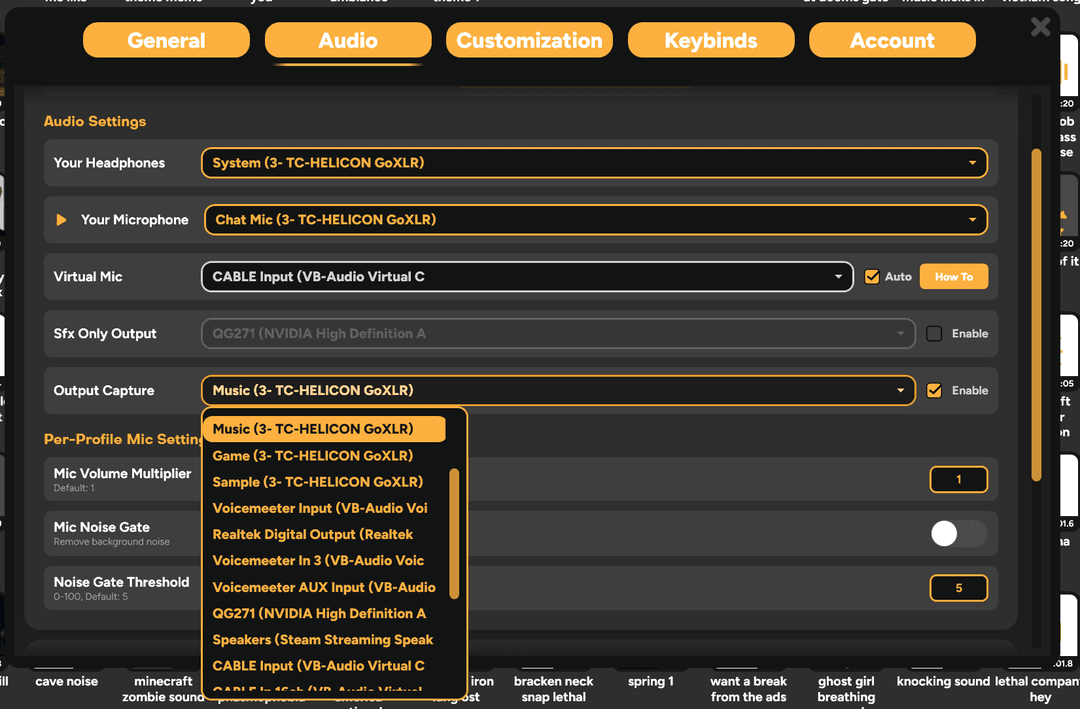
And that's it! Now any audio on that device will also be played over the SmoredBoard's virtual mic (CABLE Output) for everyone in game to hear!
Output Capture Features
Volume Adjustment
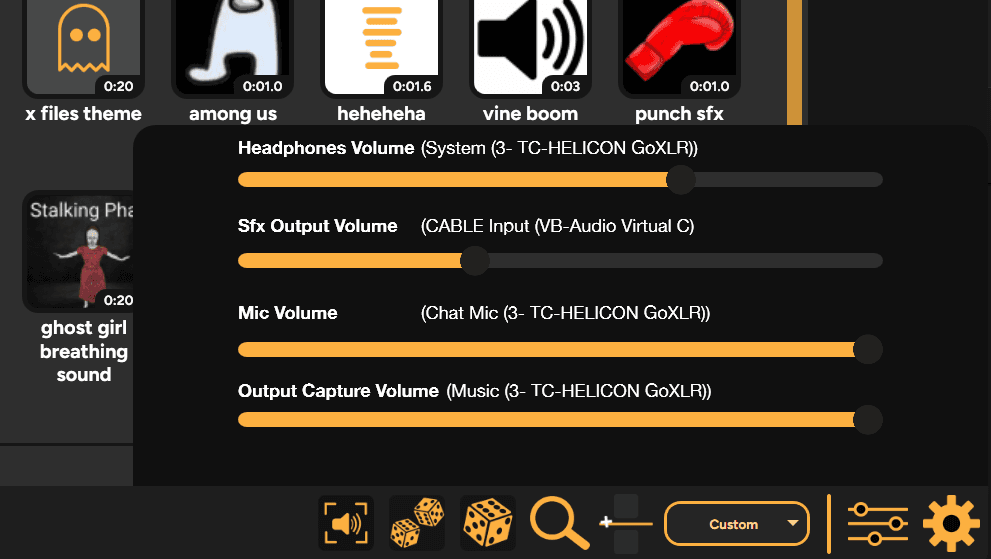
You can adjust the volume of the Output Capture via the audio mixer on the bottom right of the SmoredBoard.
Hear Output Capture
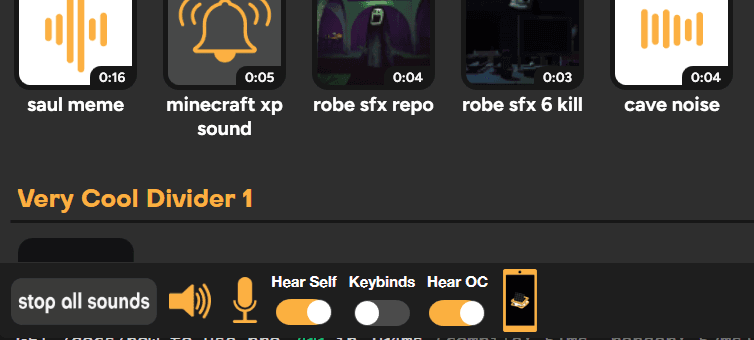
If you don't have an extra audio device to capture that you can also hear, just set output capture to whatever device you want, then turn on Hear OC in the bottom left of the SmoredBoard and you'll be able to hear it just like everyone else!
Random Sound Mode
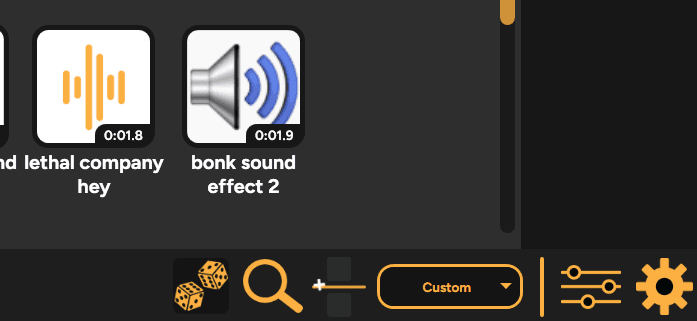
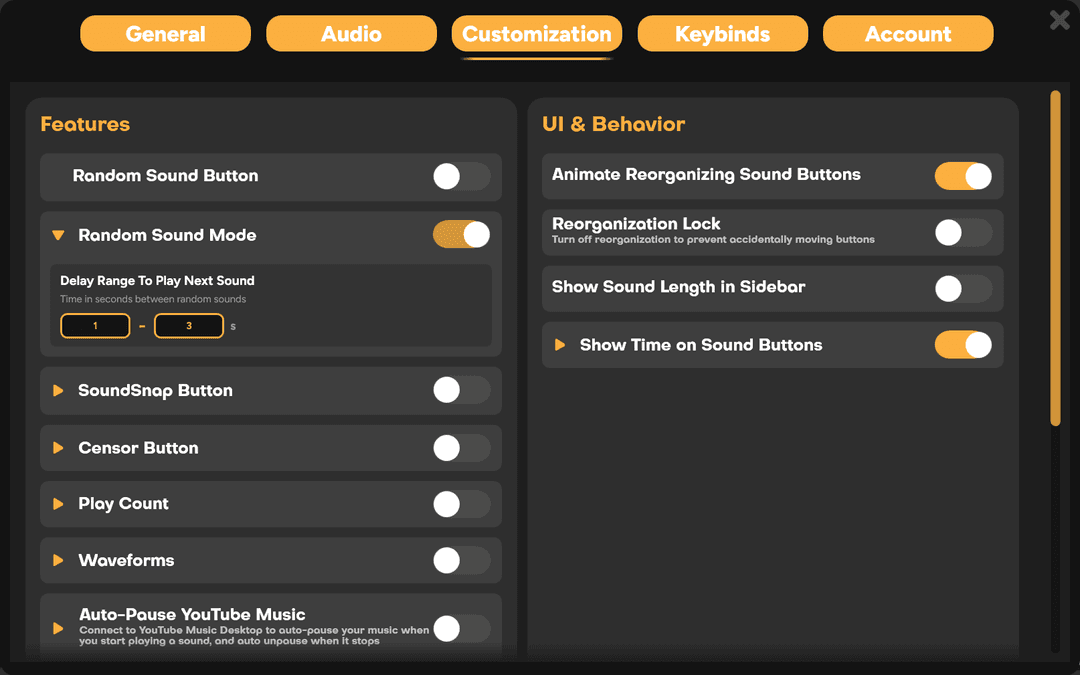
To use Random Sound Mode first go to the Customization page in settings, then toggle on the "Random Sound Mode" button in the Features section
Then the button will appear in the bottom right of the SmoredBoard. To use it just click it and it will start playing sounds randomly in the current profile
NOTE: The button will not appear if in Voice Changer mode
Random Sound Mode Features
Adjusting Time Between Random Sounds
You can adjust the time between random sounds by opening the drop down on the Random Sound Mode option in settings and changing the values.
Random Sound Button
To use the Random Sound Button first go to the Customization page in settings, then toggle on the "Random Sound Button" option in the Features section
Then the button will appear in the bottom right of the SmoredBoard. To use it just click it and it will play 1 sound randomly in the current profile
NOTE: The button will not appear if in Voice Changer mode
Sfx Play Counters
To enable Sfx Play Counters go to the Customization page in settings then toggle on "Play Count"
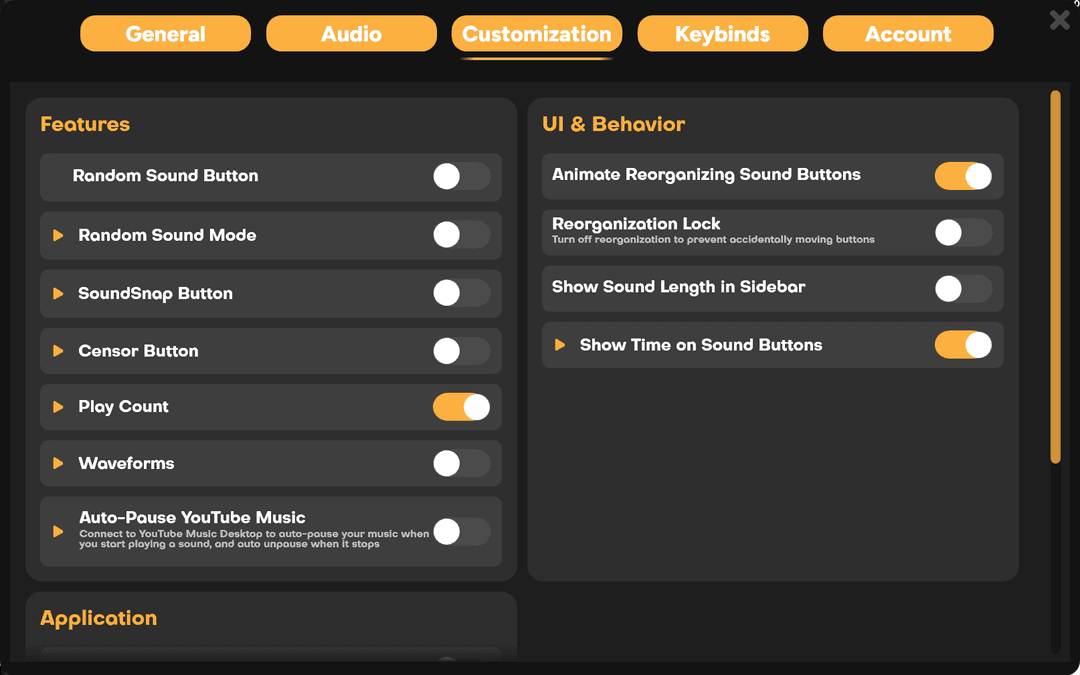
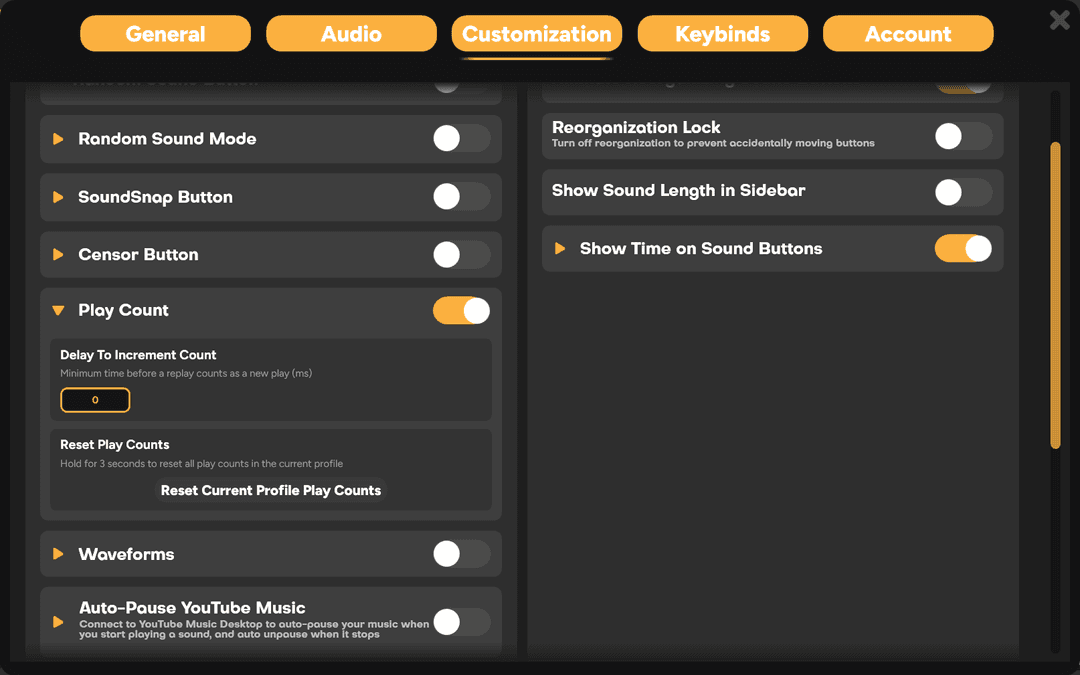
And that's it! You can also right click any sound to reset its play count or open the Play Count's sub settings in the settings menu and hold down the "Reset Current Profile Play Counts" button for 3 seconds to reset all the play counts in the current profile.
Stream Deck Auto Fill
Stream Deck Auto Fill is automatically enabled when you get Pro, so just open the Stream Deck App with a profile loaded in the SmoredBoard. Then find the "Open Auto Load Page" button and add it to your Stream Deck
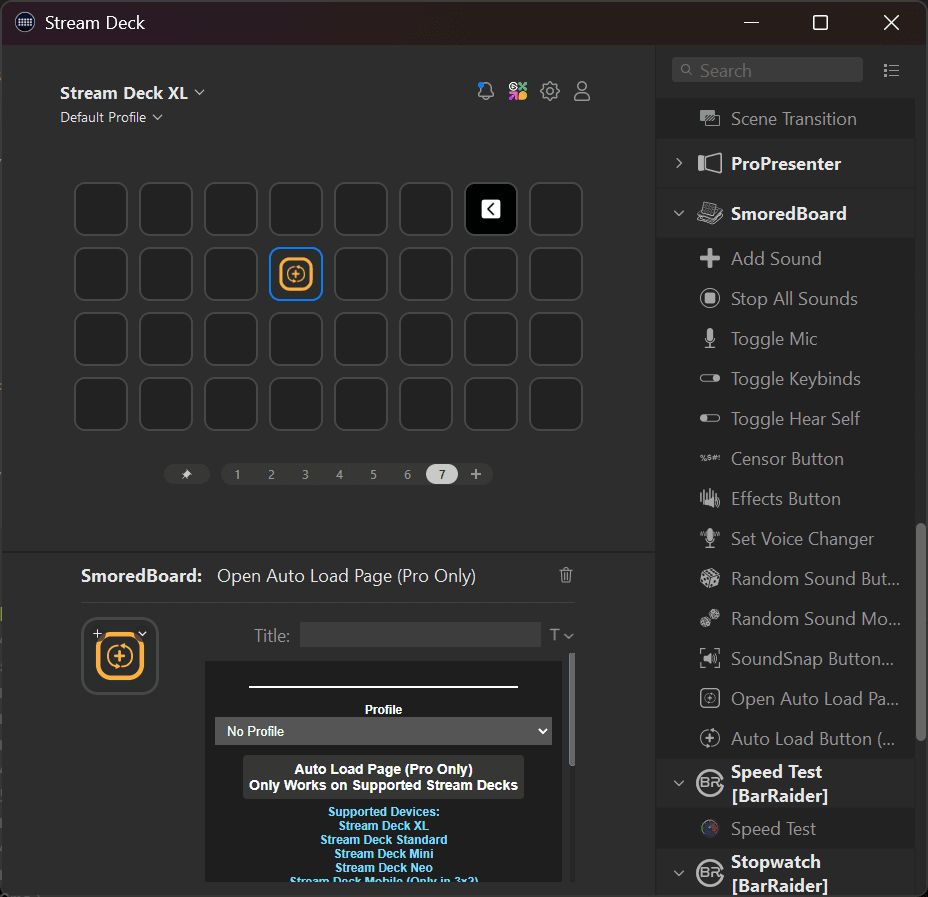
Then click the button and it will load the SmoredBoard's current profile into the Stream Deck!
NOTE: You can also set the Auto Load button to a specific profile if you don't want to load the current profile
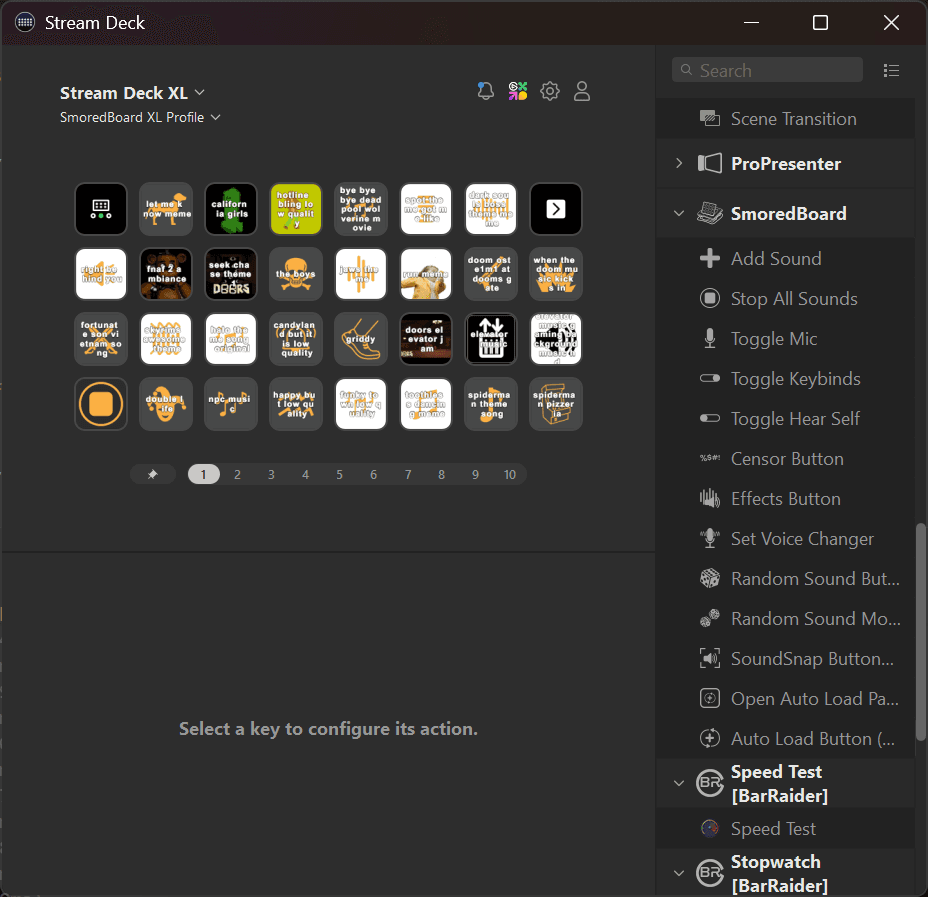
NOTE: This also will load voice changers, if you have any voice changers in the loaded profile it will auto add them in here as well!
Sound Button Sorting
To sort the current profile just click on the sort box on the bottom right of the SmoredBoard and select what option you want.
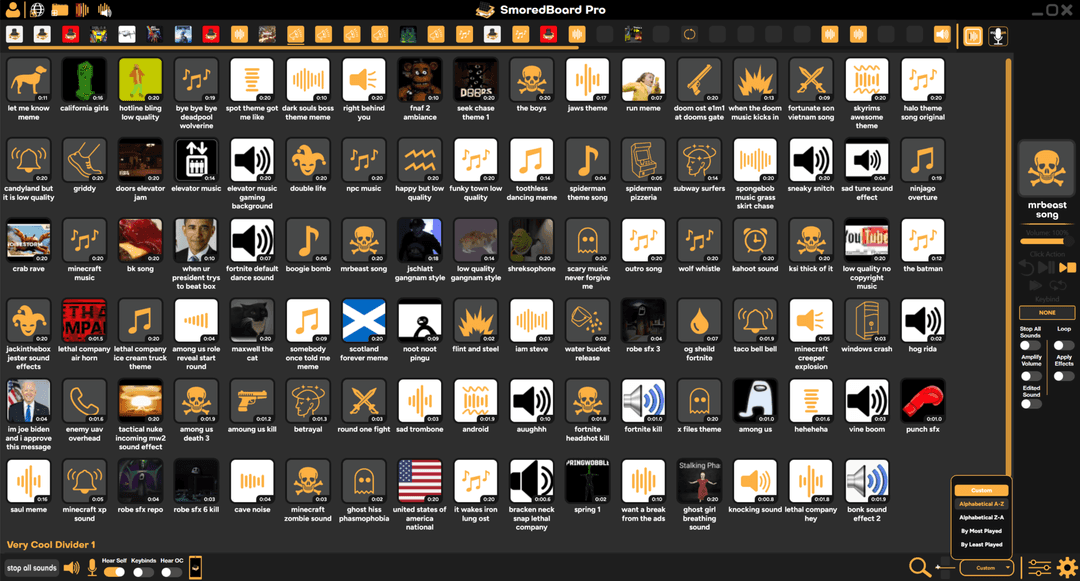
NOTE: Sorting also works in Voice Changers mode as well
Keybind Profiles
There are 2 types of Keybind Profiles in the SmoredBoard, first we'll go over the Per Profile keybind profiles, then after we'll do Global keybind profiles.
Per Profile Keybind Profiles
To create/change a profile's keybind profile, click on whichever profile you want to edit then in the sidebar click the "Keybind Profile" box
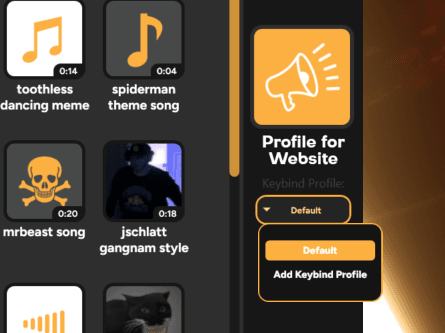
From here either select an already made profile or create a new one. Once you've made one, any keybinds you set to a sound in the current profile will be saved to this keybind profile so you can swap keybinds easily for different games or whatever.
Global Keybind Profiles
To create/change a global keybind profile, open settings and go to the Keybinds tab. From here click the Global Keybind Profile box to change or create a Global Keybind Profile.
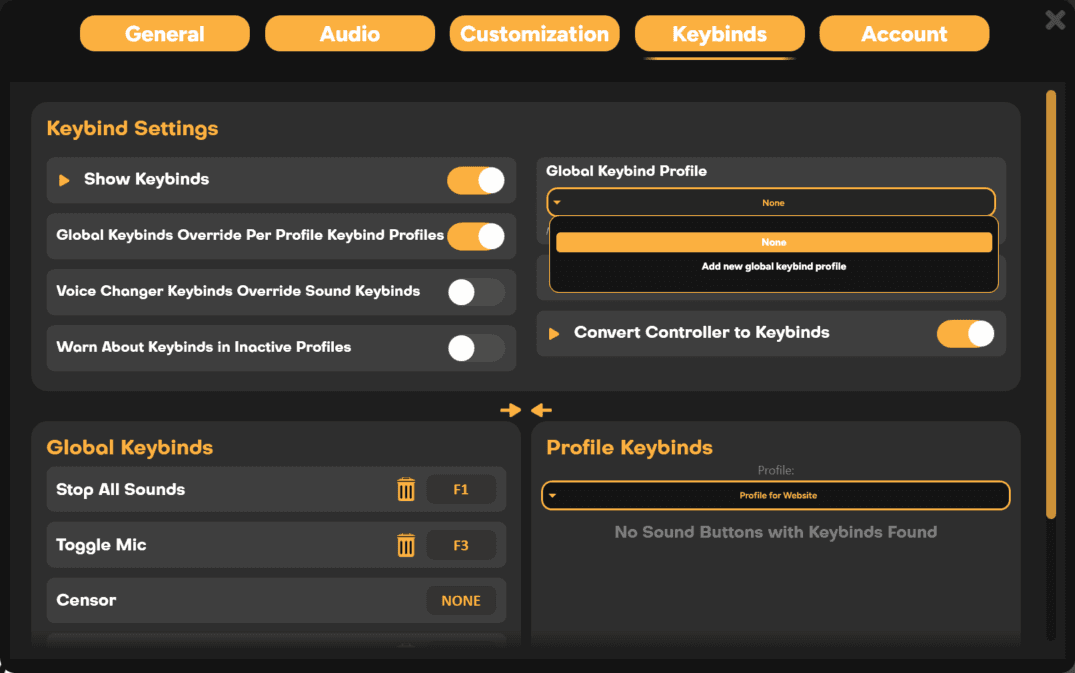
Once you've selected/created a global keybind profile they actually work a bit differently than normal keybind profiles. If you set a keybind for a sound in one profile (using a global keybind profile) and then load another profile with the same sound that keybind will also be added to that sound in the 2nd profile!
NOTE: Global Keybind Profiles match based on file name, not on custom names you set to sounds. So if you add the same sound but from 2 separately named files it won't match those as they aren't the same file.
If you want to know what matches the global keybind found for a sound, open the Keybinds page in settings. Then in the Profile Keybinds section select the Global Keybind Profile you want to check, and it will show all matches it found.
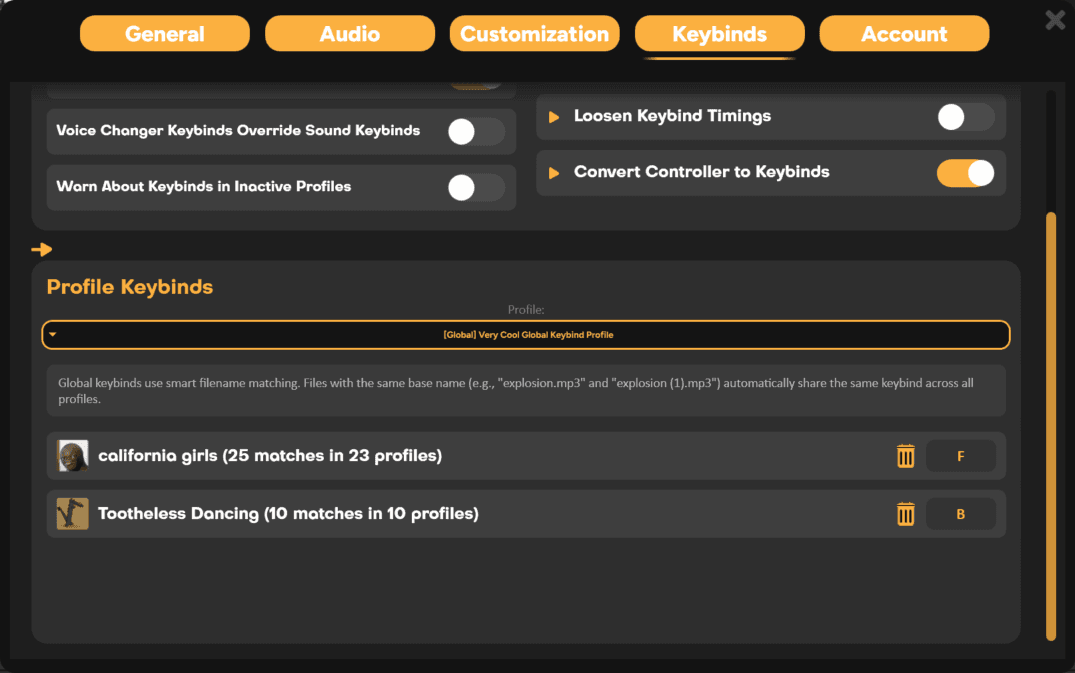
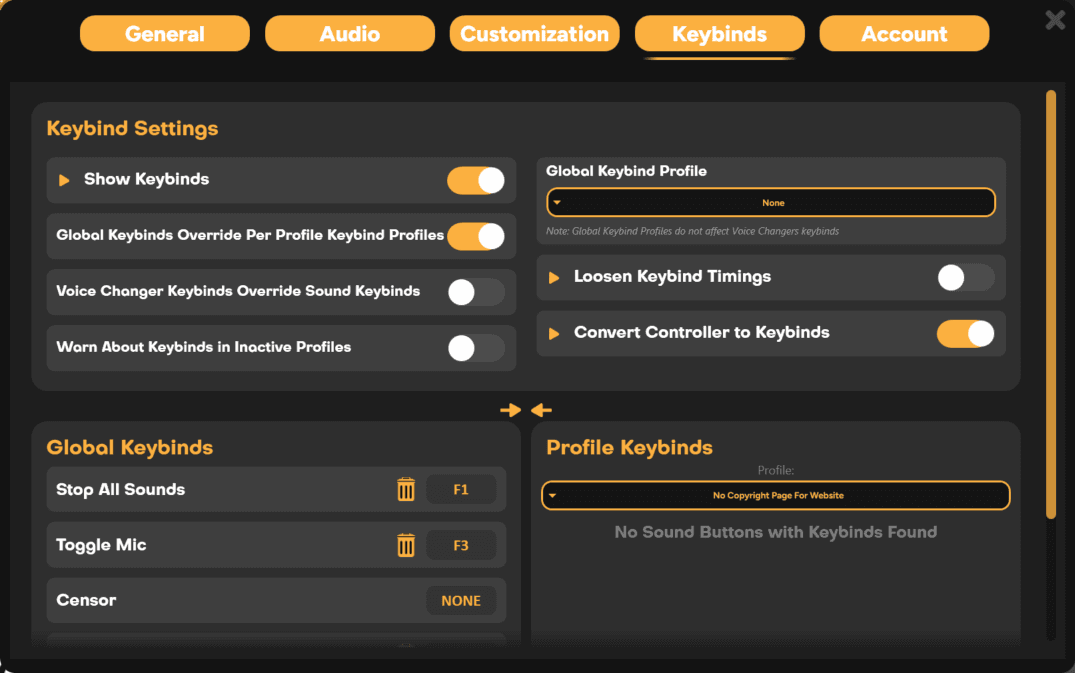
By default if you load a profile with a custom keybind profile AND have a global keybind profile enabled, the SmoredBoard will default to the Global Keybind Profile. But if you don't like that behaviour and want to default to the Per Profile Keybind Profile, just go to the Keybinds page in settings and toggle off "Global Keybinds Override Per Profile Keybind Profiles"
Audio Output Profiles
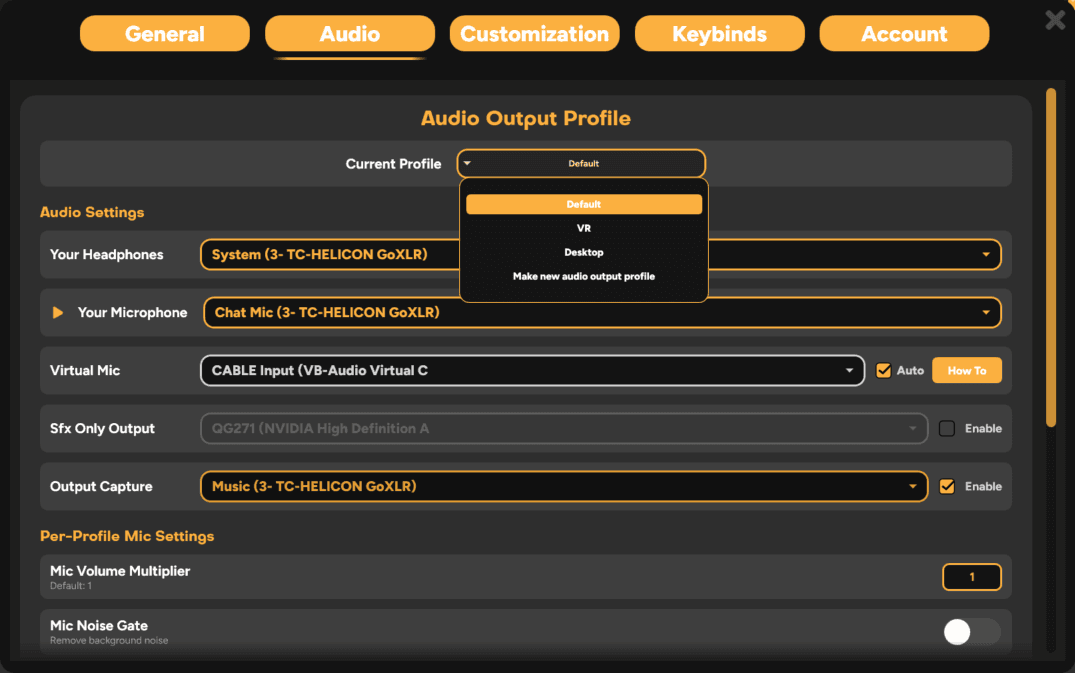
To use an Audio Output Profile go to the Audio tab in settings. At the top you'll see the Audio Output Profiles box click it to create a change/create a profile.
SoundSnap
To turn on SoundSnap go to the Customization page in settings, and toggle on "SoundSnap Button"
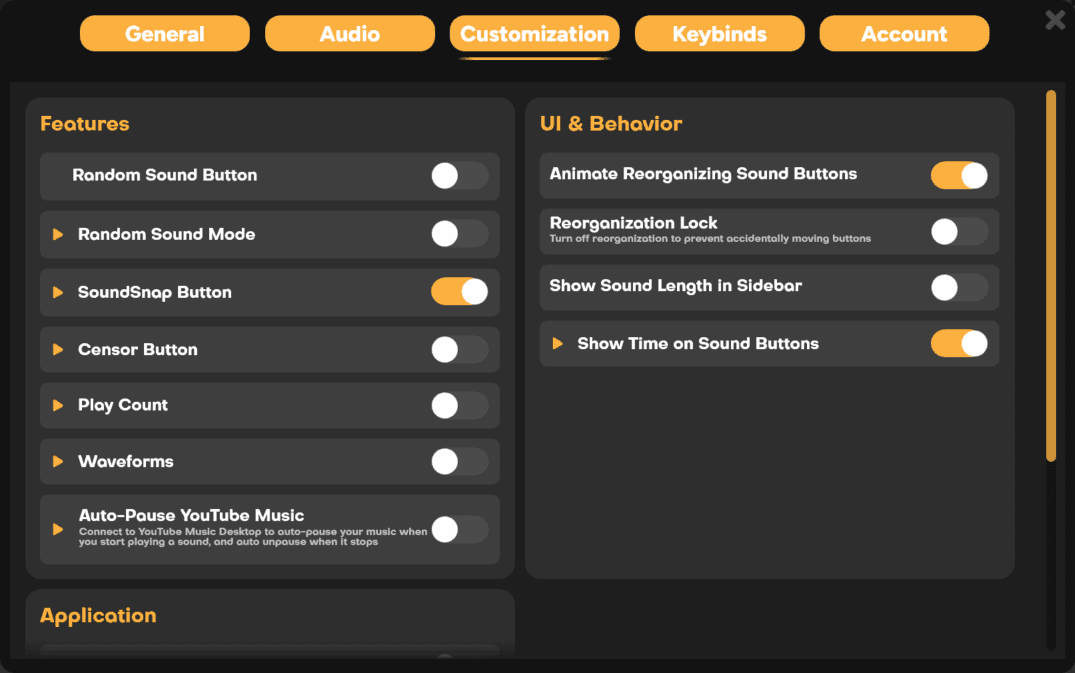
That will add the SoundSnap button to the bottom right of the SmoredBoard where you can click it and it will start recording audio on the Headphones device. To stop recording click it again and it will create a sound button with all the audio recorded and add it to the current profile.
NOTE: SoundSnap button will not appear when in Voice Changer mode
SoundSnap Features
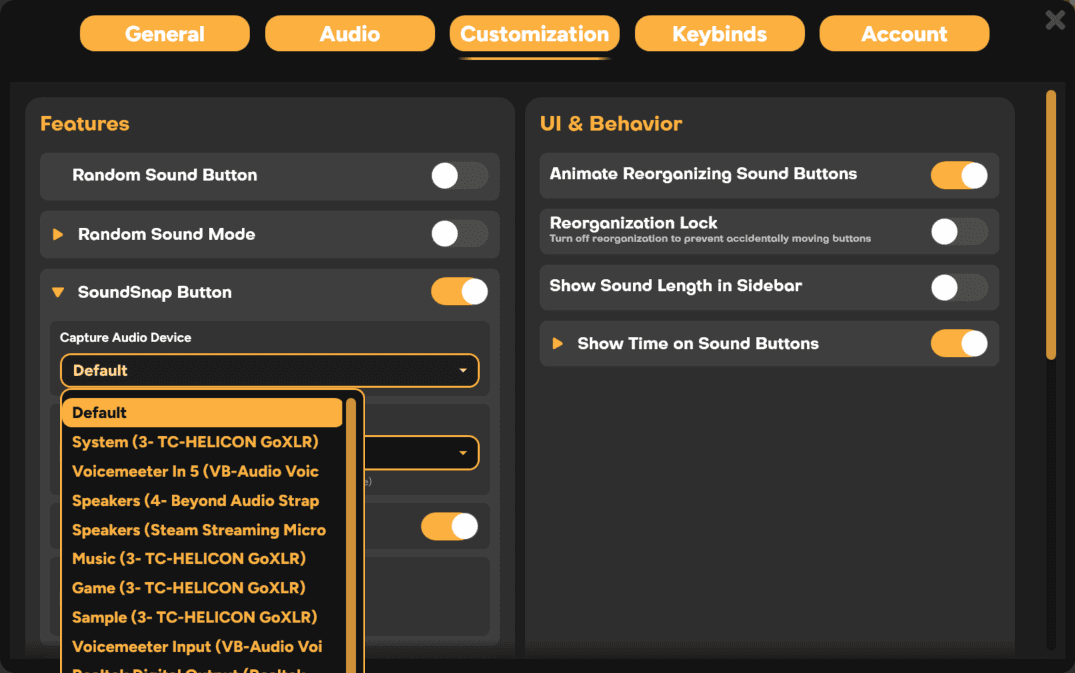
Changing Audio Device
By default SoundSnap uses the Headphones device but you can also change it to any device you want. To do that open the Customization of settings again and open SoundSnap's sub settings. Here you'll see a Capture Audio Device Setting which you can change to whatever device you want.
Changing SoundSnap Image
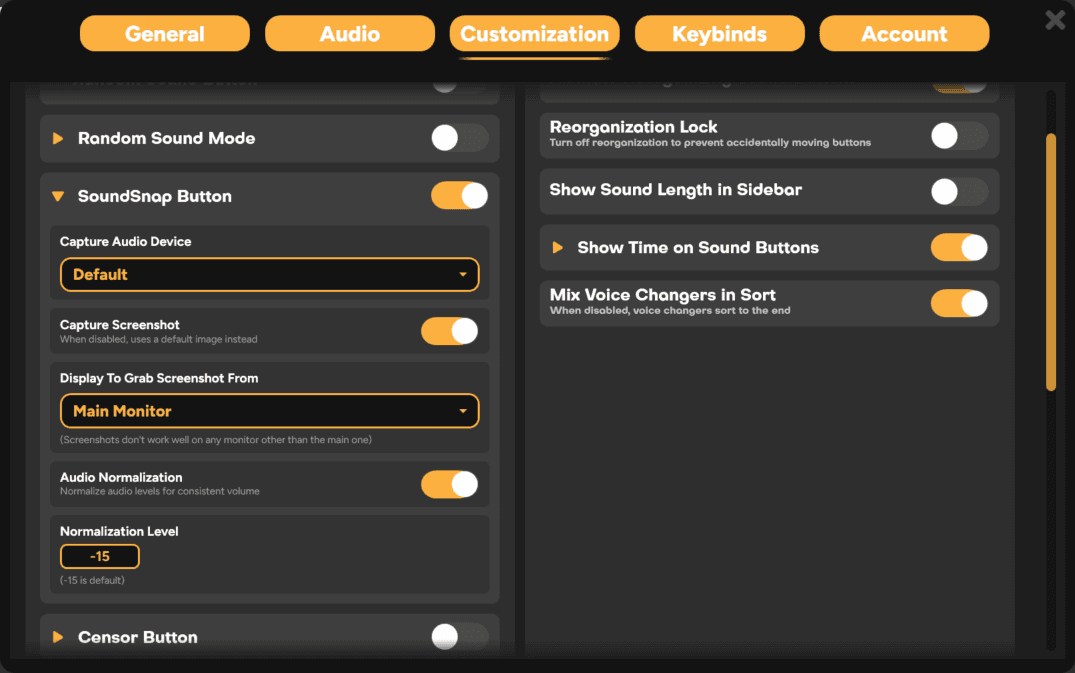
By default when you create a SoundSnap, the SmoredBoard takes a screenshot of your main monitor and saves that as its image. But you can also change what monitor it takes the screenshot on or if we don't use a screenshot at all and instead just use a default image. To edit this go to the Customization page in settings and open SoundSnap's sub settings. Here you'll see options to change all of this.
Changing Audio Normalization
SoundSnap also attempts to normalize audio so it's not too quiet when played, but sometimes this can cause issues so in settings you can always turn it off or change the normalization amount
Voicy Profile Builder
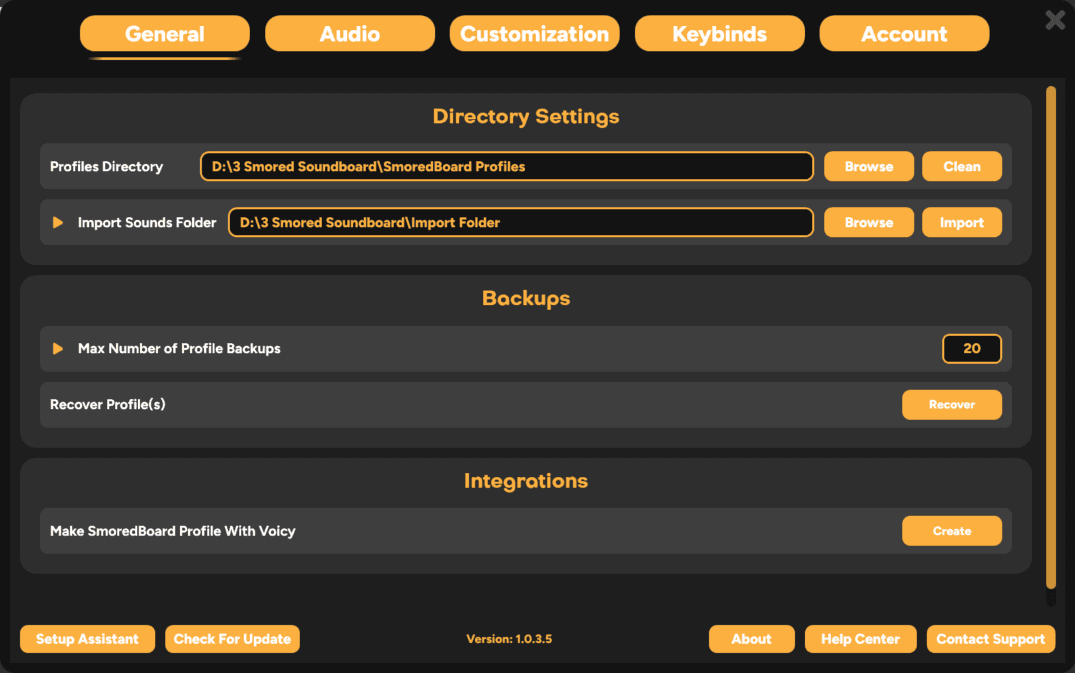
To create a SmoredBoard Profile via Voicy go to the General page in settings and at the bottom click the "Create" button in the "Make SmoredBoard Profile With Voicy" section
Then after naming your profile, it will open the Voicy Profile Builder
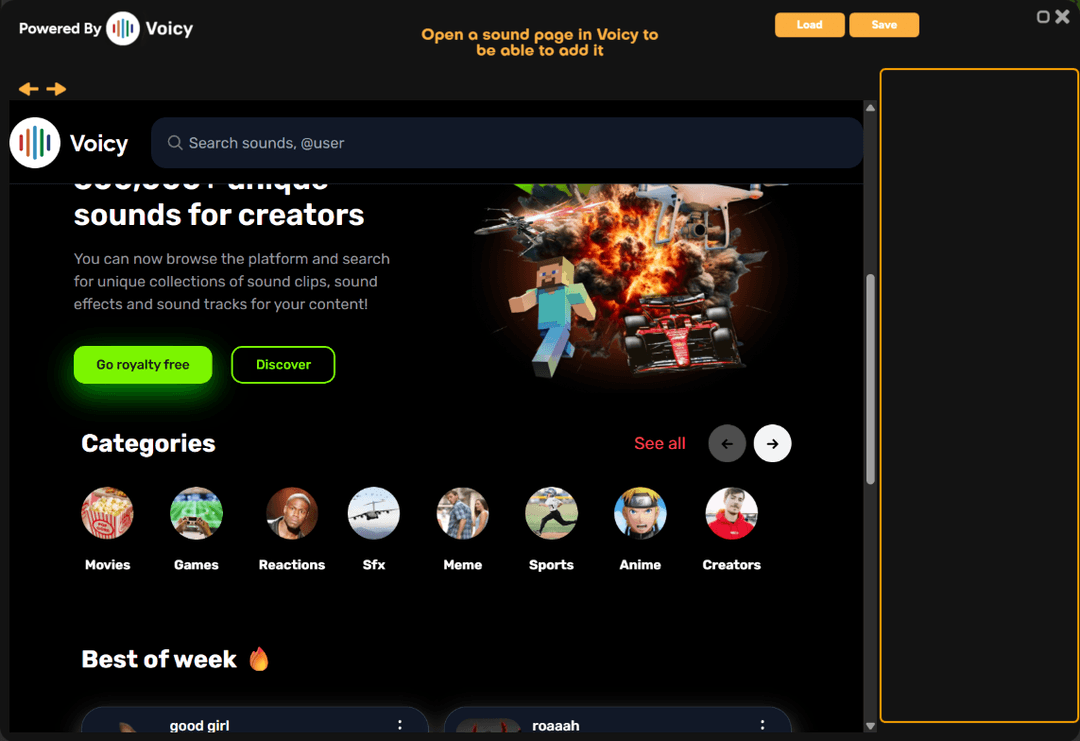
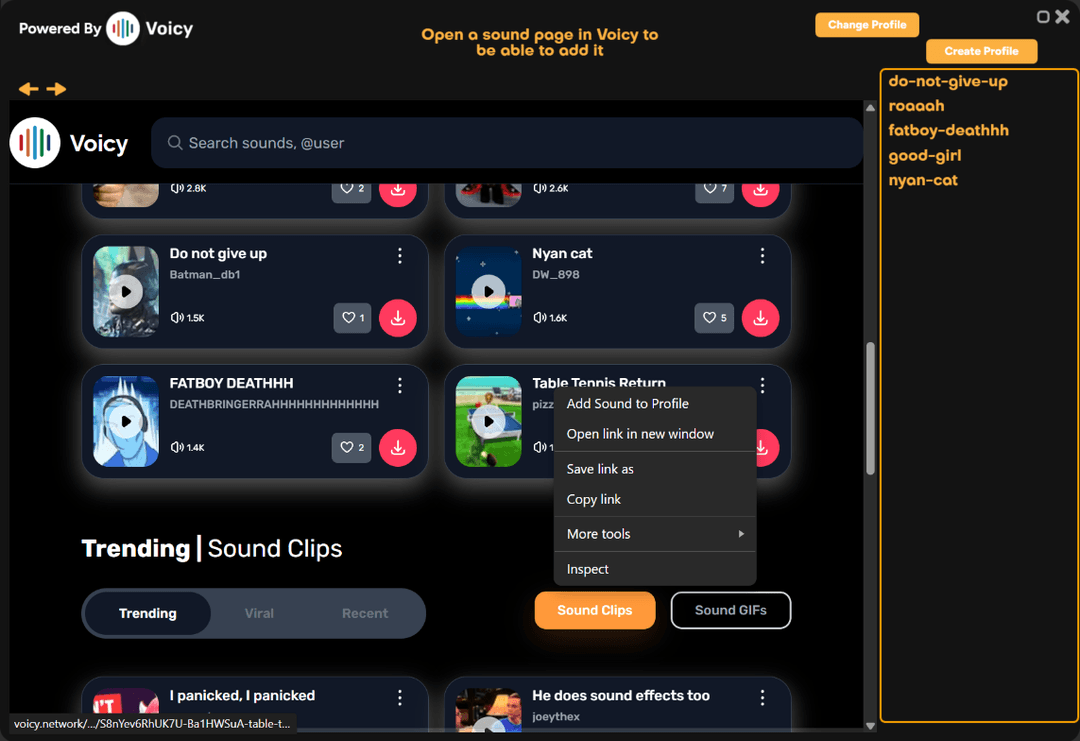
To start first we'll add a sound to the profile. To do that scroll until you find a sound you want to add, and either right click it and select "Add Sound To Profile,"
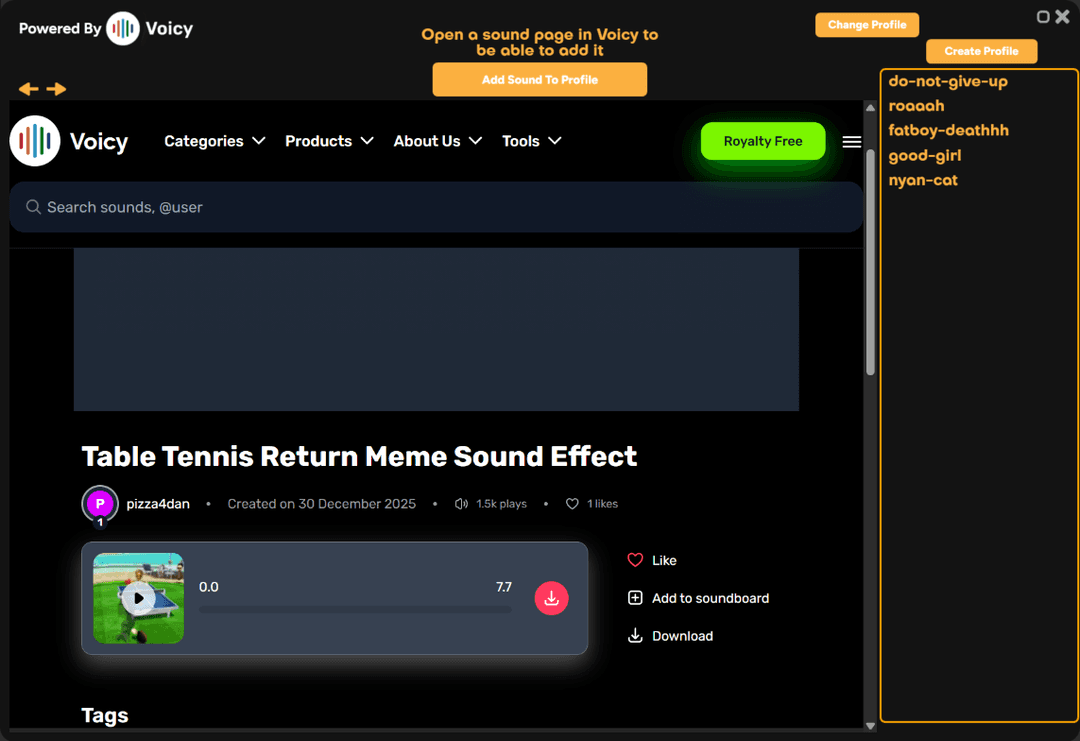
or click on it to open the sound in its own page, and if you're on a valid sound's page, at the top you'll see an Add Sound To Profile button
Repeat adding sounds until you have all the sounds you want in your profile.
NOTE: You can reorder sounds in that list by grabbing its name and moving it up or down in the list
To create your profile click the Create Profile button on the top right and give it a name, pick a location and that's it!
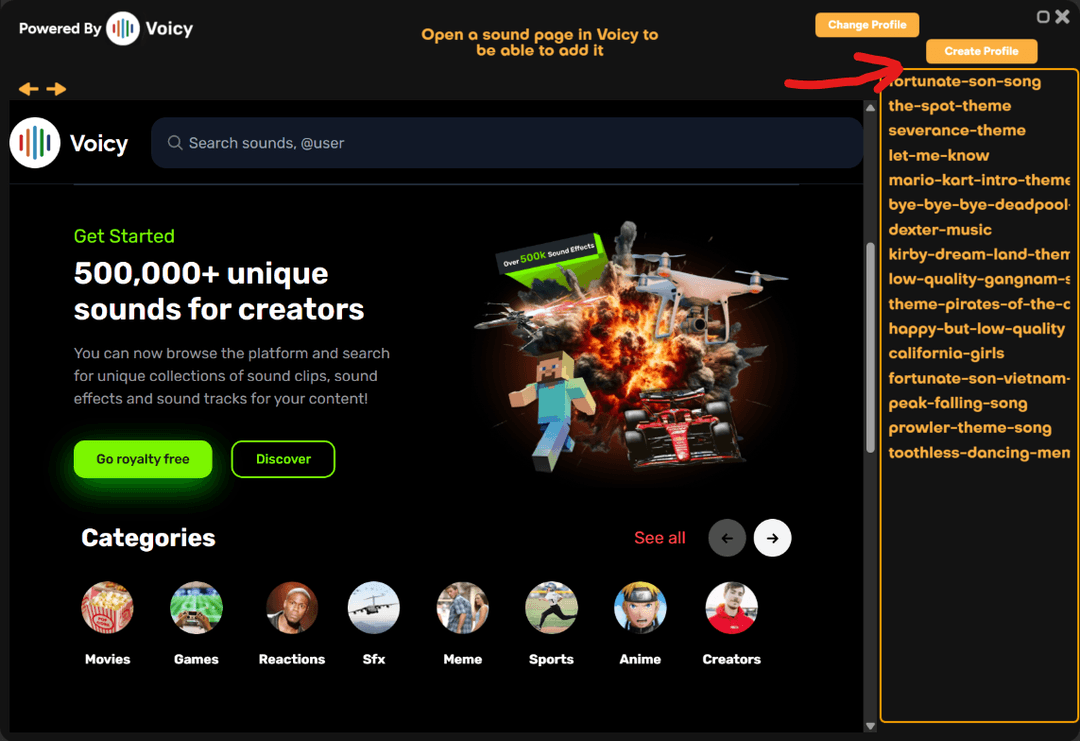
Now you can share this profile with anyone and it will be not only much smaller than a normal profile, but you also don't have to worry about distributing any copyrighted content!
Automations
To open the Automations configurator, open general settings, and scroll down until you see Automations.
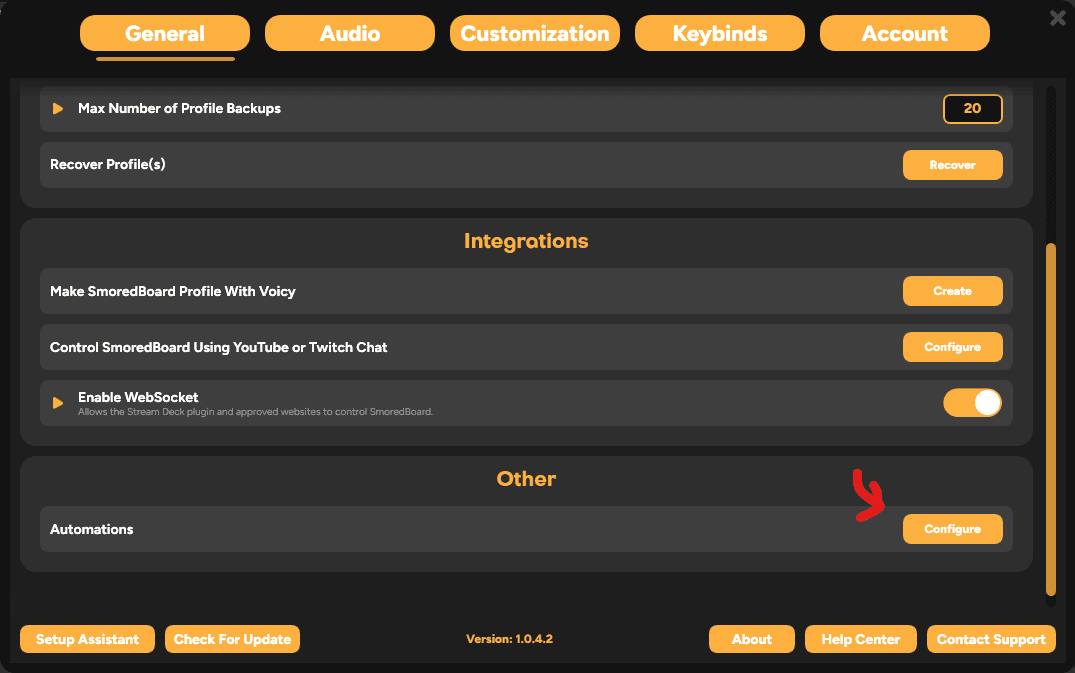
Once in the configurator, click on the plus on top to create an Automation.
NOTE: You can also create an automation by right-clicking any sound and selecting Add to Automation > On Sound Start/Sound Finish > + New Automation
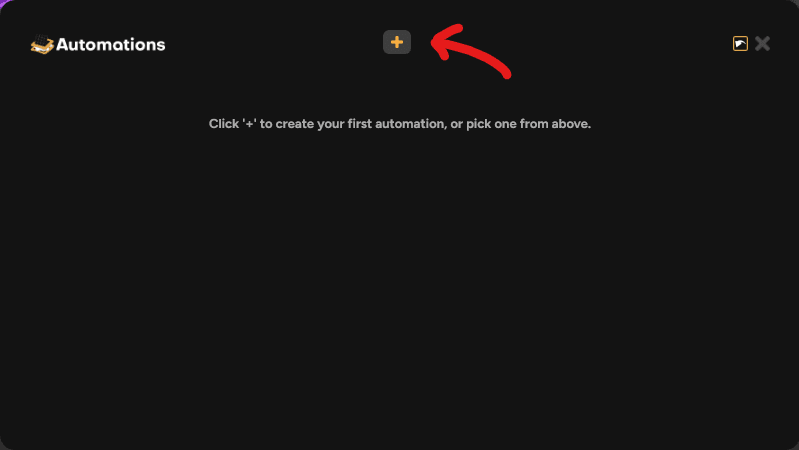
(that red arrow was 100% necessary)
Once you have an Automation you can either add a keybind, or a sound to trigger it.
To add a sound right-click the sound you want, and select 'Add to Automation > On Sound Start/Sound Finish > AUTOMATION_NAME'
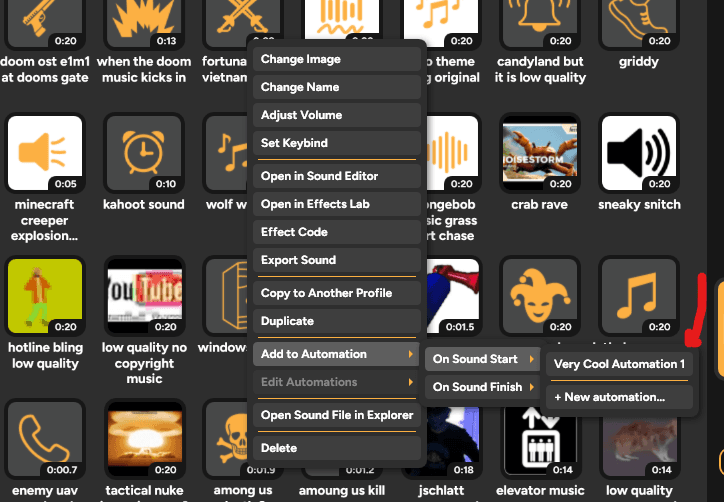
NOTE: You can also add sounds to an automation by using the Add Sound button on the Automations Configurator.
Adding Actions to an Automation
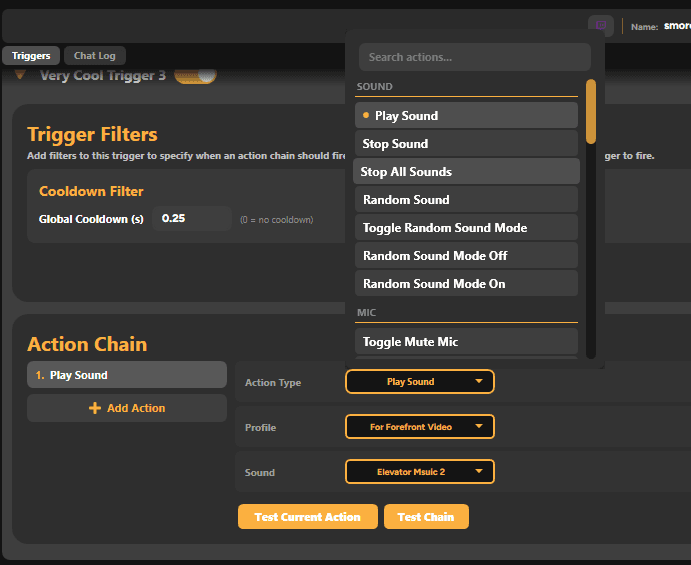
To add an action(s) to your automation, in the configurator scroll down to the Action Chain section.
By default a Play Sound action is added, but you can change this to whatever via the Action type box
Chat Controller Donation/Sub Filters
To add a donation or subscription filter to a stream, open the Chat Controller from general settings.
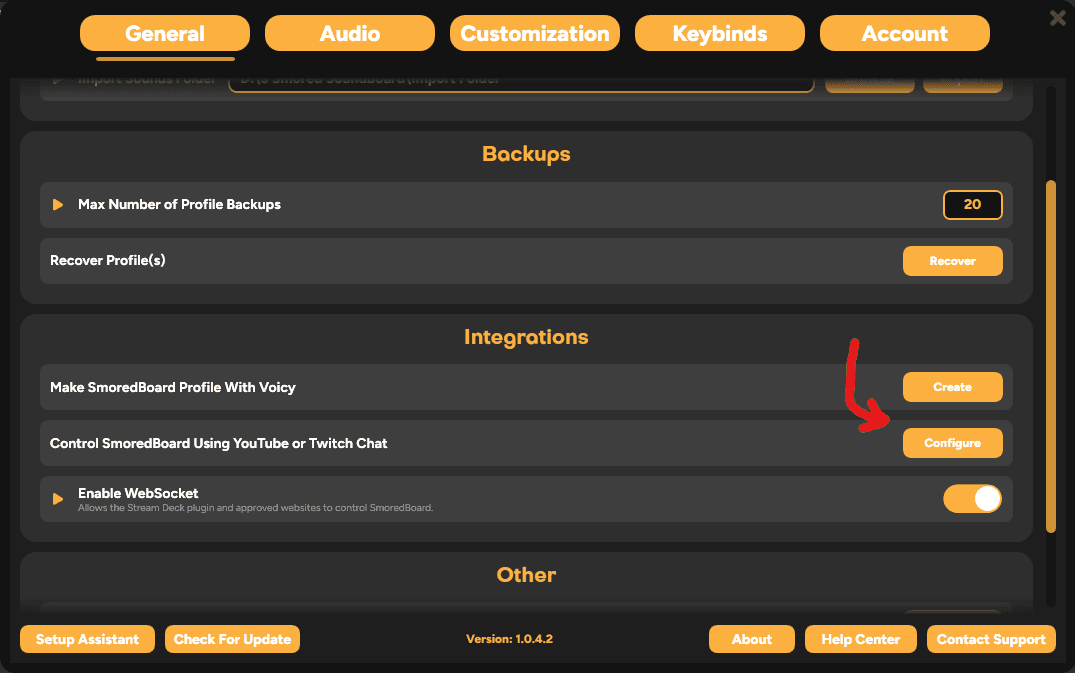
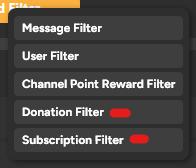
Once in the Chat Controller Configurator you can click the Add Filter button and select either Subscription Filter or Donation Filter.
Mic Recorder
Warning: Mic Recorder and Mic Mirroring ONLY work in APO mode.
In SmoredBoard, go to the Audio tab in settings and scroll down to Mic Recorder. Turn the Record Mic toggle on to begin recording, turn off the toggle to stop recording.
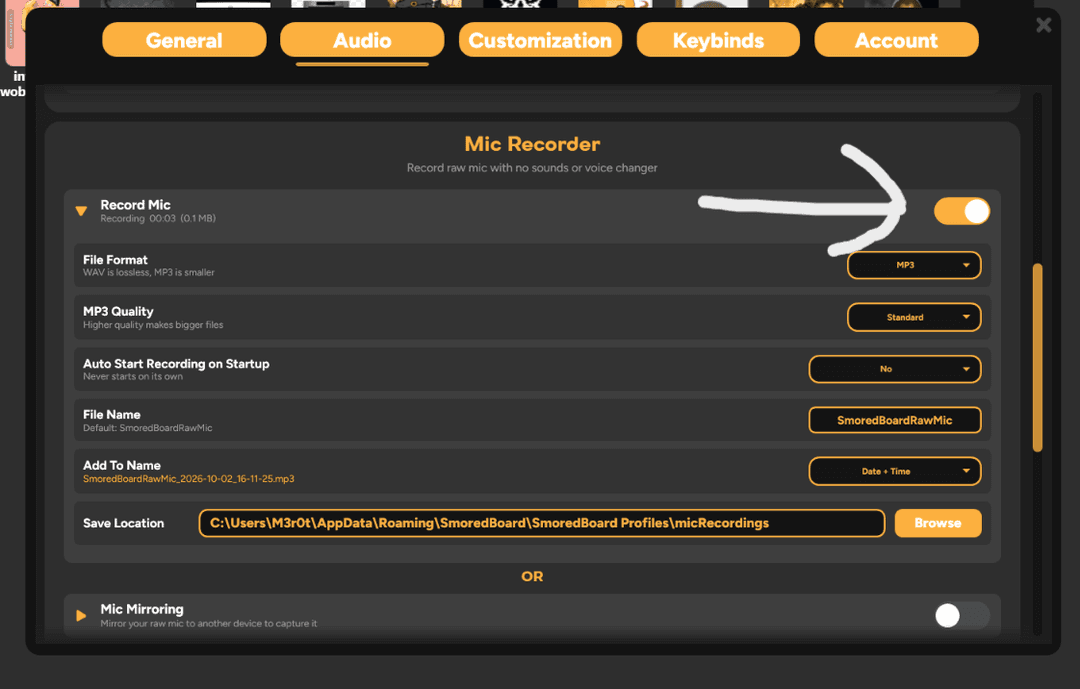
Expand the Mic recorder settings to see the rest of the options.
- File Format: Choose what file type your recording is saved as.
- MP3 Quality: This only appears when the file format is set to MP3. Sets the quality of the MP3 file.
- Auto-Start Recording On Startup: Choose if recording starts automatically when SmoredBoard opens.
- Name: The name your recording file will be saved as.
- Add To Name: Select additional info that is added to your recording, such as the date and time.
- Save Location: Choose where your recordings are saved.
Mic Mirroring
Warning: Mic Recorder and Mic Mirroring ONLY work in APO mode.
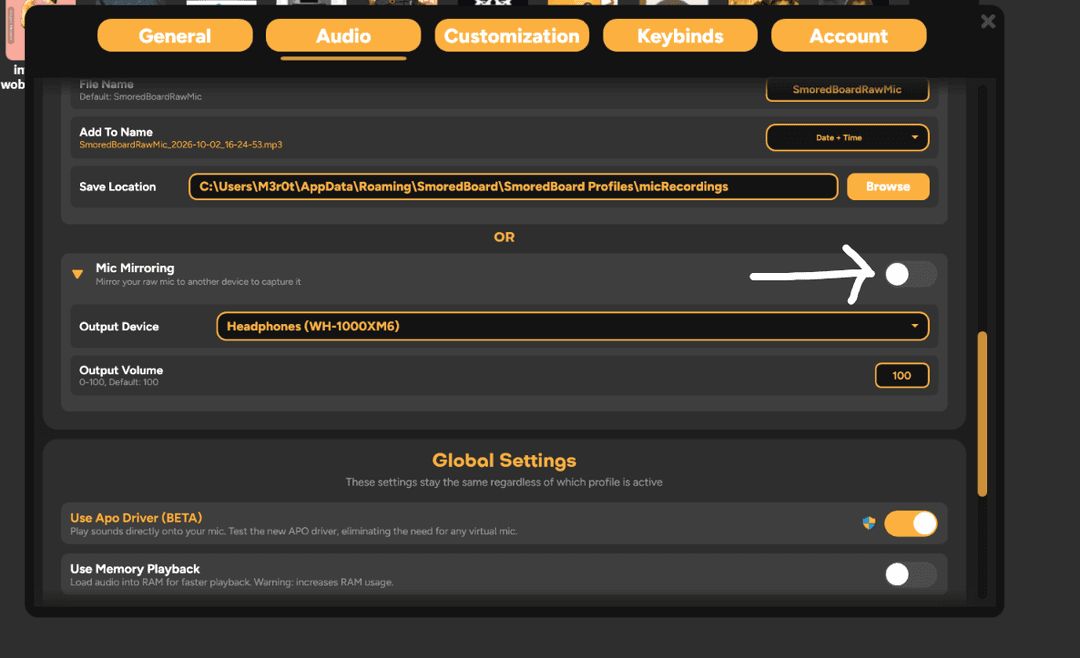
Open the Audio tab in settings, and scroll down to Mic Mirroring. Turn on the toggle to begin mirroring, expand the setting, and in Output Device select an unused output device that your mic will then mirror to. To record it, open OBS or any other recording app and capture your mic through the selected output device. If you do not have an unused output device, use Mic Recorder instead.
Still having issues? Contact Support