How to Recover Profiles
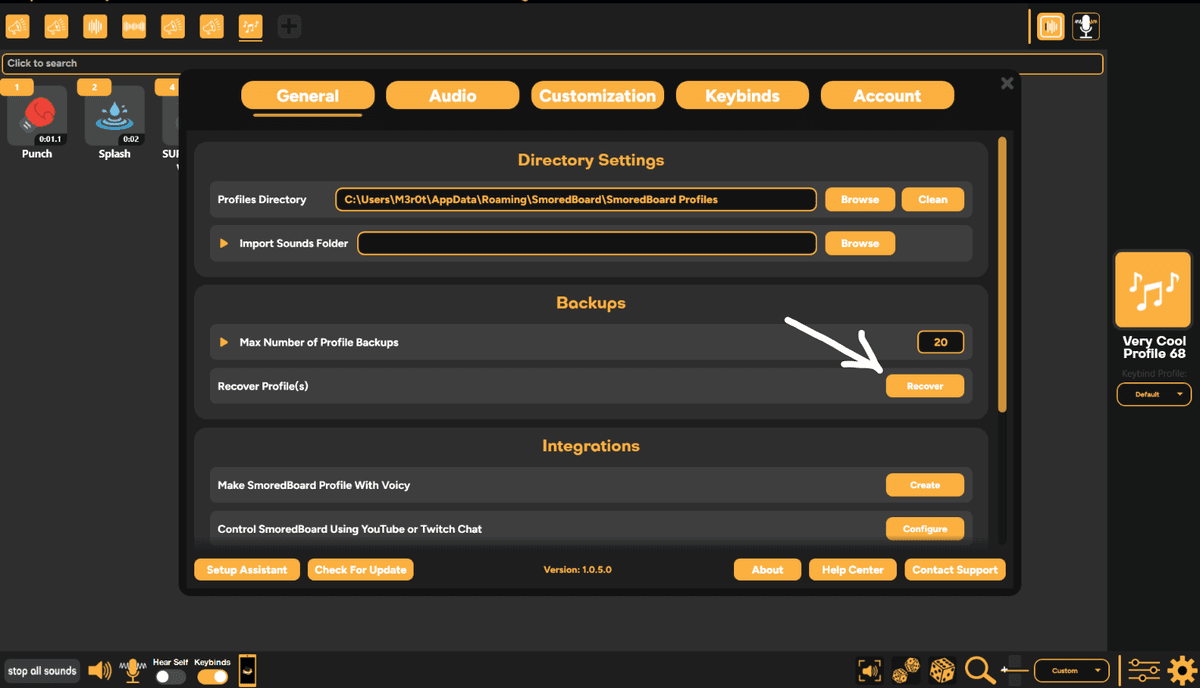
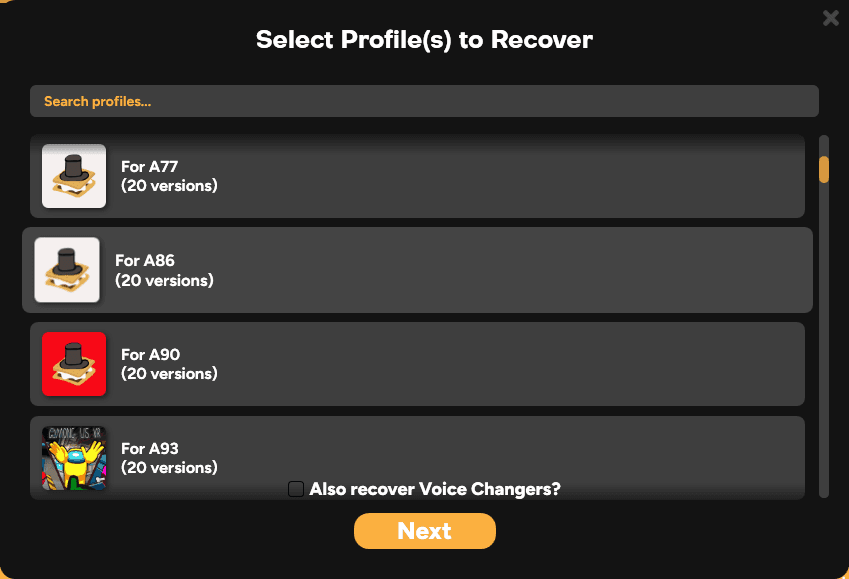
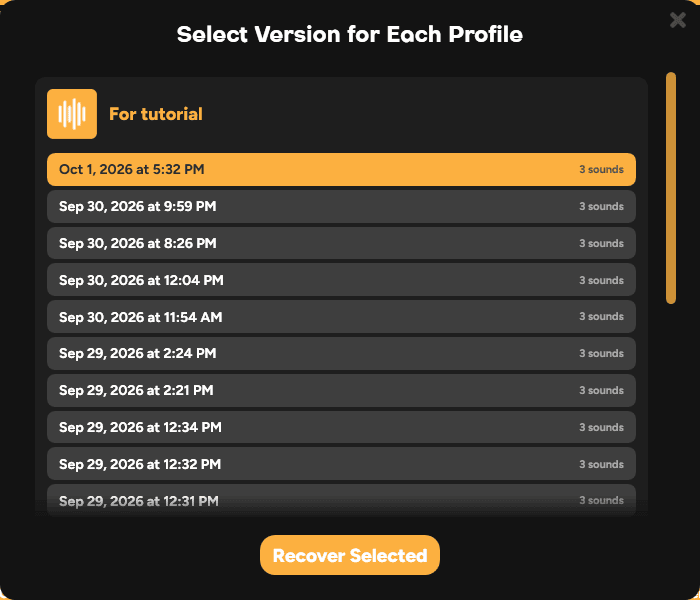
Restore profiles from automatic backups or manually recover profile data.
How Backups Work
SmoredBoard automatically creates backups of your profiles every time the app starts. This means you always have recent copies to restore from if something goes wrong.
- Backups are created automatically at app startup
- Each backup includes all your
.jsonprofile files - By default, the last 20 backups are kept (configurable in settings)
Backup Location
Here's where to find your profile files and backups:
Check this box if you set a custom profile directory in SmoredBoard settings, and the paths below will update accordingly.
| Item | Path |
|---|---|
| Current Profiles | %LOCALAPPDATA%\SmoredBoard\SmoredBoard Profiles\or: C:\Users\[YourUsername]\AppData\Local\SmoredBoard\SmoredBoard Profiles\ |
| Profile Backups | %LOCALAPPDATA%\SmoredBoard\SmoredBoard Profiles\Backups\or: C:\Users\[YourUsername]\AppData\Local\SmoredBoard\SmoredBoard Profiles\Backups\ |
Inside the Backups folder, you'll find timestamped folders like this:
SmoredBoard Profiles/
├── MyProfile.json
├── Gaming.json
└── Backups/
├── 2024-12-15_14-30-45-123/
├── MyProfile.json
├── Gaming.json
└── ...
├── 2024-12-14_10-22-30-567/
└── 2024-12-13_08-15-00-890/
The folder names use the format yyyy-MM-dd_HH-mm-ss-fff (date_time-milliseconds), so you can easily identify when each backup was made.
Manual Restoration
Follow these steps to manually restore a profile from backup:
- Close SmoredBoard
If SmoredBoard is open, close it completely first. - Open the Backups folder
Press theWindows key+Rat the same time. A small "Run" box will pop up.
Copy this path and paste it into the box, then click OK:%LOCALAPPDATA%\SmoredBoard\SmoredBoard Profiles\Backups
(Full path: C:\Users\[YourUsername]\AppData\Local\SmoredBoard\SmoredBoard Profiles\Backups) - Find a good backup
You'll see folders with names like2024-12-15_14-30-45-123. These are dates and times. Pick the most recent one and double-click to open it. - Check the backup isn't empty
Look for your profile file (likeMyProfile.json). Right-click it → click Open with → click Notepad.
If you see lots of text = Good! Close Notepad.
If it's empty or just shows{}= Bad. Go back and try an older backup folder. - Copy the good backup file
Right-click your profile file → click Copy.
Then click the Back arrow in File Explorer twice to go back to theSmoredBoard Profilesfolder (or paste this path:%LOCALAPPDATA%\SmoredBoard\SmoredBoard Profiles).
Right-click in the empty space → click Paste. If it asks to replace, click Yes. - Open SmoredBoard
Open SmoredBoard again. Your profile should be back to how it was!
Still not right? Close SmoredBoard and try an older backup folder. The newest backup might have been made after the problem started.
Tips
- Save your current profiles first: Before pasting the backup file, copy your current profile somewhere safe (like your Desktop) in case you want it back later.
- Filename = profile name: The filename of the
.jsonfile determines the profile name shown in the app. - Understanding timestamps: Backup folder names follow the format
yyyy-MM-dd_HH-mm-ss-fff, wherefffis milliseconds. - Profile still not working? If your restored profile still doesn't work or seems corrupted, try an older backup folder. The newest backup might have been created after the problem started. Work your way back through older folders until you find one that works.
Still having issues? Contact Support