How to edit a sound in SmoredBoard
Learn how to edit a sound in the SmoredBoard using the built in Sound Editor.
The different ways to open Sound Editor
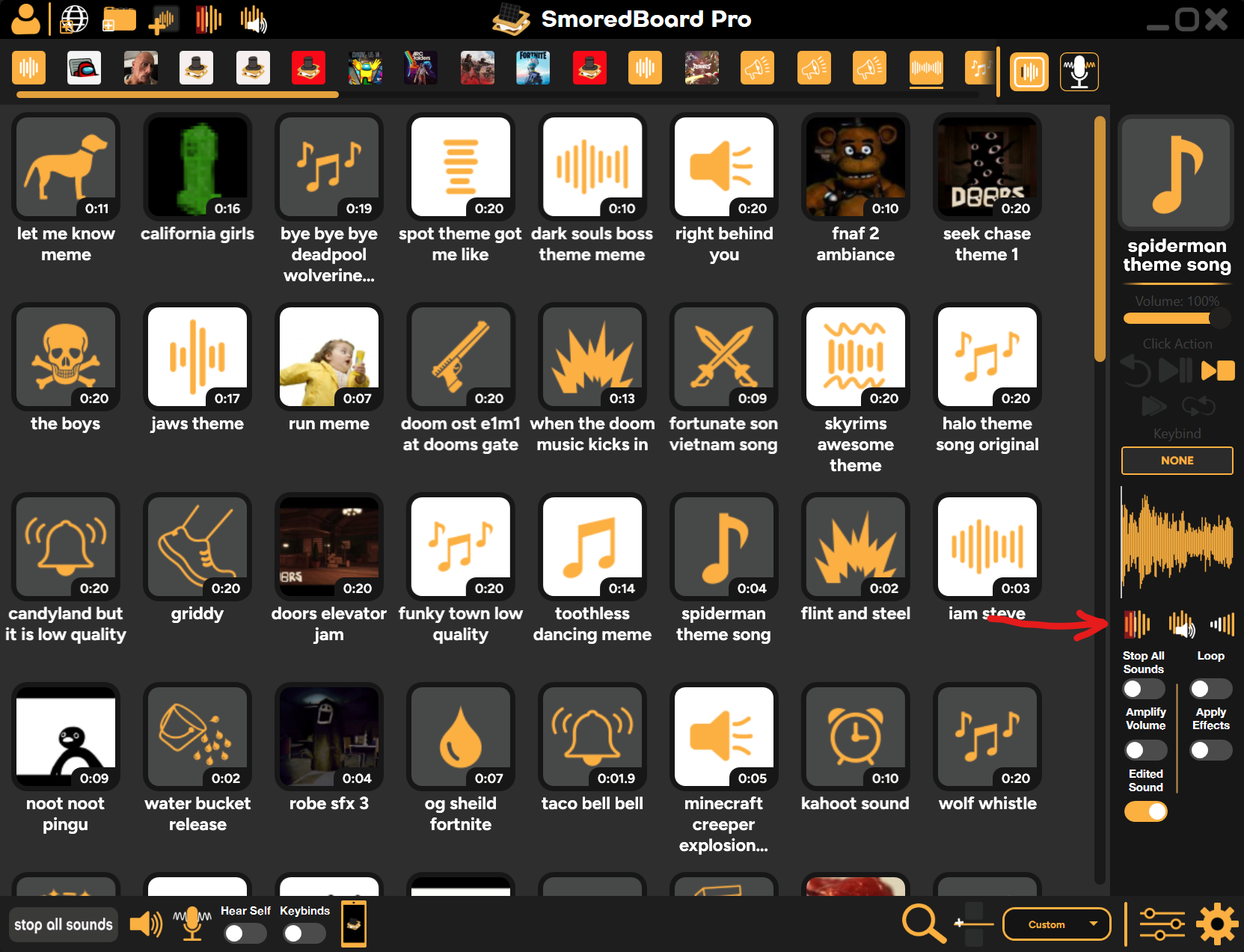
To edit a sound in SmoredBoard you need to open the Sound Editor for your selected sound. There are several ways of doing this, but the best way is by selecting the sound you want, so the sidebar updates to that sound, then click the Sound Editor button.
How To Edit A Sound And Save Your Changes
To trim a sound, select the "Trim" button and adjust the handles as needed, then select the "Save" button when you're done. To delete a trim, right-click the "Trim" button, then click "Clear Trim".
To cut part of a sound, select the "New Cut" button, then adjust the handles as needed. Once you are done, select the "Save" button. To edit or delete a cut, right-click the cut, then select either "Edit Cut" or "Delete Cut".
Still having issues? Contact Support