How to customize sound buttons in the SmoredBoard
Learn how to customize SmoredBoard sound buttons in the Settings and Customization menu.
Customize Sound Buttons
To customize sound buttons, open Settings and go to the "Customization" tab. Under "UI and Behavior," you can adjust a few settings that change how button appearances work.
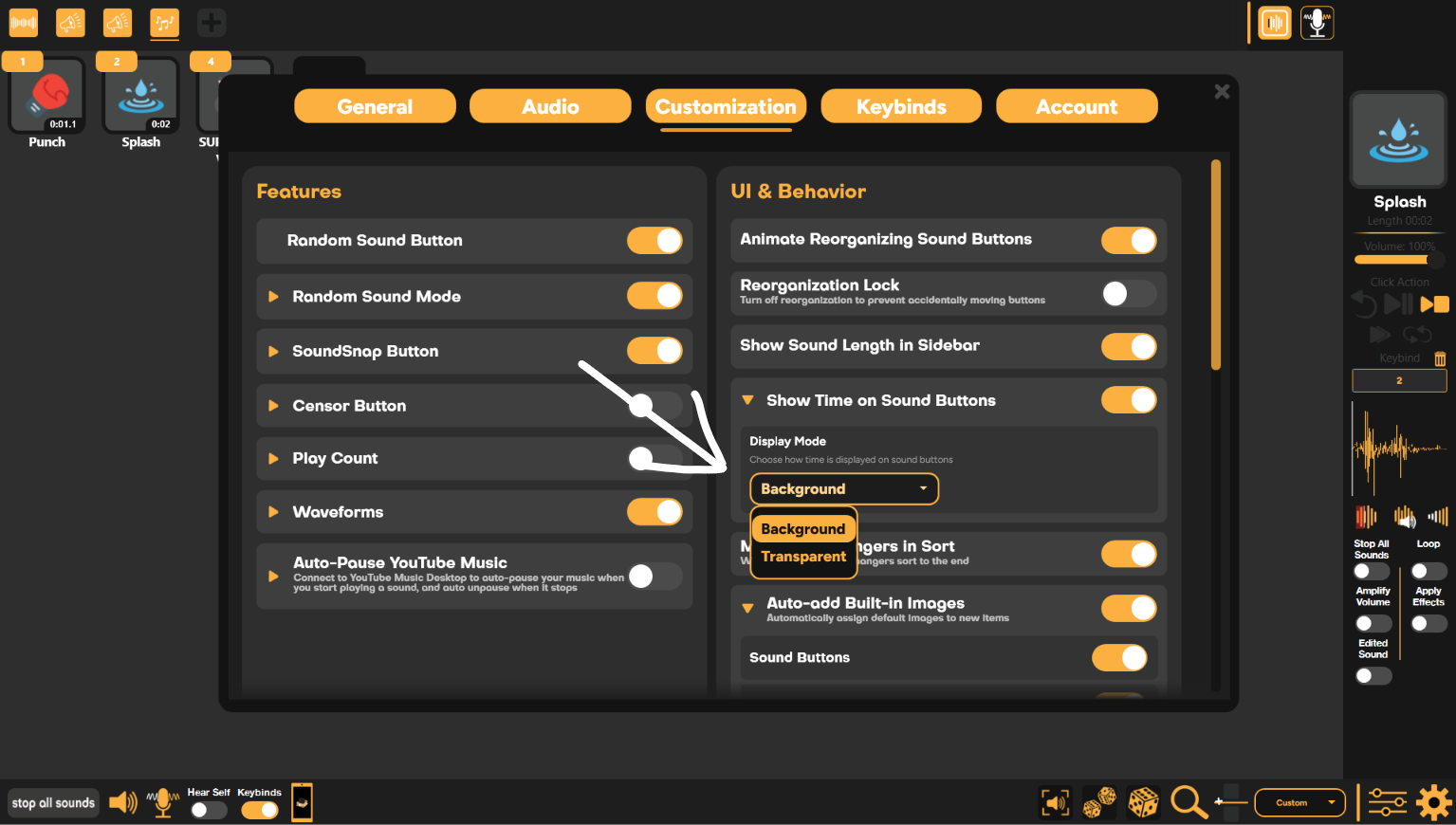
Sound Time Display
To change how time is shown on sound buttons, enable the toggle "Show Time On Sound Buttons". Then expand the setting to choose between "Background" and "Transparent", or disable the display entirely.
Default Images
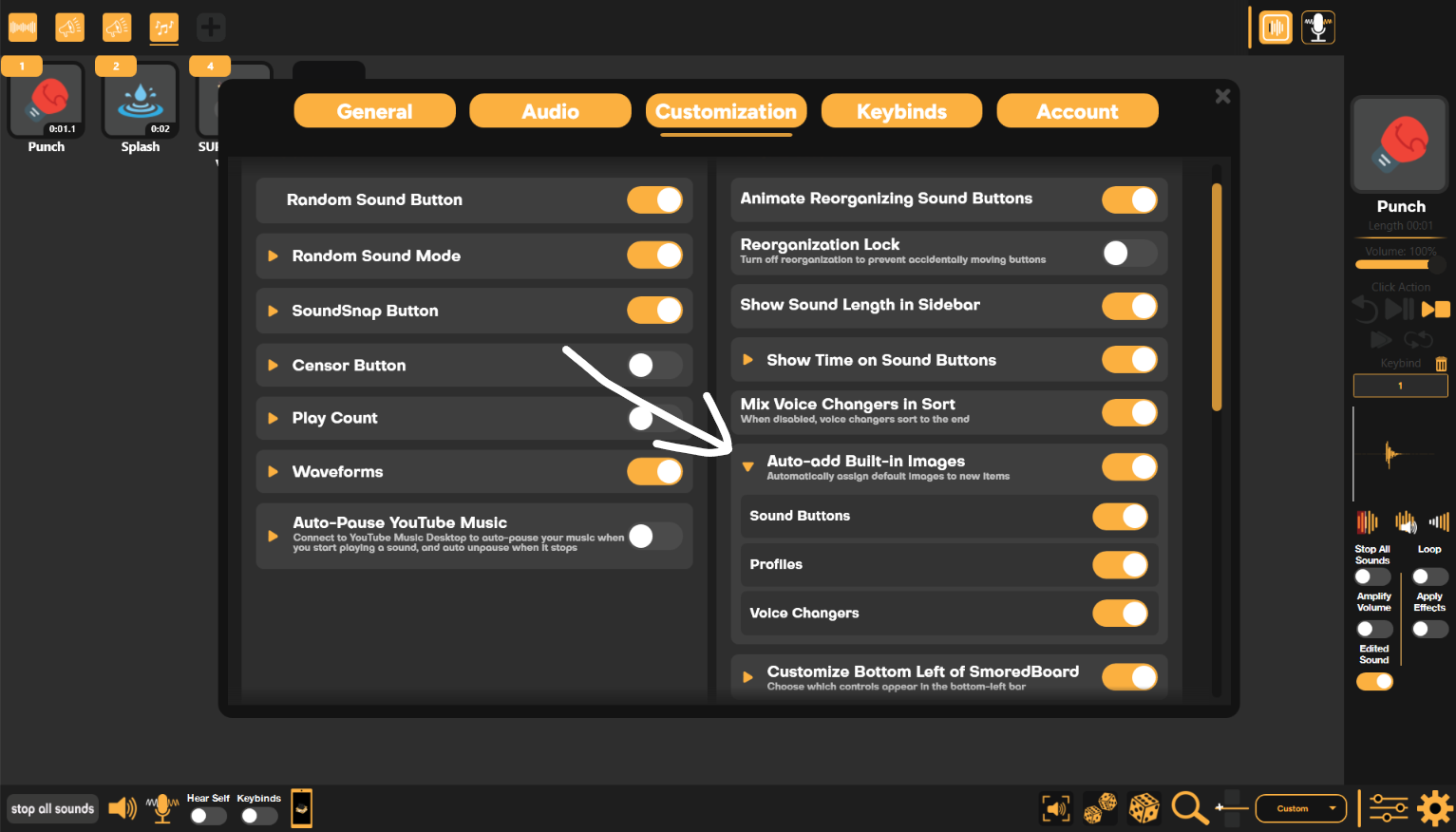
You can automatically assign default images to new items by enabling the "Auto-add Built-in Images" toggle. Then expand the setting to turn this feature on for "Sound Buttons", "Profiles", and "Voice Changers".
Custom Button Size
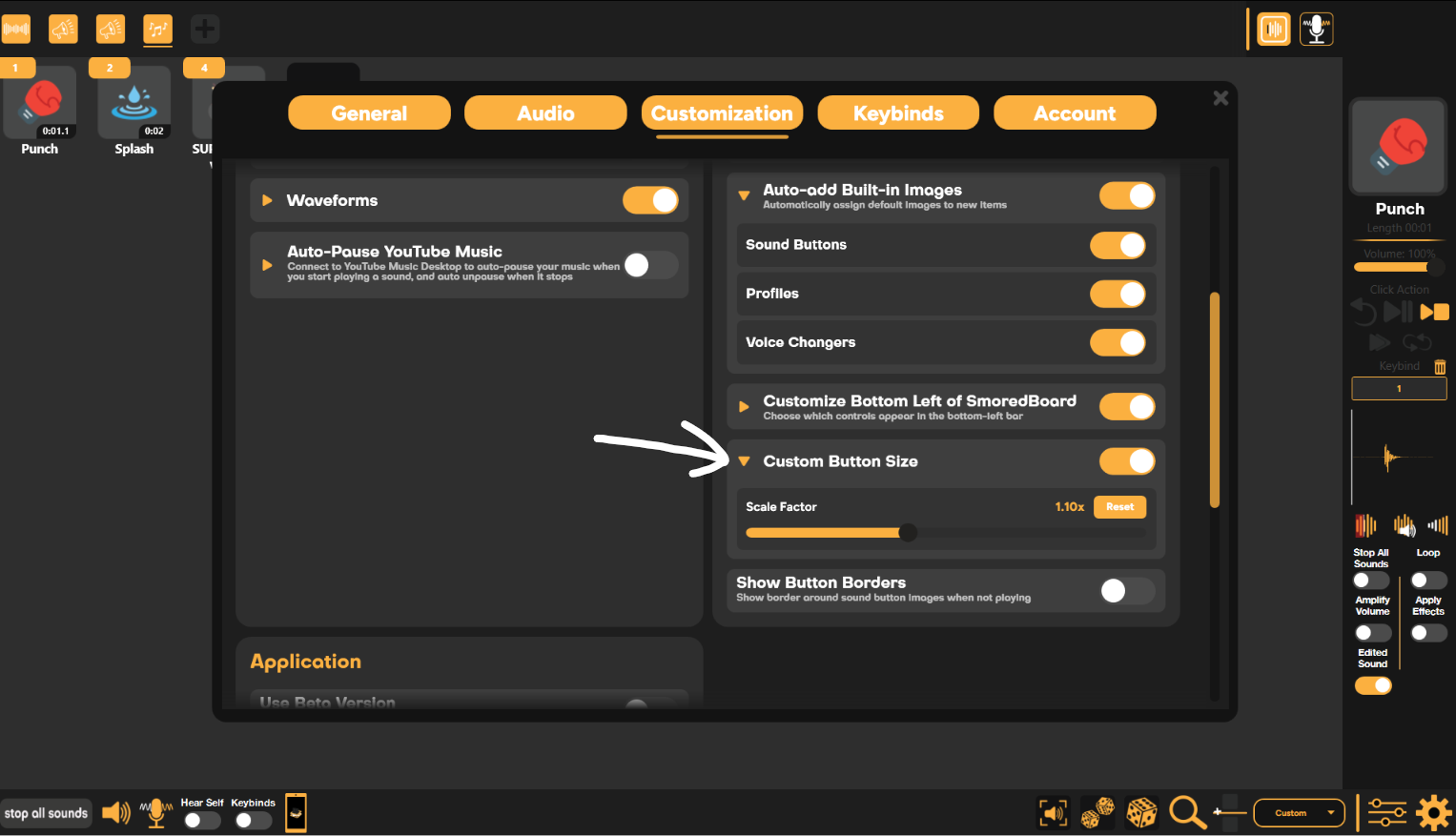
To change the size of a button, enable the toggle "Custom Button Size", then expand the setting and adjust the button size to match your preferred layout.
Still having issues? Contact Support