How To Add Effects To Sounds
Learn how to add effects to sounds in the SmoredBoard
Opening The Effects Lab
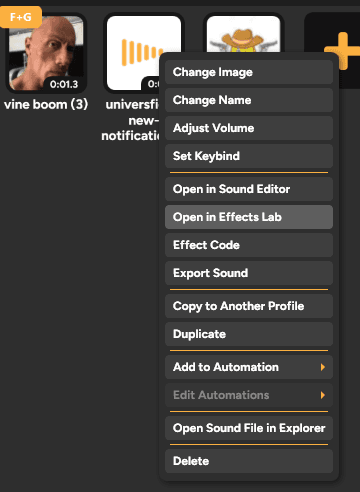
The easiest way to open the Effects Lab is to right-click a sound and then click Open In Effects Lab.
Adding and Removing Effects
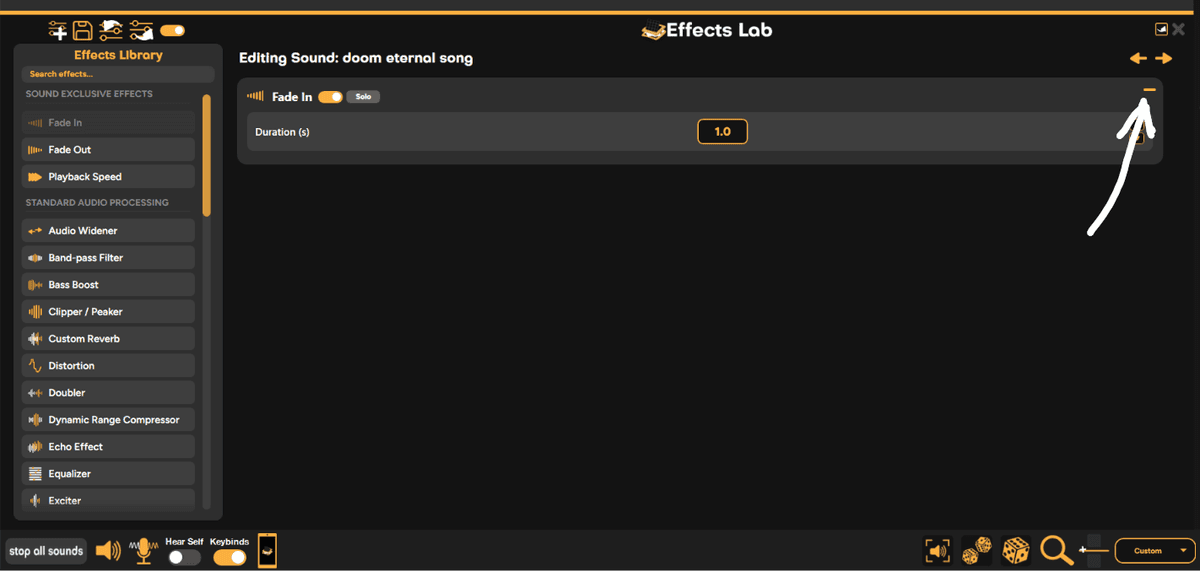
In the Effects Lab on the left side, click effects to add them or search for effects using the built-in search bar. To remove an effect, click the remove button (-).
Customizing Effects
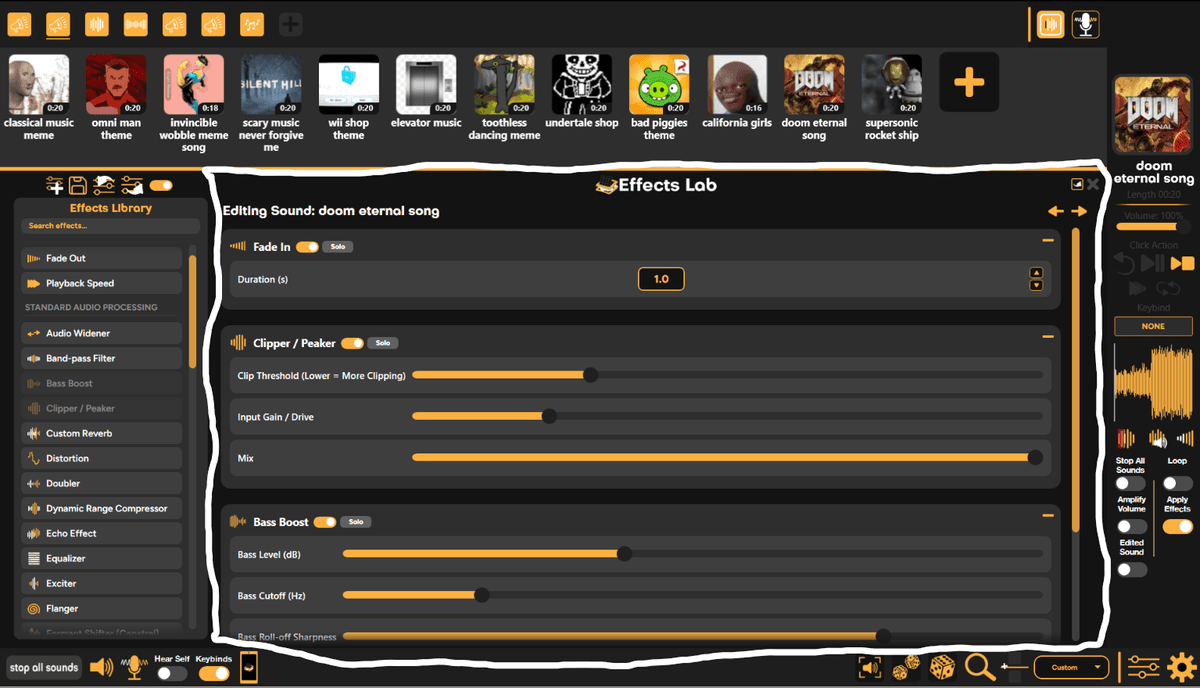
Once you add the effect(s), you can customize each one in the editing panel. Each effect has its own adjustable settings. Beside each effect's name, use the toggle to disable or enable the effect, or select the Solo button to play that effect on its own.
Saving a Preset
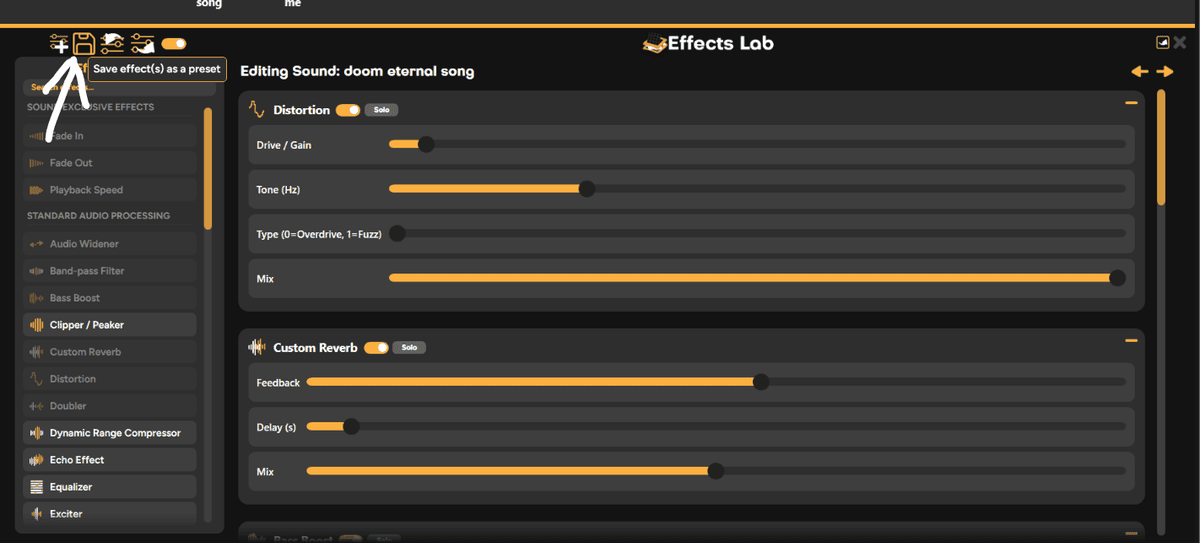
To save an effect preset, click Save effect(s) as a preset and name your preset.
Loading a Preset
To load a preset, click Load preset effects and select the preset you want to apply.
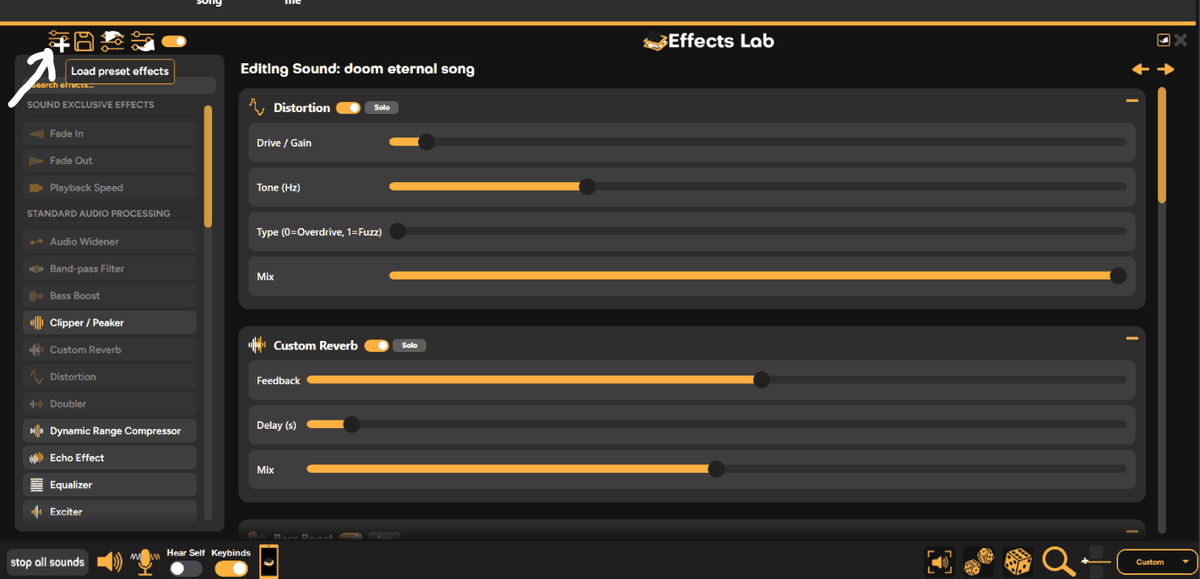
Importing an Effect Preset
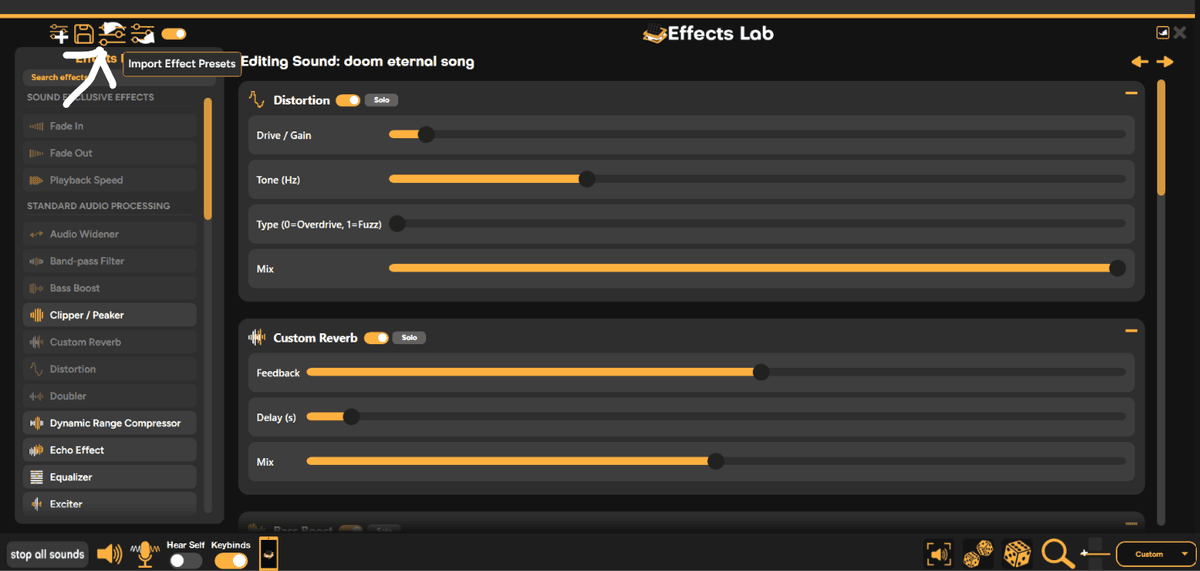
To import an effect preset, click Import Effect Presets and enter the effect code.
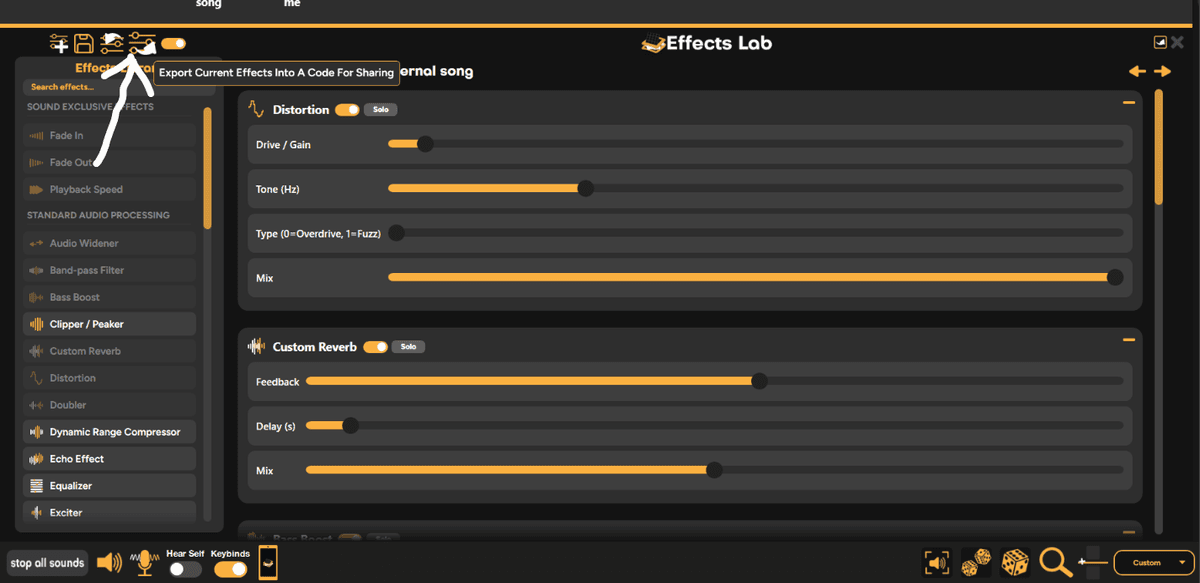
Exporting an Effect Preset
To export an effect preset, click Export Current Effects Into A Code For Sharing and copy the code to share.
Still having issues? Contact Support